


iMovie is the better pick when everything you edit on is made by Apple, and CapCut is the better pick for captioned vertical video or any device outside Apple's. In Simular's same-project beginner test, a first-time editor finished a 90-second video in 22 minutes in iMovie and 34 minutes in CapCut. The published export runs use different devices and projects, so they do not establish a speed tie or predict your render time. iMovie is free with no watermark and no plan to manage, while CapCut adds auto captions, a multi-track timeline and apps for Windows, Android and the web. Standard's paid benefits work only in the mobile app. Check the CapCut plan comparison if you need paid tools on other devices.
PDFChef writes that "CapCut Standard costs nothing," though the App Store lists Standard at $9.99 a month. CapCut's help pages name several ways a free export can carry a mark, and its free phone app upscaled the source to 4K with a deletable end card in the Dailytech phone test. Neither PDFChef nor CapCut's comparison, which covers Mac and iPhone, publishes a documented timed test, a store rating with its count or the iOS version the current iMovie needs. This page puts a beginner workflow test, export timings, store ratings, review scores, device requirements and three years of costs side by side, then tells you which one I'd use for each job.
iMovie vs CapCut at a glance
| Feature | iMovie | CapCut |
|---|---|---|
| Made by | Apple | ByteDance |
| Best for | Family, travel and school videos on an iPhone, iPad or Mac, with no paid plan for a first edit | TikTok, Reels and Shorts with captions; editing on Windows, Android or the web; layered edits |
| Runs on | iPhone and iPad (iOS 27.0 or later for the current version) and Mac (macOS 26.6 or later) | iPhone and iPad (iOS 15 or later), Android, Mac, Windows and web |
| Price | Free | Free; Standard $9.99 a month (paid benefits on phone); Pro $19.99 a month or $179.99 a year (USD reference) |
| Watermark | None | Deletable end card on a free phone export; Pro elements, template endings and some stock can add a mark |
| Auto captions | No; titles are typed by hand | Yes, on phone, desktop and web; may need Pro or use an allowance |
| Timeline | Two video layers on Mac | Multi-track |
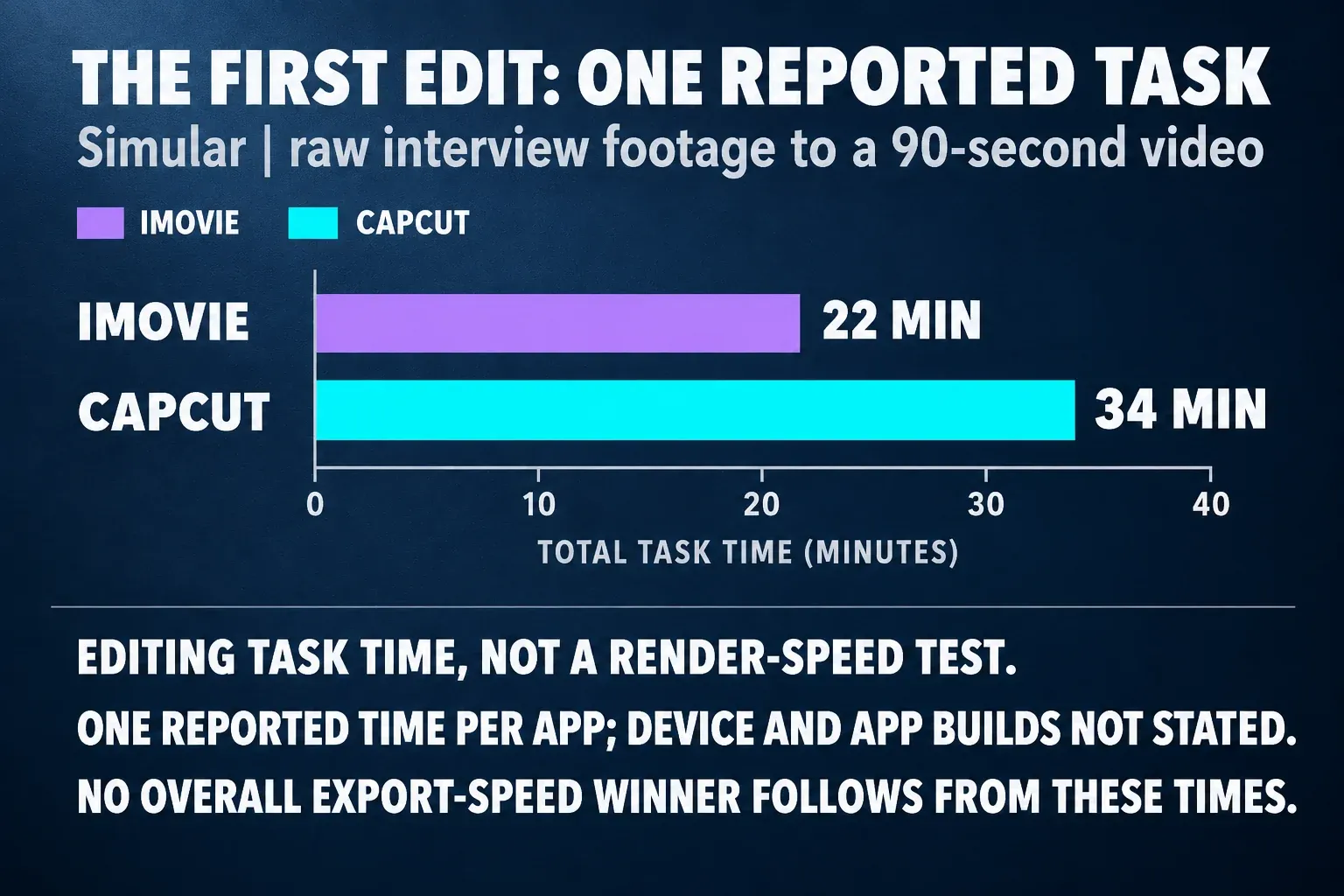
| Beginner's first 90-second video | 22 minutes | 34 minutes |
| App Store rating (US) | 4.4 from 322K ratings | 4.6 from 1.1 million ratings |
| Listed download size on iPhone | 702.6 MB | 847.7 MB |
First edit by a beginner: the workflow test
For Simular's five-week beginner workflow comparison, a user with no editing experience turned raw interview footage into a polished 90-second video in each app. The page reports 22 minutes in iMovie and 34 minutes in CapCut.
| Measure | iMovie | CapCut |
|---|---|---|
| Time to a finished 90-second video | 22 minutes | 34 minutes |
| Automatic first draft | Magic Movie made a watchable video in under 3 minutes | Not timed |
| Auto captions | None | 98.2% reported by Simular for English; script and scoring method not stated |
CapCut took about 55% longer, roughly 12 extra minutes on a 90-second video. That is one source without a per-app repeat count or a reported range, and the page gives no dated test window, device or app versions. Its overall speed labels conflict with its own 19-minute InShot result, so I would keep the iMovie/CapCut pair without the ranking. Simular also sells Sai, an AI video agent it includes on the same page, and a few of its CapCut details are out of date: it lists a $7.99 Pro plan and free 4K exports with no watermark, which the price and watermark sections below correct. Use the reported pair as one beginner's experience, rather than a prediction of your first edit. Magic Movie on iPhone or iPad suits a simple album video. CapCut's automatic captions are more useful for a talking-head cut. The timing alone does not show what caused the difference.
Export times and free-export outcomes
The timed runs below use different devices, projects and output settings. They describe those setups, not a controlled export race between the apps. The Dailytech rows record export settings and outcomes without a reported render time.
| Test | App and device | Video and setting | Render time | Seconds of render per second of video |
|---|---|---|---|---|
| OWC, December 2020 | iMovie on a 2019 16-inch MacBook Pro, Core i9, 32 GB | A 2:03 4K project, exported at 4K, High quality and Better Quality compression on macOS 11.0.1 | 261.3 s | 2.12 |
| OWC, December 2020 | iMovie on an M1 MacBook Air, 16 GB | The same project and setting | 191.5 s | 1.56 |
| Dailytech, October 2026 | Free CapCut 19.6.0 on a Galaxy A31 outside the US | About 30 seconds from a synthetic 1080p source, upscaled to 4K and 25 fps with a deletable ending | Not reported | Not calculated |
| Dailytech, October 2026 | The same phone and app | The same clip at 1080p and 25 fps after removing the ending | Not reported | Not calculated |
| HitPaw, updated November 11, 2026 | CapCut; device, plan and app build not stated | 60 seconds with overlays and music in HitPaw's 1080p/60 fps scenario | 42 s | 0.70 |
OWC used titles, an audio track, stabilization and the magic-wand enhancement; it did not name the exact iMovie build or repeat count. HitPaw does not name its device, plans, app builds or repeat count, and its page-update date does not establish the test date. The OWC iMovie runs and the CapCut phone exports are separate historical results, with different hardware, projects, years and output settings. They do not establish equal rendering speed or a time estimate for your next 4K export. HitPaw sells its own video tools; its currently published 42-second result belongs to CapCut, while Canva took 105 seconds. The older OWC runs also predate iMovie 10.4: the Mac App Store version history for iMovie describes segmented HEVC and H.264 export on specified Apple Silicon Macs running macOS Sonoma or later. Choose by device support and the editing tools below, then check a short representative export if turnaround time matters.
TechPP also reports CapCut exports at 4K and 60 fps on three phones. In TechPP's three-phone export test, updated May 1, 2025, CapCut exported one 4K clip at 60 fps in 1:45 on a OnePlus 13, 1:51 on a OnePlus 13R and 3:25 on a mid-range Nord CE4. These three phone results are useful device examples, but they do not establish how quickly iMovie would export the same project. Speed isn't the reason to choose here. If an export drags in CapCut, our CapCut export settings guide shows which resolution, frame rate and bit rate to lower first.
Captions and vertical video
This is where CapCut wins outright. iMovie for iPhone and iPad has 11 animated title styles you can place and restyle, but no automatic captions: every line of text is a title you type and time yourself. CapCut transcribes speech into timed captions on phone, desktop and web, and Simular reports 98.2% English accuracy without publishing its script or scoring method. Use the automatic text as a draft and check names and timing. Auto captions can sit behind Pro or a limited allowance depending on your account, and our CapCut auto captions guide explains what the free plan gets. For the bouncing, word-by-word look that Shorts and TikTok use, see our guide to word-by-word captions in CapCut.
Vertical video follows the same split. iMovie can edit portrait footage. Its quick shares through Mail and Messages use 360p and 30 fps, according to Apple's iMovie for iPhone sharing guide. CapCut lets you switch a project's aspect ratio for TikTok, Instagram or YouTube, and our guide to auto reframe in CapCut turns a landscape cut into a vertical one. Our YouTube Shorts size and TikTok video size guides list the numbers to export at.
Store ratings, review scores and listed download size
| Measure | iMovie | CapCut |
|---|---|---|
| US App Store, iPhone and iPad | 4.4 from 322K ratings | 4.6 from 1.1 million ratings, #1 in Photo & Video |
| Google Play (US) | No Android app | 3.5 from 13.2 million reviews, 1B+ downloads |
| Mac App Store (US) | Not enough ratings to show an average | Desktop app compared below |
| Listed download size | 702.6 MB on iPhone; 3.6 GB on Mac | 847.7 MB on iPhone |
| Editorial review scores | TechRadar 3 (2020) and Tom's Guide 4 (2021), both discussing Mac, with Tom's Guide also covering iOS; median 3.5 from 2 | TechRadar 4, MobileAppDaily 4, PCMag 3.5 for the desktop app; median 4 from 3 |
CapCut edges iMovie in both the App Store and the review scores, but neither gap is wide: 4.6 against 4.4, and a median of 4 against 3.5. The iMovie scores are also old. TechRadar's 3 out of 5 came with the complaint that iMovie "hasn't been properly updated in years," and Apple has shipped updates since, so I'd weigh that score less than CapCut's newer ones. CapCut's 3.5 on Google Play is the number to watch if you edit on Android, so read recent reviews for your phone model before paying. The listed iPhone download is about 145 MB smaller for iMovie, and our guide to freeing CapCut storage on iPhone helps if CapCut is the one eating space.
Updates and the devices each app needs
Check this before anything else, because it can decide for you. The current iMovie for iPhone and iPad, version 3.0.6 listed on October 22, requires iOS 27.0 or later, according to the iMovie App Store listing. The iMovie 10.4.5 Mac listing, listed on September 29, gives macOS 26.6 or later in its compatibility field, while its description asks for macOS 26.4, 4 GB of memory and 3.5 GB of free space. If your iPhone or Mac can't run those versions, check what the App Store offers your device before you plan a project around iMovie. CapCut's Apple listing gives iOS 15 and macOS 10.14, while CapCut's Mac download resource gives macOS 10.15. These installation requirements differ from the higher requirements for 4K export below. CapCut also runs on Windows, Android and the web. Our CapCut for Mac guide sorts out the conflicting Mac requirements.
iMovie is still maintained, just slowly. The iPhone version got Magic Movie and 20 Storyboards in version 3.0 on April 12, 2022, log video support for iPhone 15 Pro in 3.0.2 in September 2023, and mostly fixes since. The Mac version added segmented export in 10.4 in November 2023 and Cinematic mode effects recorded in Final Cut Camera in 10.4.5, requiring macOS Golden Gate 27 or later. Ordinary iPhone Cinematic-mode editing was already in Mac version 10.3 from October 2021. CapCut updates far more often, with new templates, effects and AI tools; our CapCut AI tools guide covers what's there now.
What each app costs
iMovie is free on iPhone, iPad and Mac, with no watermark, no paid tier and no AI-credit allowance to track, per the iMovie App Store listing and its Mac App Store listing.
In Dailytech's phone test, CapCut first upscaled the 1080p source to 4K at 25 fps with a deletable end card. After that card was removed, the clean export was 1080p at 25 fps. PCMag found watermarks on free desktop exports, and CapCut's watermark help page traces marks to template endings, premium stock, the default outro and Pro elements; our CapCut watermark guide handles each case. The CapCut App Store listing shows Standard at $9.99 a month and Pro at $19.99, and CapCut's pricing page shows Pro at a USD reference price of $179.99 a year; final account pricing, taxes and offers can differ. Standard's paid benefits apply only in the mobile apps where offered, while Pro's paid benefits cover phone, desktop and web using the same account, per CapCut's help page on cross-platform subscriptions.
| Plan | 1 year | 2 years | 3 years |
|---|---|---|---|
| iMovie | $0 | $0 | $0 |
| CapCut Free | $0 | $0 | $0 |
| CapCut Standard monthly | $119.88 | $239.76 | $359.64 |
| CapCut Pro yearly | $179.99 | $359.98 | $539.97 |
| CapCut Pro monthly | $239.88 | $479.76 | $719.64 |
The monthly inputs are US App Store prices; Pro yearly uses CapCut's public USD reference. The totals assume unchanged renewals, without tax, trials or promotions. The compared Standard and Pro plans add up to $359.64–$719.64 over three years. Both apps have a $0 route, so the real question is whether CapCut's paid features earn their keep on your videos. Paying buys more AI tools, premium effects and, with Pro, paid features across the desktop and web apps on the same subscription. Our CapCut pricing guide compares the plans, is CapCut Pro worth it answers whether they earn their price, and the CapCut Pro free trial guide shows how to try Pro first.
Export rules side by side
| Rule | iMovie | CapCut |
|---|---|---|
| Top resolution | 4K (3840x2160) | 4K (3840x2160), where the device, system, app version and platform support it |
| 4K and 60 fps on a Mac | 4K shares at 30 fps; 60 fps projects share at 1080p | Desktop exports up to 4K at 60 fps when the source supports it |
| 60 fps on iPhone and iPad | At 1080p or 4K when more than half the project media is 1080p or 4K video at 60 fps | 24, 25, 30, 50 or 60 fps |
| Project format | On a Mac, the first clip you add sets the format | In the web editor, set 2K or 4K before you start editing |
| Other controls | Quality and compression on Mac; HDR on or off on iPhone | Resolution, frame rate and bit rate on phones; bit rate, codec, frame rate and resolution on desktop |
| Watermark | None | Deletable end card on a free phone export; Pro elements can mark or lock an export |
The Mac rules come from Apple's guide to 4K and 60 fps video in iMovie, and the iPhone rule from Apple's sharing guide. For a video project on iPhone or iPad, the 60 fps save option requires more than half the media to be 1080p or 4K video at 60 fps; changing the phone's camera setting will not change clips already recorded at 30 fps. CapCut's help page on 2K and 4K export makes the higher options dependent on device, system, app version and platform. For web export it specifies a modern browser and at least macOS 11 with an Intel Core i5 or Apple M1 and 8 GB RAM, or 64-bit Windows 10/11 with Quick Sync or an equivalent CPU capability and 8 GB RAM. Our CapCut export quality guide fixes soft or blocky exports.
Editing tools: where each one is stronger
iMovie is built around getting a good-looking result quickly. The iMovie for iPhone and iPad listing counts 20 Storyboards, 14 trailer templates, 8 themes, 13 filters, 11 animated title styles and more than 130 soundtracks that fit the length of your movie, plus picture in picture, green screen and split screen. It also handles Apple footage well: Cinematic-mode focus changes on compatible devices and log video recorded with iPhone 15 Pro. The limit is depth. TechRadar counted two video layers on the Mac, and Simular lists no motion tracking or multicam. Our iMovie review tours Magic Movie, Storyboards, the timeline and the export menus in full, so I won't repeat it here.
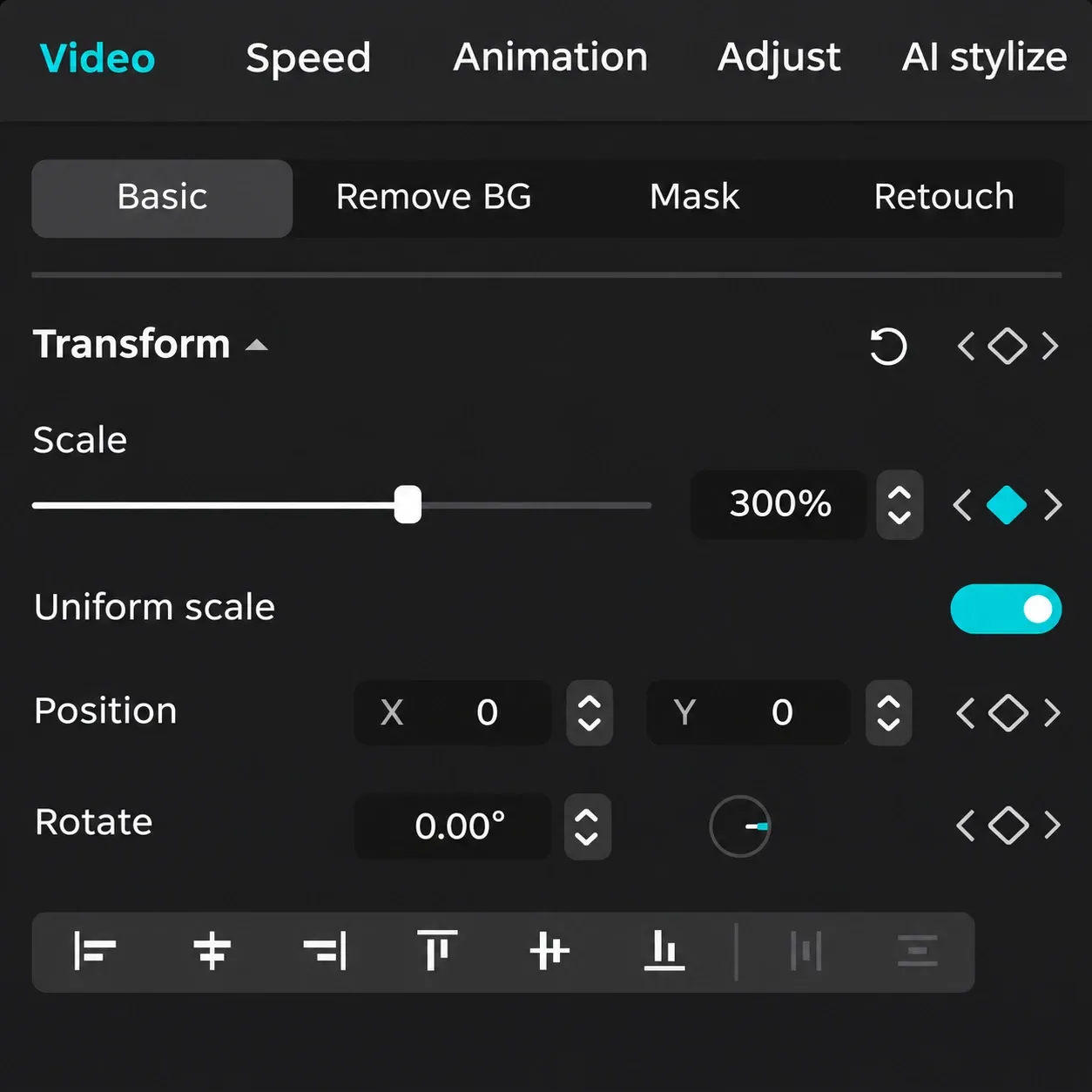
CapCut is built around the social edit. You get a multi-track timeline for stacked overlays, keyframe animation in CapCut, a large library of CapCut templates for trends and a wide range of caption styles. If you stack logos, text and picture-in-picture clips, our guide to adding overlays in CapCut shows how far past two layers you can go.
Editing on a Mac, PC or iPad
iMovie runs only on iPhone, iPad and Mac. There is no Windows, Android or web version, so an editable iMovie project cannot move to a PC; share a finished video file instead. Apple lists project transfer between iPhone and iPad and onward to Mac over AirDrop or iCloud Drive, with iMovie or Final Cut Pro for finishing. For iMovie on Mac, Apple's project-import guide warns that a project from the newest mobile version may not import. An unavailable Magic Movie or Storyboard theme falls back to the default Mac theme; HDR clips are tone-mapped for SDR display without changing the original media. Check the intended version pair before relying on the handoff. If you are weighing Final Cut Pro, our CapCut vs Final Cut Pro comparison covers it.
CapCut runs on iPhone, iPad, Android, Mac, Windows and the web, and Pro's paid benefits follow the same account across those platforms. If you edit on a bigger screen, start with our CapCut for PC, CapCut web editor or CapCut for iPad guide.
Using iMovie and CapCut together
You don't have to choose. Cut in iMovie, finish the social version in CapCut.
- Build the story in iMovie on your iPhone or Mac, where trims, titles and Apple footage are easy.
- Use iMovie's video-file export to save a master at the resolution you need. Leave any titles you plan to replace out of the master. Open the saved file and check its resolution before importing.
- Import the master into CapCut, switch the canvas to 9:16 and reframe it for TikTok, Reels or Shorts.
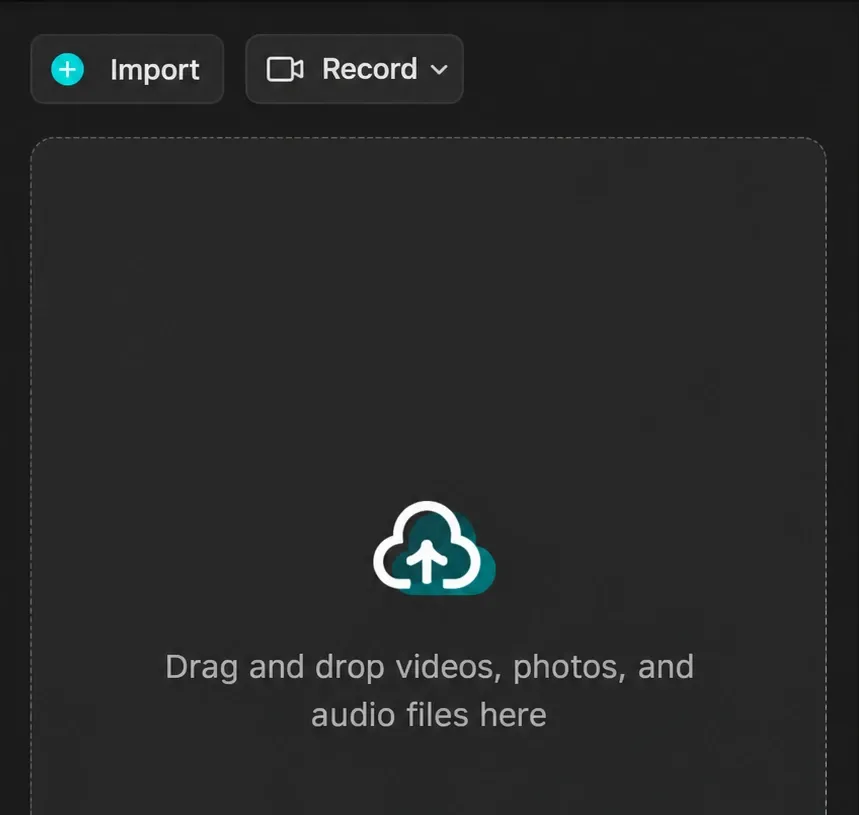
On Desktop, use Import to add the finished iMovie master. Reframing comes after the file is in the project. - Generate captions using the allowance or plan available to your account, proofread names and numbers, then export one version per platform.
Keep the master, original recordings and editable iMovie project. The master is useful for reframing the finished cut, but it cannot restore separate titles, layers or discarded footage when the story needs another edit. Our Instagram Reel size guide lists the Reels export numbers.
Which one I'd pick
- Family, travel and school videos: iMovie is free and adds no watermark. Use Magic Movie for a quick first draft on iPhone or iPad. On Mac, start a Movie project or import a Magic Movie project from your iPhone or iPad.
- Your first video ever: iMovie, which got a beginner to a finished 90-second video 12 minutes sooner in the cited same-project test.
- TikTok, Reels and Shorts with captions: CapCut. Auto captions and quick 9:16 reframing save the work iMovie leaves to you.
- A Windows PC, an Android phone, a Chromebook or a mixed household: CapCut, because iMovie doesn't exist there.
- An iPhone or Mac that can't run the current iMovie: Check whether the App Store offers an older iMovie. If you choose CapCut on iPhone, its listing gives iOS 15 as the minimum. On Mac, check the requirements of the specific CapCut listing or installer you plan to use.
- Layered edits with logos, text and picture in picture: CapCut's multi-track timeline. On a Mac, Final Cut Pro is the other way up from iMovie.
- Long 4K exports: choose by your Apple device, required tools and output settings. The separate historical runs do not identify the faster app for that job.
If neither fits, our CapCut alternatives guide compares more editors, and our InShot vs CapCut, Canva vs CapCut and Edits vs CapCut comparisons cover three more matchups. For a wider field on Apple devices, see the best video editing apps for iPhone.
How I compared
I compared both apps on the questions a beginner or creator asks before choosing: how long the first edit takes, how fast 4K exports, how captions and vertical video work, what the free export looks like, what paying adds and which devices each one runs on. The workflow timing comes from Simular's same-project beginner report, with its vendor interest, inconsistent overall ranking and missing dated test window stated. Export times come from OWC's iMovie runs on two Macs and from HitPaw and TechPP for CapCut, kept as separate historical results with their stated conditions. Dailytech contributes free-export settings and watermark outcomes, without elapsed render times. These setups do not establish a speed tie or predict another project's export time. I read both apps' US App Store listings, iMovie's iPhone and Mac version histories, CapCut's Google Play listing, Apple's 4K, sharing and project-import guides, CapCut's pricing and help pages, and the TechRadar, Tom's Guide, MobileAppDaily and PCMag reviews. Where a comparison page disagreed with a listing or help page, the listing won.
iMovie vs CapCut questions
Is CapCut better than iMovie for beginners?
For a simple first video on a compatible Apple device, I'd start with iMovie. For automatic captions or a vertical social workflow, I'd start with CapCut. One beginner's 22-minute and 34-minute runs do not establish which app every new editor will learn faster.
Which exports 4K faster, iMovie or CapCut?
The cited runs do not settle that comparison: they use different hardware, projects, years and settings. They cannot predict how long your next 4K export will take. Compare a representative section on your intended device and output settings if render time decides the choice.
Which is better for TikTok, Reels and Shorts?
CapCut. It writes timed captions automatically, switches the aspect ratio to 9:16 and reframes landscape footage, while iMovie needs every caption typed as a title. iMovie is fine for the cut itself if you finish the vertical version in CapCut.
Do iMovie or CapCut add a watermark?
iMovie never does. CapCut's free phone app added only an end card you can delete in a 2026 test, while PCMag found watermarks on free desktop exports, and Pro templates, effects or stock can mark or lock any export.
Can I get iMovie on Windows or Android?
No. iMovie runs only on iPhone, iPad and Mac, and an iMovie project can't be opened on a PC. CapCut has apps for Windows, Android and the web, so it's the one to use across devices.
Why can't I install iMovie on my older iPhone?
The current iMovie, version 3.0.6, requires iOS 27.0 or later, and the Mac version asks for macOS 26.6. Check which iMovie version the App Store offers your iPhone. If you choose CapCut, its iPhone listing gives iOS 15 as the minimum.
Is CapCut Pro worth paying for when iMovie is free?
Only if you use what it adds. The US App Store lists Pro at $19.99 a month, and CapCut's public USD reference is $179.99 a year; final account pricing, taxes and offers can differ. Pro adds premium effects, more AI tools and paid features across phone, desktop and web on one subscription. For family videos, free iMovie or free CapCut covers the job.