


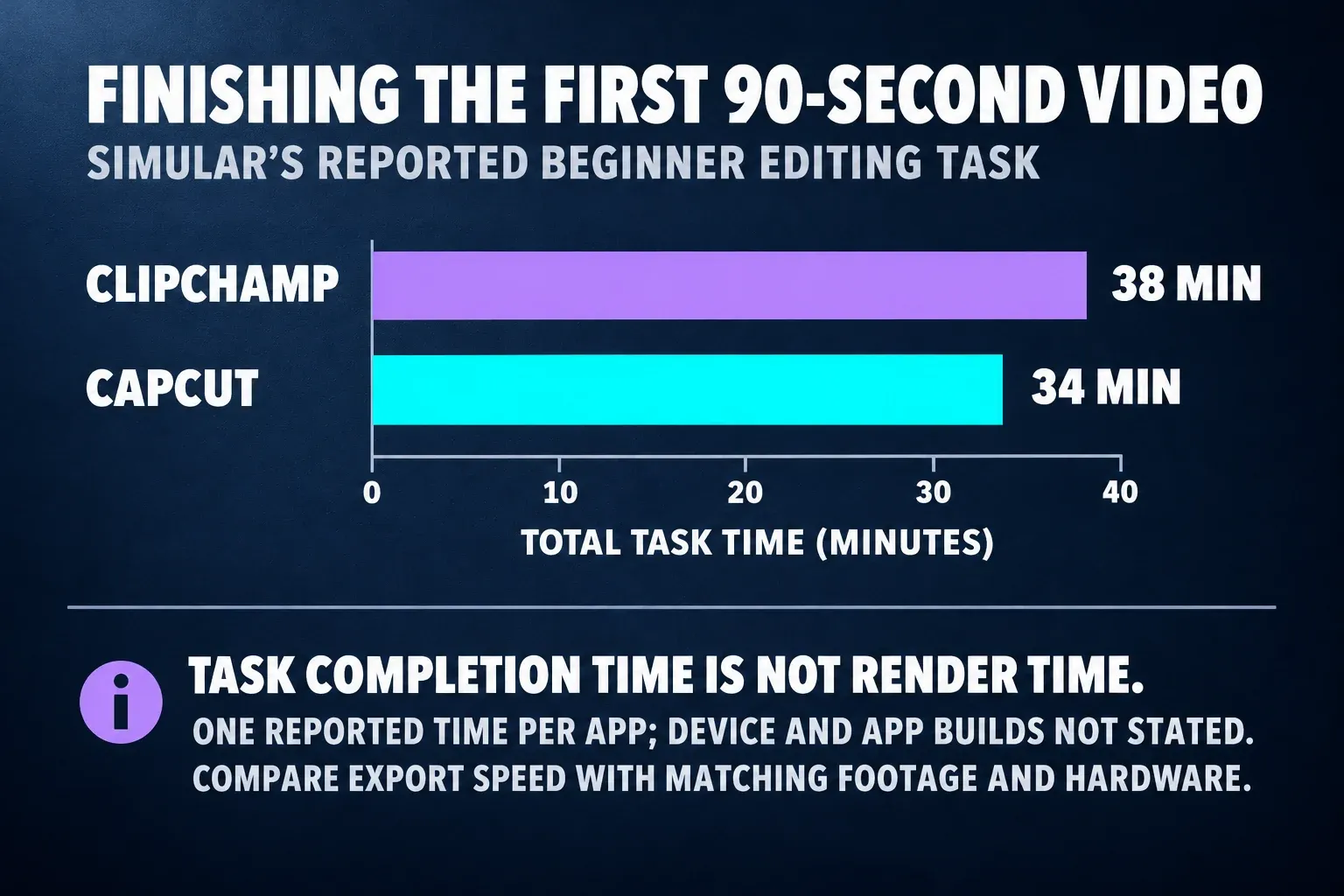
CapCut is the better pick for editing on a phone, for 60 fps exports, keyframed motion and trend templates, while Clipchamp is the better pick for clean 1080p videos on a Windows PC or in Edge or Chrome, and for anyone who already pays for Microsoft 365 Personal or Family. Simular reports that a beginner finished its 90-second editing task in 34 minutes in CapCut and 38 minutes in Clipchamp. Clipchamp's paid features come with Microsoft 365 Personal at the regular US price of $99.99 a year, which also brings 1 TB of OneDrive and the Word, Excel and PowerPoint desktop apps, against CapCut Pro's $179.99 annual reference price. The catches run both ways: free Clipchamp never adds a watermark while free CapCut can, but Clipchamp has had no phone app since its iPhone app lost support on June 9, 2026, and ordinary Clipchamp video exports come out at 30 fps; Microsoft documents a separate automatic setting for Teams recordings.
Start with the export and device limits. Microsoft recommends at least 8 GB of memory for Clipchamp, with 16 GB or more preferable, and CapCut's Windows listing asks for 2 GB of video memory. Free Clipchamp exports up to 1080p without an editor watermark; CapCut's result depends on the assets and features you use. Simular's beginner roundup, the source of the task timing below, calls Clipchamp "Windows-only," although its own table lists Windows and Web. This page lines up that beginner workflow comparison, playback and export figures, store ratings, review scores, requirements and three years of costs, then tells you which one I'd use for each job.
Clipchamp vs CapCut at a glance
| Feature | Clipchamp | CapCut |
|---|---|---|
| Made by | Microsoft | ByteDance |
| Best for | Clean 1080p videos, screen recordings and tutorials on a Windows PC or in a desktop browser; Microsoft 365 households | Editing on a phone; TikTok, Reels and Shorts; keyframed motion, 60 fps and trend templates |
| Runs on | Edge or Chrome on Windows, Mac and Linux; Chrome on a Chromebook; a Windows 10 and 11 app; no phone app | iPhone and iPad (iOS 15 or later), Android, Windows, Mac and web |
| Price | Free; premium features with Microsoft 365 Personal ($99.99 a year) or Family ($129.99 a year). Existing Clipchamp Premium subscribers can check their current entitlement. | Free; Standard $9.99 a month (mobile benefits only); Pro $19.99 a month or $179.99 a year |
| Watermark | Clipchamp adds no watermark. Remove out-of-plan premium items or switch plans to export. | Depends on template endings, some stock, the default outro and Pro elements |
| Free export | MP4 at 480p, 720p or 1080p, 30 fps for ordinary video projects | Resolution, frame rate, bit rate and codec set in the export panel |
| Top export | 4K at 30 fps for ordinary video projects with Microsoft 365 Personal/Family or Clipchamp Premium | 4K at 60 fps on desktop |
| Auto captions | Free, with an SRT download | On phone, desktop and web; may need Pro or use an allowance |
| Keyframes | Not in Microsoft's feature list | Keyframes, speed curves and tracking |
| Beginner's first 90-second video | 38 minutes | 34 minutes |
| Minimum PC memory | 8 GB, 16 GB or more preferable | 8 GB and 2 GB of video memory; 16 GB recommended |
| Microsoft Store rating (US) | 4.7 from 26,882 ratings | 4.8 from 94,011 ratings |
| Phone store ratings (US) | No phone app | App Store 4.6 from 1.1 million; Google Play 3.5 from 13.2 million |
First edit by a beginner: the workflow test
For Simular's test of beginner video editors, a user with no editing experience turned raw interview footage into a polished 90-second video in each app. CapCut took 34 minutes, the second-fastest time of the group. In Clipchamp, "our beginner exported in 38 minutes," using Auto Compose to assemble a rough first cut and then refining it, which Simular says cut total production time "by about 35%."
| Measure | Clipchamp | CapCut |
|---|---|---|
| Time to a finished 90-second video | 38 minutes | 34 minutes, second fastest |
| Head start | Auto Compose rough cut | Not reported |
| Frustration | Not reported | Not reported |
| Auto captions | Free, accuracy not measured | 98.2% reported by Simular for English; script and scoring method not stated |
Clipchamp took four minutes longer in this task and used Auto Compose for the rough cut. The page gives one reported time per app, without repeat counts, a range, a test date or a device. Simular also sells Sai, an AI video agent, and the "Windows-only" and pricing errors quoted above come from the same page. For scale, iMovie took 22 minutes and DaVinci Resolve 78 in that test, so both editors sit near the easy end. The TechRadar Clipchamp review, which scored it 4 out of 5, said "we didn't encounter a significant learning curve." For a first project, try the editor that matches your device and the output you need.
Playback and export speed on the tested hardware
The published observations below use different projects, devices or output settings. Read each result with those conditions; they are not a controlled race between the two editors.
| Test | App and device | Video and setting | Result | Seconds of render per second of video |
|---|---|---|---|---|
| TripleAReview, 2025 | Clipchamp on "a modern Windows 11 PC," specs not given | 5-minute business video at 1080p | About 4.5 minutes | 0.9 |
| PCMag, March 2025 | Clipchamp on a Surface Laptop 3 (Core i7, Iris Plus graphics, 16 GB) | 5-minute project mixing 720p to 8K clips, exported at 1080p | More than 5 minutes | more than 1.0 |
| TripleAReview, 2025 | The same PC | 30-second social clip at 1080p | About 40 s | 1.33 |
| TripleAReview, 2025 | The same PC | 10-minute 4K project | About 13 minutes, "with noticeable lag" | 1.3 |
| Dailytech, tested October 8, 2026 | Free CapCut 19.6.0 on a Galaxy A31, outside the US, without an account or trial | About 30 seconds cut from a synthetic 1080p source, exported at 1080p and 25 fps | Export succeeded without an overlaid watermark; the Ending clip was removed | Not reported |
| HitPaw, page updated November 11, 2026 | CapCut; device, app build and plan not stated | 60 seconds with overlays and music in HitPaw's 1080p/60 fps scenario | 42 s | 0.70 |
| Dailytech, tested October 8, 2026 | The same phone and app | The same synthetic 1080p source upscaled to 4K at 25 fps | Export succeeded without an overlaid watermark; an Ending clip was present | Not reported |
| PCMag, August 2026 | CapCut desktop on a Surface Laptop 3 (Core i7, Intel Iris graphics, 16 GB) | Render test, project length not stated | 48 s, "a very respectable time" | Not computable |
Keep these as separate published observations; Dailytech reports output and watermark behavior, without elapsed export seconds. HitPaw gives no test date or repeat count. The Clipchamp and CapCut runs used different footage, hardware or settings; normalizing by clip length doesn't establish a faster app. PCMag also exported a one-minute Clipchamp Auto Compose movie in about 40 seconds on a different project. The beginner task above measures the time spent finishing an edit, not rendering alone. For a deadline, compare a representative short section using matching source footage, resolution, frame rate and hardware.
Read it this way: Clipchamp leans on your computer. Microsoft's performance guide asks you to close other tabs and apps so more memory and GPU power go to the project, and to keep enough free disk space for temporary project files. Microsoft also recommends projects of 10 minutes or less, because longer exports can fail on some computers. If CapCut drags instead, our CapCut proxy editing guide and CapCut export settings guide show what to lower first.
Store ratings, review scores and install size
| Measure | Clipchamp | CapCut |
|---|---|---|
| Microsoft Store (US), Windows app | 4.7 from 26,882 ratings, about 59.3 MB | 4.8 from 94,011 ratings |
| US App Store, iPhone | No longer supported | 4.6 from 1.1 million ratings, 847.7 MB |
| Google Play (US) | No Android app | 3.5 from 13.2 million reviews |
| Editorial review scores | TechRadar 4 (July 2026), PCMag 3.5 (March 2025); median 3.75 from 2 | TechRadar 4, MobileAppDaily 4, PCMag 3.5 for the desktop app; median 4 from 3 |
On Windows, the one store where both apps meet, CapCut rates higher on more than three times as many ratings: 4.8 from 94,011 against 4.7 from 26,882. The review scores lean the same way, a median 4 for CapCut from three reviews against 3.75 for Clipchamp from two. TechRadar called Clipchamp "a very capable video editor, especially for beginners," with watermark-free exports on the free plan, and marked it down because it "does not offer a standalone plan" and "cannot generate AI videos or images from prompts." CapCut's 3.5 on Google Play is the number to watch if you edit on Android, so read recent reviews for your phone model before paying. Clipchamp's Windows app is also a light download, about 59 MB.
Updates and the computer each one needs
Check this before you start a big project, because Clipchamp in particular depends on the machine. Microsoft's device guide recommends at least 8 GB of memory, with 16 GB or more preferable, and says the desktop editor isn't supported in mobile browsers on Android phones, iPhones or iPads, mobile Edge and Chrome included. On a computer, Microsoft's browser guide names the latest desktop Edge or Chrome, and Safari or Firefox users who see an unsupported-browser message should switch to one of them. The Windows app needs Windows 10 or 11, updates through the Microsoft Store and had its latest update on October 23, 2026.
CapCut's Microsoft Store listing asks for Windows 10 on an x64 or Arm64 PC, 8 GB of memory, 2 GB of video memory and an Intel Core 6th-generation or Ryzen 1000 processor, and recommends 16 GB, 6 GB of video memory and an 8th-generation Core, Ryzen 3000 or Snapdragon X chip. Our CapCut for PC guide walks through the Windows install, and our CapCut for Mac guide sorts out the Mac requirements. On a Chromebook, both run in the browser, and our CapCut on Chromebook guide and CapCut web editor guide cover the CapCut side.
What each app costs
Free Clipchamp is a real editor with no watermark at all. Microsoft's watermark page says Clipchamp "does not add a visual, audio, or any other kind of watermark." If you drop a premium item into a free project, "no watermark gets added but you will not be able to export and save your video until you upgrade." Microsoft's export help also allows Clipchamp Premium. For Microsoft 365, Personal's regular price is $9.99 a month or $99.99 a year and Family $12.99 a month or $129.99 a year on Microsoft's plan comparison; the same Personal offer shows $69.99 for the first year, while the table below uses the regular annual price. The plans include 1 TB of OneDrive on Personal and 2 TB pooled on newly purchased Family subscriptions. Microsoft's storage transition rules distinguish existing subscriptions, which move to pooled storage on renewals from May 2, 2027. Microsoft's subscription changes page says the old Creator, Business and Business Platinum plans are retired, and that starting Microsoft 365 doesn't cancel an older standalone Premium subscription, so check both if you had one.
Free CapCut can export clean, depending on what you put in the video. CapCut's watermark help page traces marks to template endings, premium stock elements, the default outro and Pro elements, and our CapCut watermark guide handles each case. The CapCut App Store listing shows Standard at $9.99 a month and Pro at $19.99, and CapCut's pricing page gives $179.99 a year as a Pro reference price; final checkout, taxes and account offers can differ. Standard's paid benefits apply only in the mobile apps in supported regions, while Pro covers phone, desktop and web, per CapCut's help page on cross-platform subscriptions.
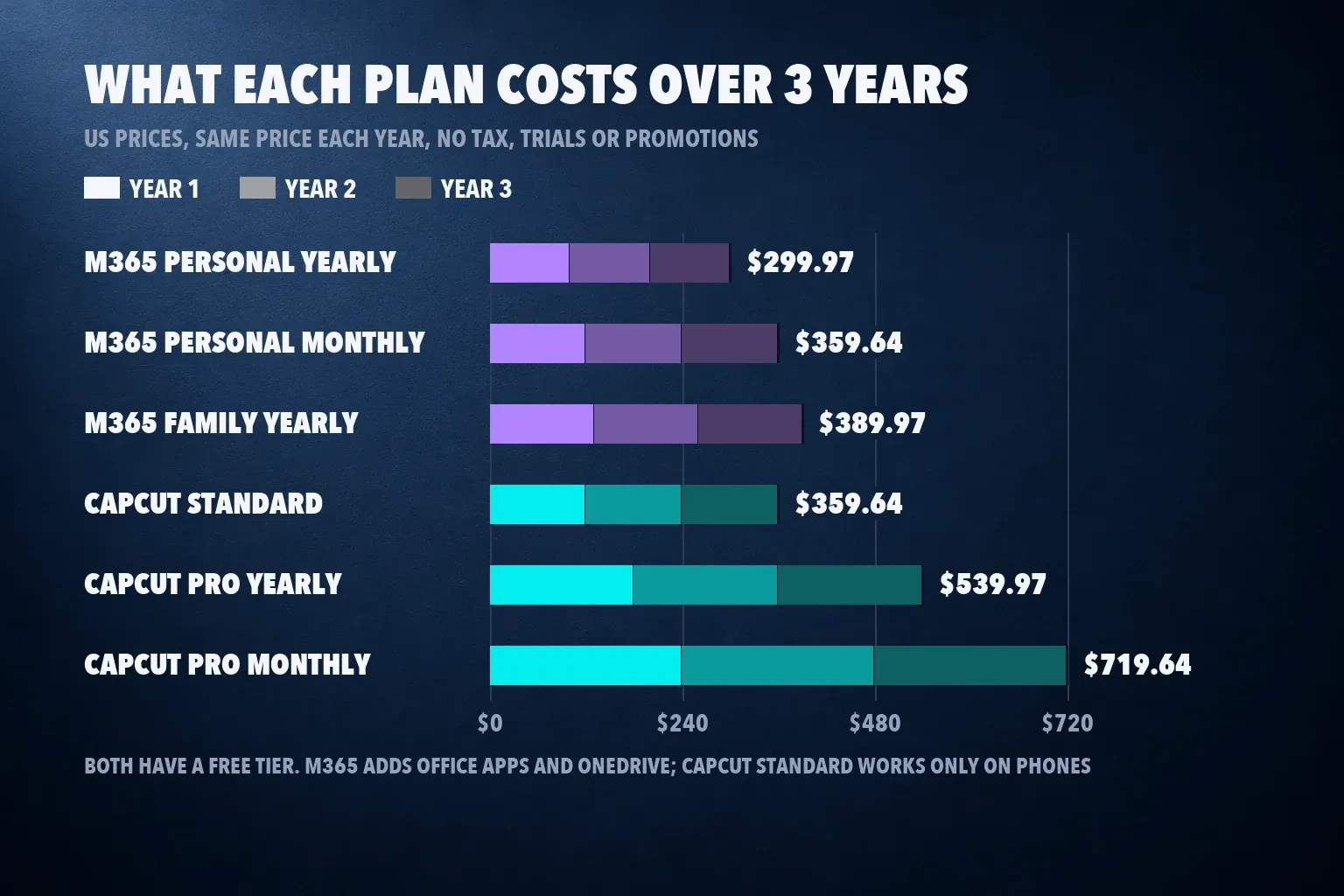
| Plan | 1 year | 2 years | 3 years |
|---|---|---|---|
| Clipchamp Free | $0 | $0 | $0 |
| Microsoft 365 Personal yearly | $99.99 | $199.98 | $299.97 |
| Microsoft 365 Personal monthly | $119.88 | $239.76 | $359.64 |
| Microsoft 365 Family yearly | $129.99 | $259.98 | $389.97 |
| CapCut Free | $0 | $0 | $0 |
| CapCut Standard monthly | $119.88 | $239.76 | $359.64 |
| CapCut Pro yearly | $179.99 | $359.98 | $539.97 |
| CapCut Pro monthly | $239.88 | $479.76 | $719.64 |
These are US regular or reference price inputs, with no tax, trials or promotions, repeated at the same price each year; they are a constant-price scenario, not a renewal quote. Three years of Microsoft 365 Personal cost $240 less than three years of CapCut Pro yearly, $299.97 against $539.97, and the Microsoft plan pays for Office and a terabyte of storage as well. The comparison isn't like for like, because CapCut also edits on phones and exports at 60 fps, while ordinary Clipchamp video projects export at 30 fps. Our CapCut pricing guide compares the plans, is CapCut Pro worth it answers whether they earn their price, and the CapCut Pro free trial guide shows how to try Pro first.
Export rules side by side
| Rule | Clipchamp | CapCut |
|---|---|---|
| Format | MP4 at 30 fps for ordinary video projects | Bit rate, codec, frame rate and resolution set in the desktop Export dialog |
| Resolutions | 480p, 720p and 1080p free; 4K with Microsoft 365 Personal/Family or Clipchamp Premium | Up to 1080p, plus 2K and 4K where the device, system and project settings allow |
| Top resolution | 4K UHD with Microsoft 365 Personal/Family or Clipchamp Premium; Microsoft's 4K guide specifies 70 Mbps | 4K (3840x2160) at up to 60 fps on desktop |
| GIF | Up to 15 seconds | If GIF appears in Desktop Export. Otherwise save a short MP4 and convert it. |
| Audio only | .m4a | Yes |
| Watermark | Clipchamp adds no watermark. Out-of-plan premium items block export. | Template endings, premium stock elements, the default outro and Pro elements |
Microsoft's export format page specifies an MP4 file "with a frame rate of 30fps" for ordinary video projects. Teams meeting recordings use automatic output settings matched to the recording. Clipchamp's 4K page lets you import 4K clips on any tier, free included, and export them at 4K with Microsoft 365 Personal/Family or Clipchamp Premium. CapCut's help page on 2K and 4K export says the desktop app exports up to 4K at 60 fps if your source footage supports it, and greys out 2K and 4K when the project timeline is set to 1080p. If you shoot 60 fps gameplay or sports, that frame rate row decides it. Our CapCut GIF export guide and audio-only export guide cover those two formats, and the CapCut supported formats guide lists what CapCut imports.
Editing tools: where each one is stronger
Clipchamp gives away more of its AI tools than you'd expect. Microsoft's autocaptions guide shows a transcript you can edit and a button that saves an SRT file, and Microsoft's plan table puts auto captions, text-to-speech, Auto Compose, image background removal, noise suppression and webcam and screen recording on the free tier. Silence removal finds pauses longer than 3 seconds and highlights them on the timeline for you to cut, and the green screen effect keys out green, blue or red. Webcam and screen recordings stop at 30 minutes. Our Clipchamp review tours the interface, recording and AI tools in full, so I won't repeat it here.
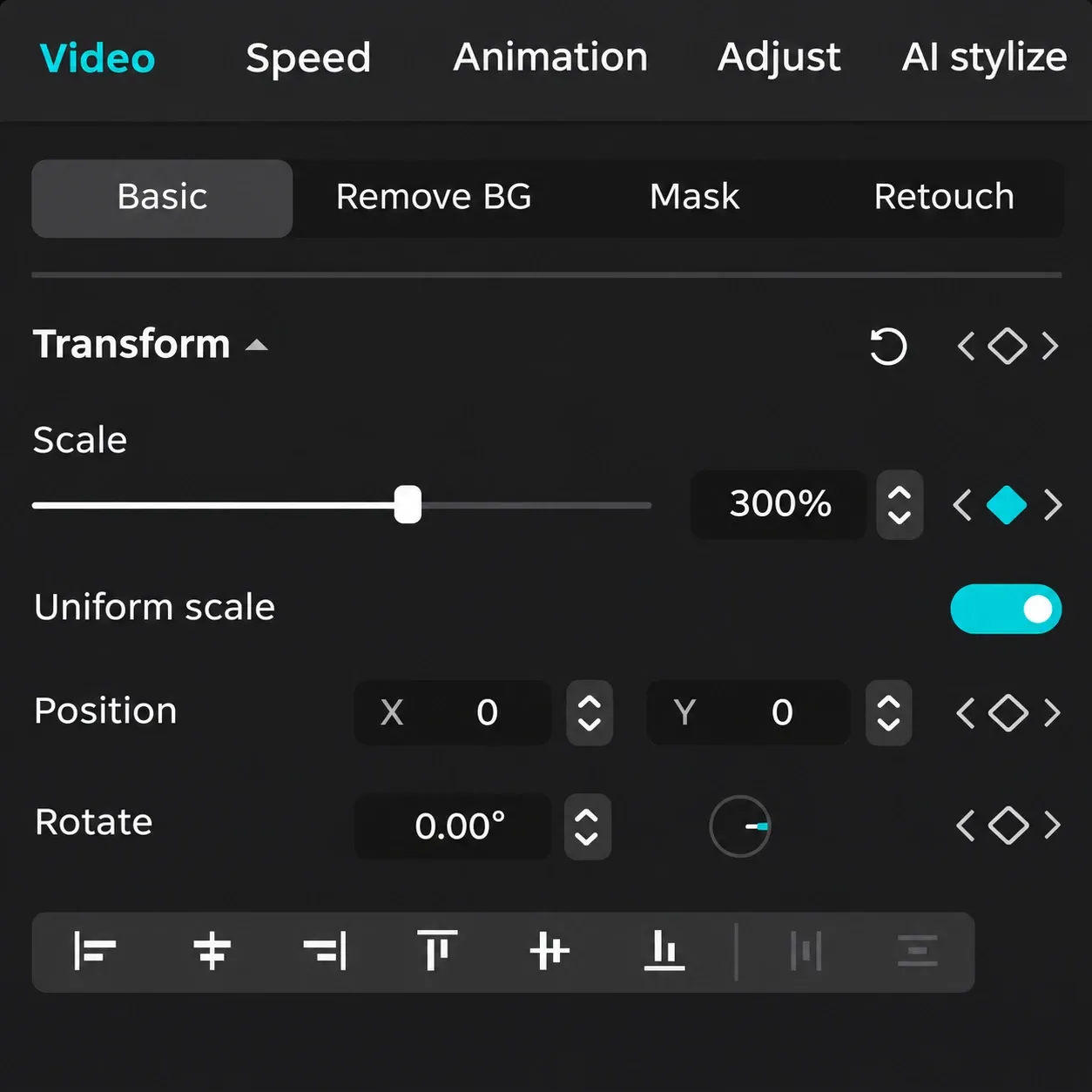
CapCut goes further on motion and short-form work. Keyframes in CapCut animate position, scale and opacity, camera tracking keeps a subject framed, and a large library of CapCut templates follows social trends. It offers similar tools, with access depending on the feature, account and plan: AutoCut includes desktop Speech Pause Detection, transcript-based editing cuts by deleting words, CapCut text to speech reads scripts aloud and the green screen tutorial covers chroma key. Our CapCut auto captions guide explains what the free plan gets, and exporting CapCut captions as SRT matches Clipchamp's subtitle file. Clipchamp's free toolset, SRT captions included, adds no watermark, with paid items removed from a free project; CapCut's edge is keyframes, tracking, 60 fps and templates.
Devices, projects and storage
CapCut follows you across devices. One Pro subscription covers iPhone, iPad, Android, Mac, Windows and the web, as our guide to CapCut Pro on multiple devices explains, and the phone apps install from our CapCut iOS download and CapCut Android download guides. Free cloud Spaces created now get no storage at all, which our CapCut 1 KB cloud storage guide explains, so keep local copies and use our CapCut project backup and transfer guide before you switch devices.
Clipchamp now stays on the computer. Microsoft's iOS deprecation notice says the iPhone app stopped being supported on June 9, 2026, and projects stored only in the app could be deleted if they weren't exported; there's no Android app. Projects save to OneDrive, per Microsoft's cloud storage FAQ, which gives free users 5 GB of cloud storage. Cancelling Microsoft 365 can shrink your OneDrive allowance, and the subscriptions page warns that past the remaining allowance you might not be able to upload, edit or sync files. If you film on a phone, move the clips to your computer first.
Business and client work
Clipchamp splits into a personal version and a work version, and Microsoft's plan comparison for work and personal versions gives the work version Standard and Premium tiers. The export format page adds that Standard is included in Microsoft 365 Business Standard and Business Premium and in Enterprise E3 and E5, and that Premium is sold standalone or as an add-on to those suites. If your company already pays for one of them, staff can edit in Clipchamp under the company's account and share projects through OneDrive or SharePoint.
CapCut works item by item: commercial permission follows each template, sound, font and stock clip, and paying doesn't widen those asset licenses. Our CapCut commercial use rights guide explains the checks, and CapCut for business covers team accounts. If you edit for clients, read both sets of terms before the first invoice.
Using Clipchamp and CapCut together
You don't have to choose. Record and cut the long version in Clipchamp on your PC, then make the social cut in CapCut.
- Record your screen and webcam in Clipchamp, remove the silences and cut the full video.
- Export a 1080p MP4 from Clipchamp Free, which carries no watermark, or 4K with Microsoft 365 Personal/Family or Clipchamp Premium.
- Import the file into CapCut and switch the canvas to 9:16. Use Auto Reframe if your editor offers it, or adjust scale and position yourself. Check where the subject lands after each cut.
- Generate captions, proofread names and numbers, then export this version at 30 fps to match the Clipchamp master. Choosing 60 fps at this stage cannot recover source frames that the 30 fps export discarded. If you need the original 60 fps motion, build that version in CapCut from the original 60 fps recordings.
Keep the Clipchamp master, original recordings and editable project. The master is useful for reframing the finished cut; it cannot restore discarded frames or separate the original editing layers. Our Instagram Reel size guide and YouTube Shorts size guide list the export numbers.
Which one I'd pick
- Free videos with no watermark on a Windows PC or in a browser: Clipchamp. Clipchamp adds no watermark to free 1080p exports, with eligible items. Remove any premium item outside your plan to export for free. That promise covers marks added by the editor, so check your imported footage too.
- You already pay for Microsoft 365 Personal or Family: Clipchamp. 4K export and premium stock are already in your plan.
- Screen-recorded tutorials and work videos on Windows: Clipchamp, with its built-in recorder, free captions and silence removal.
- Editing on a phone: CapCut, since Clipchamp no longer has a supported phone app.
- 60 fps, keyframes or motion tracking: CapCut. Ordinary Clipchamp video projects export at 30 fps, and Microsoft's feature list includes no keyframes.
- TikTok, Reels and Shorts with trends: CapCut, with its template library and 9:16 tools.
- Your first video: Try a short edit on the device you'll use. Choose Clipchamp for a clean 1080p file in a desktop browser or CapCut if you need phone editing, 60 fps or a specific template.
If neither fits, our CapCut alternatives guide compares more editors, and our InShot vs CapCut, Canva vs CapCut, Edits vs CapCut, iMovie vs CapCut and Filmora vs CapCut comparisons cover five more matchups. If you're unsure which CapCut version to use, our CapCut mobile vs desktop comparison sorts that out, and CapCut vs Final Cut Pro shows the step up.
How I compared
I compared both editors on the questions a beginner or creator asks before choosing: how long the first edit takes, how fast each one exports, what the free export looks like, which devices each runs on, what the paid upgrade costs over three years and which tools sit behind it. The workflow timing comes from Simular's same-project beginner test, with its vendor interest and missing dates stated. Elapsed export figures are attributed to TripleAReview and PCMag for Clipchamp and to HitPaw and PCMag for CapCut; Dailytech supplies export-setting and watermark observations. The projects and devices remain separate, without a pooled speed ranking. Editing-task time is reported separately from render time. I read Microsoft's Clipchamp help pages on export, 4K, watermarks, devices, browsers, storage and subscriptions, the Clipchamp and Microsoft 365 pricing pages, both Microsoft Store listings, CapCut's App Store and Google Play listings, CapCut's pricing and help pages, and the TechRadar, MobileAppDaily and PCMag reviews. For current prices, entitlements and platform support, I used the applicable store and help pages; specialist reports supply the measured observations.
Clipchamp vs CapCut questions
Is Clipchamp better than CapCut?
For free, watermark-free 1080p videos on a Windows PC or in Edge or Chrome, and for Microsoft 365 subscribers, yes. For phone editing, 60 fps, keyframes and short-form trends, CapCut is the better tool, while the four-minute difference in Simular's beginner comparison does not predict your own editing time.
Is Clipchamp really free with no watermark?
Yes. Microsoft says Clipchamp doesn't add a visual, audio or any other watermark, and free exports go up to 1080p. A premium item outside your plan blocks export. Remove that item from the project or use a plan that covers it.
Does Clipchamp work on iPhone or Android?
No. Microsoft ended support for the Clipchamp iPhone app on June 9, 2026, there's no Android app, and the desktop editor isn't supported in mobile browsers. CapCut has full apps for iPhone, iPad and Android.
Can Clipchamp export 4K or 60 fps?
4K, yes, with Microsoft 365 Personal or Family, or Clipchamp Premium; free accounts stop at 1080p. Ordinary video projects export as MP4 at 30 fps; Teams recordings use automatic settings, and GIF and audio-only exports are separate. CapCut's desktop app exports up to 4K at 60 fps.
Is Clipchamp included with Microsoft 365?
Yes. Microsoft 365 Personal (regular US price $99.99 a year) and Family ($129.99 a year) include Clipchamp's premium features, such as 4K export, premium stock and the brand kit. The work version's Standard tier is included in Microsoft 365 Business Standard, Business Premium, E3 and E5.
Which exports faster, Clipchamp or CapCut?
These runs do not establish a winner on matching hardware. They use different devices, footage and output settings. Simular reported 38 minutes in Clipchamp and 34 in CapCut to finish a beginner editing task, which is a different measure from export speed.
Does Clipchamp have keyframes?
Microsoft's feature list for Clipchamp doesn't include keyframes, and PCMag's March 2025 review reports no keyframe effect editing or motion tracking. CapCut has keyframes, speed curves and motion tracking.