CapCut Guide Hub

CapCut Tutorial: Beginner Path from First Cut to Export

Make one complete CapCut edit, then choose a current focused lesson for the exact cutting, text, audio, caption, layer or export job you need.

Last updated November 4, 2026.

Make one short video before learning every tool. Choose Mobile, Desktop or Web, import three or four clips, put them in order, remove one mistake, add a title, balance the sound and export the complete result. The eight-step exercise below links to the focused lesson at the point where you may need it.

Laptop timeline and a phone on a stand showing coffee poured into a mug in a sunny kitchen, with headphones, a notebook, a pen and a mug on a night desk, under the title CapCut Tutorial
Follow one complete edit from clips and cuts through text, audio and the final file check.

Make your first CapCut edit

Use three or four clips that total less than a minute. That length is a practice choice, not a CapCut limit. Use footage and audio you have permission to edit and publish. A simple sequence such as preparing a drink or packing a bag is enough.

For an important draft, first use the project safety guide to protect the editable project and source files. If you are practising on an existing edit, duplicate the project and work on the copy. An in-app duplicate helps you experiment, but it is not an independent backup.

Recognize three parts of the editor: the preview shows the frame at the playhead; the timeline holds video, text and audio in time order; the available controls depend on the selected clip or layer. Undo a wrong change before adding another fix.

  1. Start a blank project on one platform. On Mobile, look for New project. Desktop documentation uses Create project; Web uses New video. Labels can change, so choose the blank-project control rather than a template and stay on that platform for this exercise.
  2. Import and arrange local clips. On Mobile, select media and add it. On Desktop or Web, import or upload files, then place them on the timeline. If media is missing, check whether you selected Videos or Photos, allow access only to the files you need, and make sure cloud-only originals are available locally. Then follow the clip-order lesson.
  3. Choose the canvas. Start with 9:16 for a vertical social video or 16:9 for a landscape video. These are starting choices, not the only supported shapes. Check every clip for stretching, unwanted crop or empty borders. Use the aspect-ratio guide when the source and destination differ.
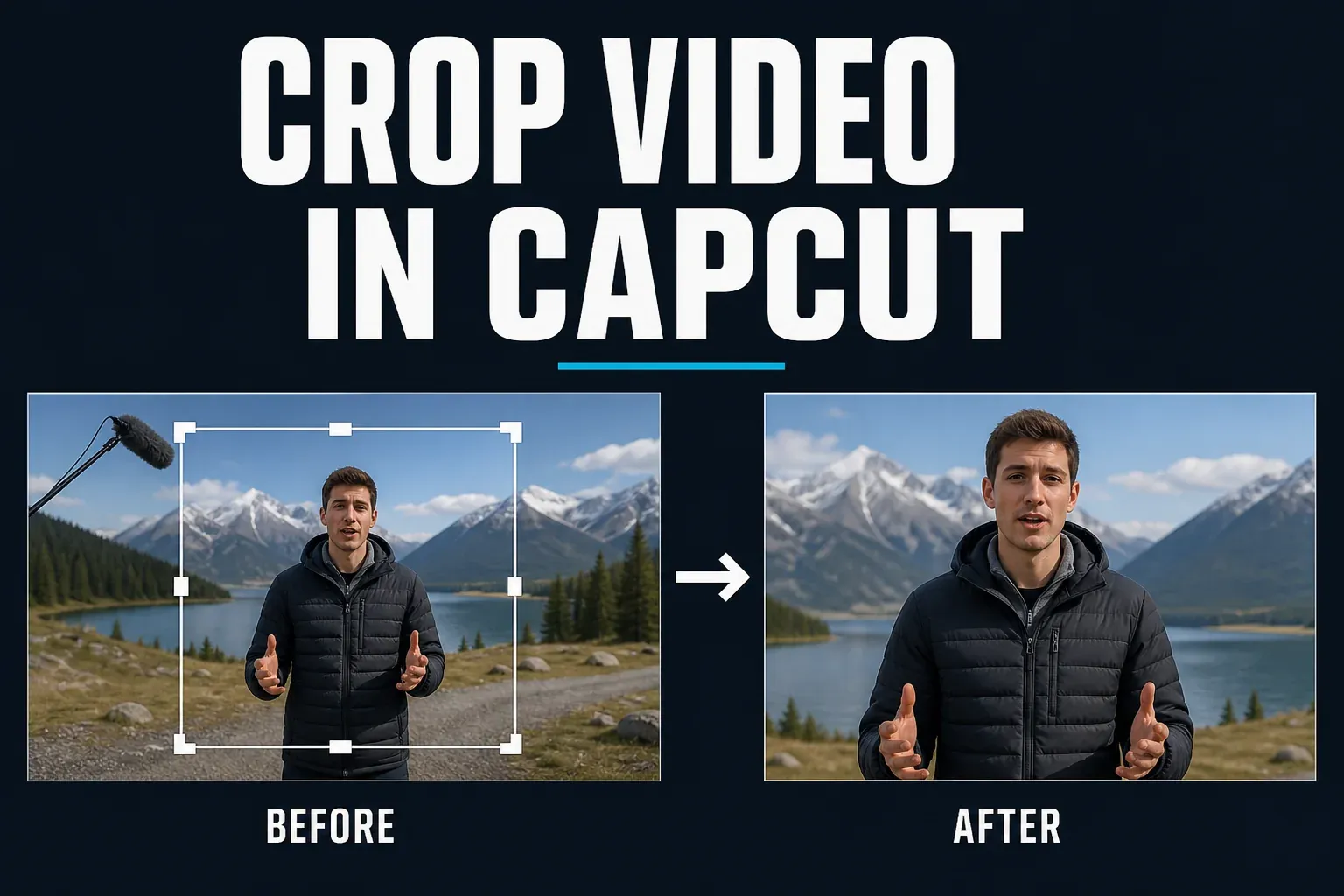
  4. Trim and split. Drag a clip edge to shorten its beginning or end. To remove a mistake in the middle, split before and after it, select the isolated segment and delete it. Check that the retained clips sit in sequence rather than overlapping or leaving a blank gap; do not assume ripple or track-magnet behaviour is active. Replay the join, then open the cut, trim and split lesson if the tracks move unexpectedly.
  5. Add a title and speech captions. Use plain text for the title and set the text layer's start and end. For spoken captions, choose the correct language and, where CapCut offers the choice, the audio source containing the speech. Correct names, timing and duplicate or overlapping lines. The text lesson and auto-captions lesson cover the separate workflows.
  6. Balance the sound. Set speech first. Add music only after the cut works, lower it until every word remains clear, and trim or fade an abrupt ending. A track appearing in CapCut does not grant every use: the materials licence distinguishes Sounds and Commercial Sounds and limits some uses. Use the music lesson for platform routes and licence checks, then the audio-mixing guide to balance voice, music and effects on separate tracks.
  7. Watch the whole timeline. Start at the first frame and check every cut, title, caption and audio change through the ending. Read text on a small screen. Remove blank frames, duplicate captions and unintended ending material. Add an overlay, transition or effect only if the finished sequence needs it.
  8. Export and inspect the complete file. Read the live export panel, including any paid-asset prompt. Save the video, open it outside CapCut and watch from beginning to end with sound. A short diagnostic export can catch a local problem, but it cannot approve the rest of the timeline. Use the export-settings guide when the destination has specific requirements.

You are done when the full saved video plays correctly and the editable draft still opens with its source media. Keep both. CapCut confirms that re-importing an exported video creates one flattened clip; it does not restore separate tracks, captions or effects.

Choose the next lesson by the job

The cards are routes, not a numbered course. Complete the core edit first. Then open one specialist lesson for the problem in front of you. Each guide appears once, and still-image or audio-only jobs are kept outside the main video path.

Core edit
Desktop video timeline, phone and storyboard notebook beside the title Is CapCut Good for Editing

Is CapCut Good for Video Editing? A Practical Verdict

Decide whether CapCut fits social videos, YouTube edits and longer projects, and when specialist finishing or handoff requirements call for another editor.

Updated Oct 17, 2026Read the guide →
CapCut feature availability across Mobile, Desktop and Web

CapCut Feature Availability: Mobile, Desktop & Web

Check whether a tool is available on your platform, account, plan, region and version.

Updated Oct 6, 2026Read the guide →
Laptop video timeline, language cards and globe beside the title Change Language in CapCut

How to Change CapCut Language on Mobile, PC and Web

Change CapCut’s interface language on Mobile, Desktop and Web, then separate menu labels from captions and voice.

Published Oct 20, 2026Read the guide →
Laptop on a night desk showing a man walking along a seaside promenade above a filmstrip split by a cyan cut line, a phone on a stand and a pair of scissors, under the title Cut, Trim & Split

How to Cut, Trim & Split Video in CapCut

Shorten clip edges, remove a middle section and check the join without confusing trim with crop.

Updated Oct 6, 2026Read the guide →
Video scene thumbnails and cut boundaries on a monitor under the title CapCut Split Scenes

CapCut Split Scenes: Detect Cuts in a Video

Run Split scenes on Desktop to break one video into its shots, then check every join, the audio and captions before export.

Published Oct 30, 2026Read the guide →
CapCut playhead aligned with a video frame on the preview and timeline

What Is the Playhead in CapCut? Move and Split Precisely

Understand the timeline marker, move it accurately and split on the intended frame across Mobile, Desktop and Web.

Updated Oct 5, 2026Read the guide →
Video timeline with diamond markers beside a notebook under the title CapCut Markers

CapCut Markers: Add Timeline Cues and Edit Notes

Add timeline or clip markers on Desktop to flag edit decisions you still need to make, without cutting, animating or exporting anything.

Published Oct 31, 2026Read the guide →
Laptop with a selected title box over a night street clip and a text clip on the timeline, beside a phone showing text style swatches, under the heading CapCut Add Text

How to Add Text in CapCut for Mobile, PC and Web

Add a readable title, position it and set its start and end times.

Updated Oct 17, 2026Read the guide →
Best CapCut Fonts title beside a monitor showing a large Aa type sample over an ocean sunset frame, with printed type specimen cards

Best CapCut Fonts for Captions, Hooks and Brand Videos

Give each font a job: a readable family for captions, a bolder face for short hooks, then check both on a phone.

Published Oct 27, 2026Read the guide →
Laptop title card, letter blocks and type sheets beside the title Custom Fonts in CapCut

How to Import Fonts into CapCut on PC and Mac

Install a licensed font on Windows or with Font Book on Mac, find its family in CapCut and fix a missing style without resetting the whole font library.

Published Oct 17, 2026Read the guide →
Sunset video with translucent text on an editing monitor beside the title Transparent Text in CapCut

Transparent Text in CapCut: Opacity and See-Through Effects

Set text opacity, compare blend effects, and choose the right approach for hollow or see-through letters.

Published Oct 16, 2026Read the guide →
Poster with a curved Sunset title on an editing monitor beside the title Curved Text in CapCut

CapCut Curved Text: Make an Arc on Mobile or Desktop

Bend a title into an arch or circle with Curve, then check that every letter still reads in motion.

Published Oct 28, 2026Read the guide →
Laptop with a sunset beach clip, a music library list with one highlighted track, a cyan waveform and volume slider, beside a phone and headphones, titled Add Music in CapCut

How to Add Music to CapCut: Mobile, PC & Web

Add a soundtrack, keep speech clear and check the exact track licence.

Updated Oct 15, 2026Read the guide →
Guitar video and tapering waveform on a monitor beside headphones and the title Audio Fade in CapCut

How to Fade Out Audio in CapCut (Mobile and PC)

Fade the start or ending of one audio clip, align silence with the final picture, and check other tracks.

Published Oct 14, 2026Read the guide →
Video monitor with a door clip and sound waveforms beside foley props under the title CapCut Sound Effects

How to Add Sound Effects in CapCut (Mobile, PC and Web)

Find the SFX library or import a sound, align its accent with a cut, and balance it with speech and music.

Published Oct 15, 2026Read the guide →
Clapperboard, microphone and aligned video and audio tracks beside the title Sync Audio in CapCut

How to Sync Audio and Video in CapCut (PC and Mobile)

Align a separate recording, distinguish a constant offset from growing drift, and check timing after export.

Published Oct 15, 2026Read the guide →
Microphone and pop filter beside a video and waveform monitor under the title Record Voiceover in CapCut

How to Record a Voiceover in CapCut on Phone, PC and Web

Record narration with the built-in microphone tool, check a short take, then trim it and balance it against the music.

Updated Oct 21, 2026Read the guide →
Audio waveforms on a monitor beside recording equipment under the title CapCut Loudness

CapCut Loudness Normalization: Fix Uneven Audio

Level speech clips that jump in volume with Normalize loudness, then recheck music and voice together.

Published Oct 29, 2026Read the guide →
Two audio-channel waveforms on a monitor beside headphones under the title One-Sided Audio in CapCut

Fix CapCut Audio Playing in Only One Ear

Copy the working channel into the silent side, then check a short export with both ears.

Published Nov 2, 2026Read the guide →
Guitar video and separate audio waveforms beside a microphone under the title CapCut Vocal Isolation

CapCut Vocal Isolation: Keep the Singing or Remove It

Pick Keep vocal or Remove vocal for the part you need, then listen through the busiest passages before you export one version.

Published Nov 4, 2026Read the guide →
Presentation on a monitor and its video on a laptop under the title CapCut Screen Recording

CapCut Screen Recording: Desktop, Web and iPhone Steps

Record a window or tab with the right sound in Desktop or Web, or capture an iPhone screen and import it.

Published Oct 28, 2026Read the guide →
Video timeline with a detached audio waveform, mute icon, and delete control for removing audio in CapCut

How to Remove Audio From a Video in CapCut

Mute a clip, detach its sound or separate stems when only part of the audio has to go.

Updated Oct 19, 2026Read the guide →
CapCut Auto Captions workflow for generating, correcting and styling subtitles

CapCut Auto Captions: Generate, Edit & Style Subtitles

Generate speech captions, then correct words, timing and line breaks.

Updated Oct 5, 2026Read the guide →
Laptop with a man speaking over two blank caption bars, caption blocks above a cyan waveform with one outlined in magenta, a phone, mic and earbuds, under the title Captions & Subtitles

CapCut Captions and Subtitles: Choose the Right Workflow

Choose the right route for generation, correction, styling, translation, file transfer or troubleshooting.

Updated Oct 8, 2026Read the guide →
Laptop export window with a vertical waterfall preview, sliders, segmented controls and a filled progress bar, beside three phones showing the clip, titled Export Settings in CapCut

Best CapCut Export Settings for TikTok, Reels & Shorts

Match output settings to the source and destination, then review the complete file.

Updated Oct 8, 2026Read the guide →
Camera and memory card beside a laptop comparing a soft and a sharp harbour skyline with three quality sliders, and a phone with the finished clip, titled CapCut Export Quality

CapCut Export and Quality: Choose Settings or Fix a Problem

Choose an export route, then diagnose blurry, stuck, lagging or missing output by symptom.

Updated Oct 8, 2026Read the guide →

Frame and sequence
Desktop workflow
Layers, motion and repair
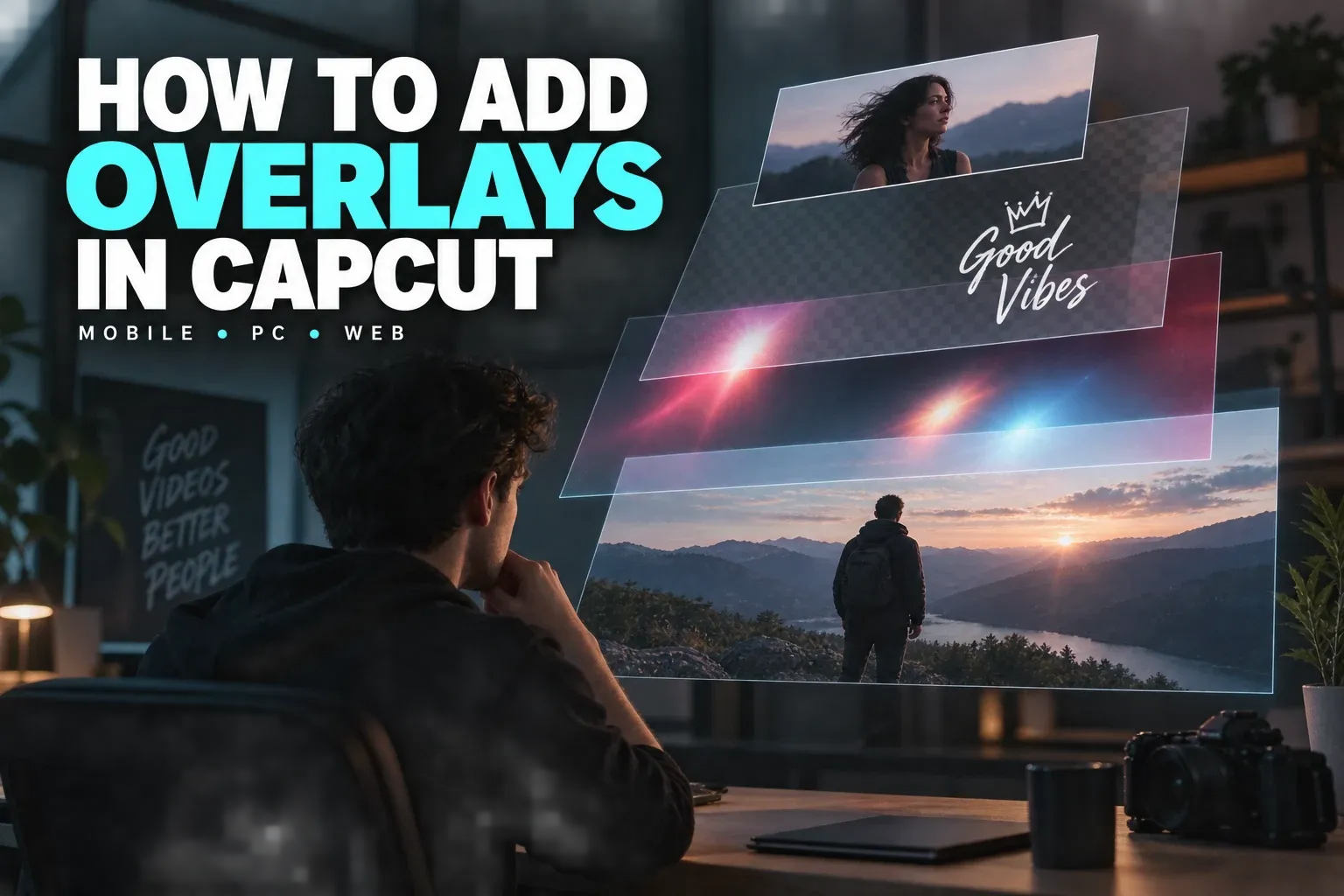
Stacked picture-in-picture, logo and light-texture layers for a CapCut overlay tutorial

How to Add an Overlay in CapCut for Mobile, PC and Web

Place a second visual above the main clip and control its timing, crop, size and opacity.

Updated Oct 4, 2026Read the guide →
CapCut Drawing title beside a tablet where a stylus draws a magenta arrow and a cyan circle over a mountain-bike clip

How to Draw on CapCut: Mobile Tools and Video Overlays

Circle a detail or add an arrow through Text and Draw on mobile, or place a transparent PNG above the clip on Desktop.

Published Oct 27, 2026Read the guide →
Rocket sticker on a travel video beside a stylus under the title CapCut AI Stickers

Create AI Stickers in CapCut Desktop

Generate one simple sticker from a prompt on Desktop and check that it still reads over moving footage at its final size.

Published Nov 1, 2026Read the guide →
Audio spectrum on a monitor beside a speaker and headphones under the title CapCut Audio Visualizer

How to Add an Audio Visualizer in CapCut

Choose a waveform sticker or an audio-driven visualizer video, then align the imported layer and avoid duplicate sound.

Updated Oct 18, 2026Read the guide →
Laptop with a night street clip and a circular mask revealing an ocean sunset, keyframe diamonds on the highlighted upper track, and a phone with a diagonal split, titled Masking in CapCut

CapCut Masking Tutorial: Mobile, PC & Keyframes

Reveal part of a layer and animate the mask only when the shot needs movement.

Updated Oct 8, 2026Read the guide →
CapCut transitions guide for mobile, desktop, and web editing

How to Add Transitions in CapCut (Mobile, Desktop & Web)

Add a transition after the cut works, and keep it only if it helps the join.

Updated Oct 5, 2026Read the guide →
Skateboarder shown at three sizes along a five-point keyframe motion path

How to Use Keyframes in CapCut: Mobile, PC & Web

Animate position, scale or opacity over time with deliberate start and end states.

Updated Oct 5, 2026Read the guide →
Laptop with a cyclist on a coastal cliff road in a cyan tracking frame, a magenta motion path and a timeline below, a phone on a gimbal and an action camera, under the title Camera Tracking

CapCut Camera Tracking: A Practical Guide to Cleaner Tracks

Choose a trackable target, review drift and use manual keyframes when the automated track stops being reliable.

Updated Oct 8, 2026Read the guide →
Before-and-after walking video with a tilted shaky frame corrected to a level stable frame

How to Stabilize Video in CapCut: PC, Mobile & Web

Reduce distracting shake and inspect the resulting crop and detail.

Updated Oct 5, 2026Read the guide →
Lamp-lit video on an editing monitor beside a studio light under the title Remove Flicker in CapCut

Remove Flicker in CapCut: Settings, Limits and Clean Results

Calm pulsing light with Remove flickers and keep intentional light changes intact.

Published Oct 25, 2026Read the guide →
Night-city video and detail crop on an editing monitor under the title CapCut Video Denoise

CapCut Video Denoise: Reduce Grain Without Losing Detail

Reduce picture grain in small steps and check that texture survives in the saved video.

Published Oct 27, 2026Read the guide →
Background-noise reduction around a speech waveform in CapCut

How to Remove Background Noise in CapCut: Mobile, PC & Web

Compare processed speech with the original and stop if the voice sounds damaged.

Updated Oct 2, 2026Read the guide →
Laptop with a BMX rider over a dirt jump above a cyan speed curve and magenta beat markers, a phone with the same rider, headphones and a metronome, under the title CapCut Velocity Edit

CapCut Velocity Edit: Speed Curve & Beat Sync

Build a speed curve around the action, then review every ramp with the music and original movement.

Updated Oct 8, 2026Read the guide →
Train video with motion trails on an editing monitor beside a camera lens and the title CapCut Motion Blur

CapCut Motion Blur: PC Controls, Settings and Fixes

Choose the clip-level Motion blur control or a separate effect strip, adjust the trail and check the moving edges.

Published Oct 16, 2026Read the guide →
Laptop with a cyclist on a night street framed by a cyan crop box, a held frozen clip with keyframes between moving clips, a phone with the zoomed cyclist, a mug, titled Freeze Frame

How to Zoom In and Out in CapCut: Keyframes, Freeze and Pan

Zoom with Scale and keyframes, then build freeze-frame zooms and pans without black edges or jumps.

Updated Oct 22, 2026Read the guide →
Photo depth layers on a monitor beside a tablet under the title 3D Zoom in CapCut

CapCut 3D Zoom on PC: Add Depth to a Photo

Give one still photo depth movement through AI stylize and Motion on Desktop, or keep a flat zoom when every edge matters.

Published Oct 30, 2026Read the guide →
Lighthouse video and thumbnails fading to black on a monitor under the title Fade Video in CapCut

How to Fade Video In and Out in CapCut, Including to Black

Fade a clip in or out with opacity keyframes and make a layered ending reach full black.

Published Oct 21, 2026Read the guide →
Laptop with a night rooftop where three blank cyan, white and magenta title bars slide in with motion trails, keyframed violet text blocks, a phone, a stylus, titled Text Animation

CapCut Text Animation and Motion Typography Guide

Animate titles with In, Out and Loop presets or keyframes, then check timing and safe areas.

Updated Oct 22, 2026Read the guide →
Video creator in front of large title letters with the city scene behind them

How to Put Text Behind a Person in CapCut

Stack the clip, the title and a subject cutout so the words sit behind the person.

Updated Oct 19, 2026Read the guide →

Blur, green screen and effects

Color

Separate output jobs
Phone with script lines beside a camera and microphone under the title CapCut Teleprompter

How to Use CapCut Teleprompter on Your Phone

Read a script while recording on Mobile, then review the take before editing.

Updated Oct 19, 2026Read the guide →
Camera above a presenter video monitor beside a microphone under the title CapCut Eye Contact

CapCut Eye Contact: Correct Gaze and Handle Missing Tools

Correct a reading glance on one Mobile clip and keep the looks that belong in the scene.

Published Oct 27, 2026Read the guide →
Laptop with a selected text box over a misty lake, a cyan arrow into a glowing voice waveform on the timeline, a phone and tablet with matching waveforms, under the title Text to Speech

CapCut Text to Speech: How to Use It

Turn selected text into a voiceover when an appropriate voice is available.

Updated Oct 8, 2026Read the guide →
Laptop with a thumbnail of a hiker on a sunrise ridge outlined in cyan beside blank magenta and yellow blocks, three smaller copies, a vertical phone version, titled Thumbnails

How to Make a YouTube Thumbnail in CapCut

Create and check a separate still image for YouTube.

Updated Oct 8, 2026Read the guide →
Laptop with a cyan and magenta triangle emblem on a transparency checkerboard, profile and video-corner previews, a phone with the round emblem, a sketchbook of triangles, titled Make a Logo

How to Make a Logo in CapCut: AI & Manual Routes

Build original logo artwork and check ownership before using it as a mark.

Updated Oct 8, 2026Read the guide →
Laptop with a dimmed night street behind a bright waveform over a greyed video row and two glowing audio rows, a phone with a waveform and headphones, under the title Audio Only

How to Export Audio Only From CapCut: MP3 and WAV

Create an audio file and verify which formats your platform offers.

Updated Oct 11, 2026Read the guide →
Laptop with a heron rising off a misty lake as one timeline frame lifts out as a still, a framed print and a phone with the same picture, under the title Export One Frame

How to Export a Frame From CapCut as PNG or JPEG

Save one timeline moment as PNG or JPEG and inspect the still outside CapCut.

Updated Oct 8, 2026Read the guide →
Laptop with a skateboarder mid-ollie above a timeline where one clip span sits outlined between In and Out markers, a phone with the same shot and a skateboard, under the title Selected Clip

How to Export a Selected Clip in CapCut (PC and Mac)

Mark a timeline range and export only that section without overwriting the main project.

Updated Oct 8, 2026Read the guide →
CapCut GIF export workflow with a looping sequence and video timeline

How to Export a GIF from CapCut: Direct and MP4 Methods

Export a GIF directly where CapCut offers it, or convert an MP4 copy with sensible size settings.

Updated Oct 22, 2026Read the guide →
Laptop previewing an origami butterfly over a checkerboard transparency grid, linked through a glowing ring to a monitor where it floats over a sunset beach, titled CapCut Transparent

CapCut Transparent Video and Alpha: What Export Actually Preserves

Find out which export keeps transparency and verify the alpha over light and dark layers.

Updated Oct 22, 2026Read the guide →
CapCut Video Compressor title beside a laptop and phone showing the same coastline video, with a waveform and two storage drives

CapCut Video Compressor: Make a Smaller Video File

Make a smaller delivery copy with a bitrate and file-size budget while you keep the original.

Updated Oct 21, 2026Read the guide →

Choose Mobile, Desktop or Web

PlatformUseful starting pointBefore you commit the project
MobileFootage already on your phone and a short touch-based edit.Check media permission, selected Photos or Videos category, available storage and whether a needed file exists locally.
DesktopA wider multi-track timeline and local folders.Keep source files in stable locations. Tool positions and template access can differ from Mobile.
WebA browser timeline where app installation is unavailable or inconvenient.Uploads, account identity, browser memory, network quality and cloud space affect the workflow. Check permission before uploading work or client media.

For setup details, use the CapCut for PC guide or CapCut online editor guide. Before importing sensitive media on any platform, confirm that the workflow is approved for it; local project storage does not prove local-only processing. Platform menus and available tools can differ by account, region, plan and version. A missing button does not by itself prove a broken installation.

Five checks that prevent a bad first export

  • Confirm the selected layer. Select the exact video, text or audio item before changing a control, then replay that section.
  • Check the join after deletion. Look for a gap or overlap and listen for a cut-off word. Track magnet and ripple behaviour are not identical on every track.
  • Preserve source files. Do not move, rename or delete them during the edit. If media is missing, protect the timeline placeholders and use the recovery guide before reinstalling.
  • Read paid and rights prompts before export. One premium asset can trigger a prompt. Replace it or make an informed purchase; do not wait until delivery time to investigate.
  • Watch the saved file. The preview and a short sample cannot prove the complete export. Check picture, sound, captions, first frame and final frame outside the editor.

How this hub was checked

Each lesson follows CapCut's beginner, import, caption, project and licence documentation, linked inside the guide that uses it.

CapCut tutorial FAQ

Where should a complete CapCut beginner start?

Make one short blank project: import local clips, arrange them, trim and split, add a title and any needed captions, balance sound, then export and watch the complete saved file. Open a focused lesson only when one step needs more detail.

Should I learn CapCut on Mobile, Desktop or Web?

Use the platform where you expect to finish the edit. Mobile suits phone footage and short touch-based work; Desktop gives a wider timeline and local-file controls; Web avoids installation but depends more on uploads, account state, browser resources and network quality.

What if CapCut cannot see my clips?

Check whether the import view is showing Videos or Photos, confirm permission for the media you need, and make sure cloud-only files are available locally. Desktop and Web use file selection or upload rather than mobile photo-library permission.

Do CapCut tutorials work on every version?

The editing logic transfers, but labels, button positions and available features can change by Mobile, Desktop, Web, account, plan, region and version. Match the lesson to your platform and confirm the control in the current interface.

Do I need CapCut Pro for my first edit?

You can build a basic edit with your own clips, plain text and available controls. Check the live export panel for paid assets or settings. Do not assume captions, AI tools, music or a particular output option are free merely because they appear in a tutorial.

Does exporting save an editable CapCut backup?

No. An export preserves the finished picture and sound, but not separate tracks, captions, keyframes or effects. Keep the editable project and source media, and verify a second editable copy before reinstalling the app or changing devices.