


Use CapCut Desktop for anything long, layered or headed for 4K at 60 fps, the phone app for short captioned clips you shot on that phone, and CapCut Web when you're on a computer that won't let you install software. The three share a name and an account, not a feature set: tools, templates and paid benefits change from one version to the next. If you pay, Pro is the plan that covers all three, while Standard's benefits work only in the mobile app.
Agency Handy reported that its Mac mini M4 exported 5 to 10 minute videos at 1080p and 30 fps in 2 to 3 minutes. Its phones began to lag on long, effect-heavy projects.
Supported phones can export 2K and 4K under CapCut's export conditions. Newly created free Spaces have 0 GB. The comparison uses CapCut's help pages and published tests with stated conditions.
CapCut mobile, desktop and web at a glance
| Feature | Mobile app | Desktop app | Web editor |
|---|---|---|---|
| Best for | Short vertical clips, captions and templates straight from the camera roll | Long or layered timelines, precise cuts, 4K at 60 fps | Quick fixes, borrowed or managed computers, Chromebooks |
| Runs on | iPhone and iPad (iOS 15 or later) and Android | Windows and Mac, native on Apple silicon and Windows on Arm | Chrome, Edge or Safari on a computer |
| Storage needed | 847.7 MB in the US App Store listing; about 800 MB in PCMag's check | Over 3 GB in PCMag's check | Nothing to install |
| Sign-in | Varies by build; Dailytech edited signed out | You can start editing signed out | Required |
| Paid plan that covers it | Standard (selected regions) or Pro | Pro | Pro |
| 4K export | On supported phones; many mid-range Android phones stop at 1080p | Up to 3840 × 2160 at 60 fps when the footage supports it | When the project is set to 2K or 4K before editing, in a supported browser |
| Without internet | Local projects stay on the phone; online templates, cloud AI and sync need a connection | Start signed out and keep work in Local Projects; online templates, cloud AI and sync need a connection | Not usable; CapCut asks for a stable 5 Mbps |
| Published export test | 105, 111 and 205 seconds for one 4K60 clip on three OnePlus phones (TechPP, May 2025) | 5 to 10 minute 1080p videos in 2 to 3 minutes on a Mac mini M4 | Not timed in these sources |
| Rating | 4.6 in the App Store; 3.5 on US Google Play | PCMag 3.5 out of 5, tested on a Windows laptop | No separate rating |
If you need Auto Cut for a first pass, look in CapCut Desktop or Mobile. CapCut's Auto Cut help lists those apps and describes a gradual rollout. For tool-by-tool differences, such as Auto Lyrics or caption-file import, our CapCut feature availability matrix tracks which version documents each one.
Published test results by version
The sources reviewed here do not time one matching project on all three versions, so each run below stays on its own hardware. The clips, settings and years differ, so I don't divide a phone's time by a computer's.
| Test | Version and device | Video and setting | Result |
|---|---|---|---|
| Agency Handy's CapCut review, September 2026 | Desktop on a Mac mini M4 | 2 to 3 minute social videos at 1080p and 30 fps | Exported in under a minute |
| Agency Handy, September 2026 | The same Mac | 5 to 10 minute videos, same setting | 2 to 3 minutes, about 0.2 to 0.6 seconds of rendering per second of video |
| PCMag's CapCut review, August 2026 | Desktop on a Surface Laptop 3, Core i7, 16 GB RAM, Intel Iris graphics | PCMag's standard render test; clip length not given | 48 seconds |
| TechPP's three-phone export test, May 2025 | Mobile app on a OnePlus 13, 13R and Nord CE4 | One 4K clip at 60 fps; length not given | 1:45, 1:51 and 3:25 |
| CapCut Web | No comparable timed export in the reviewed sources |
The composite result: at 1080p, the Mac mini M4 exported 2 to 3 minute videos at under 0.5 seconds of rendering per second of video. At 4K and 60 fps, three OnePlus phones needed a median 111 seconds for the same clip (105 to 205, three runs from one source), and the budget Nord took about twice as long as the flagship OnePlus 13.
Agency Handy used CapCut on its Mac and its phones side by side for a few weeks, and the phones "started lagging with longer projects or heavy effects," while "the desktop never broke a sweat." Its verdict matches mine: desktop for serious editing, phone for quick fixes away from the desk.
Agency Handy also timed the work around the export. Its first desktop video took 20 minutes, a typical 2 to 3 minute Instagram Reel took 25 to 30 minutes from start to finish, and auto captions for a 2-minute video took about 30 seconds to generate and 3 to 5 minutes with fixes, against 15 to 20 minutes typed by hand. That's one team on one Mac, so read it as a realistic pace rather than a lab figure.
Crashes happen on computers too. Agency Handy hit two, both with many effects stacked, and auto-save kept the work. PCMag's copy quit unexpectedly once and used 5% of the CPU while idle. If a heavy project keeps closing, our CapCut crash fixes cover each version.
Which paid plan works on which version
| Plan | Mobile app | Desktop app | Web editor | Cloud storage |
|---|---|---|---|---|
| Free | Yes; some tools and assets require payment | Yes; free tools vary by version | Yes; free tools vary by version | 0 GB for newly created Spaces |
| Standard | Paid benefits, in selected regions | No paid benefits | No paid benefits | Around 100 GB |
| Pro | Yes | Yes | Yes | Up to 1 TB |
Standard is the trap in a phone-versus-computer decision. CapCut's Standard vs Pro page calls it best for people who "primarily edit on mobile," its multi-platform subscription page says Standard benefits "are only available on the CapCut mobile app," and its Standard device notice is blunter: "Accessing membership features on PC requires a Pro subscription." Standard isn't sold everywhere, either. Prices change by country and purchase channel. Check the CapCut Free vs Standard vs Pro guide before paying. If you already pay and a laptop shows no paid tools, our guide to using CapCut Pro on several devices walks through the account checks.
Storage matters even more for free users. CapCut's free storage notice set the free quota for newly created Spaces to 0 GB, with "no free storage" for new uploads unless you upgrade. CapCut says files uploaded before the quota change should remain viewable and downloadable. Keep a restorable copy of the project and its media. Check the selected Space's available quota before transferring a project. A 1 KB meter can indicate zero upload quota, as explained in our CapCut 1 KB storage guide. If your Space has no upload capacity, finish on the device where you started, or keep a copy with our guide to backing up and transferring CapCut projects.
Pro still doesn't make AI unlimited. PCMag found that AI actions spend monthly credits, from a single credit for background removal to hundreds for video generation, so heavy AI use can drain the allowance.
Devices, requirements and 4K on each version
CapCut's 4K export help page gives a separate rule for each version, and it's the first thing I'd check before choosing.
Mobile. The App Store lists iOS or iPadOS 15.0 or later and a listed size of 847.7 MB. 4K works only on supported devices. CapCut names iPhones with an A10 chip or newer, says phones that record 4K usually export it, and warns that "many mid-range Android phones cap export at 1080p." A preset template such as a 9:16 TikTok layout can lock a project to 1080p, so tap Resolution next to Export to see what your phone offers. On Android, start from CapCut on Google Play, rated 3.5 from 13.2 million reviews, and see our CapCut Android download guide for the install traps. On a tablet, our CapCut for iPad guide covers what changes from the iPhone app.
Desktop. CapCut exports "up to 4K (3840×2160) at 60fps" when the source footage supports it, and calls Desktop "the most reliable and flexible 2K/4K export experience." For 4K it names macOS 11 or later with an Intel Core i5 or i7 or an M1 to M3 chip, or 64-bit Windows 10 or 11 with 8 GB of RAM or more. PCMag measured an install of over 3 GB, running natively on Apple silicon and Windows on Arm. CapCut's own pages disagree about the oldest supported Windows release, so check the current minimums in our CapCut for PC and CapCut for Mac guides before installing on an older machine. If playback stutters on a slower laptop, CapCut proxy editing lightens the preview.
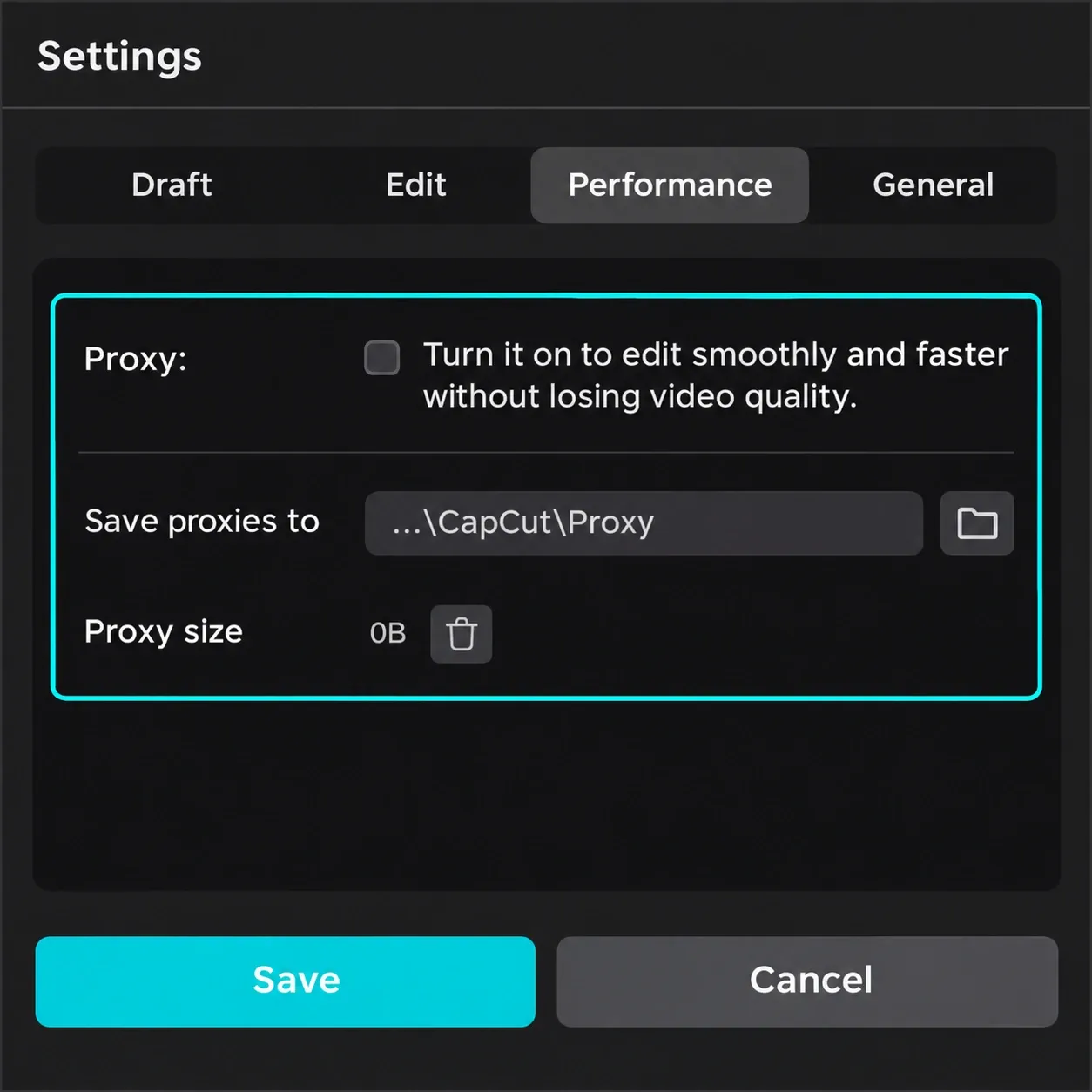
Web. CapCut Web runs in Chrome, Edge or Safari and needs "a stable connection of at least 5 Mbps." For 4K it asks for macOS 11 with an Intel Core i5 or M1 and 8 GB of RAM, or 64-bit Windows 10 or 11 with Intel Quick Sync or an equivalent and 8 GB. Set the project to 2K or 4K before editing, because the default is often 1080p, and expect a 1080p cap in browsers without WebCodecs support, which CapCut says is common in older Firefox and Safari versions. Its own tip is Chrome on a computer with at least 16 GB of RAM and a dedicated GPU, and no mobile browsers for 4K, "even on iPad." Our CapCut web editor guide covers setup, and our CapCut on Chromebook guide compares Web with the Android app there.
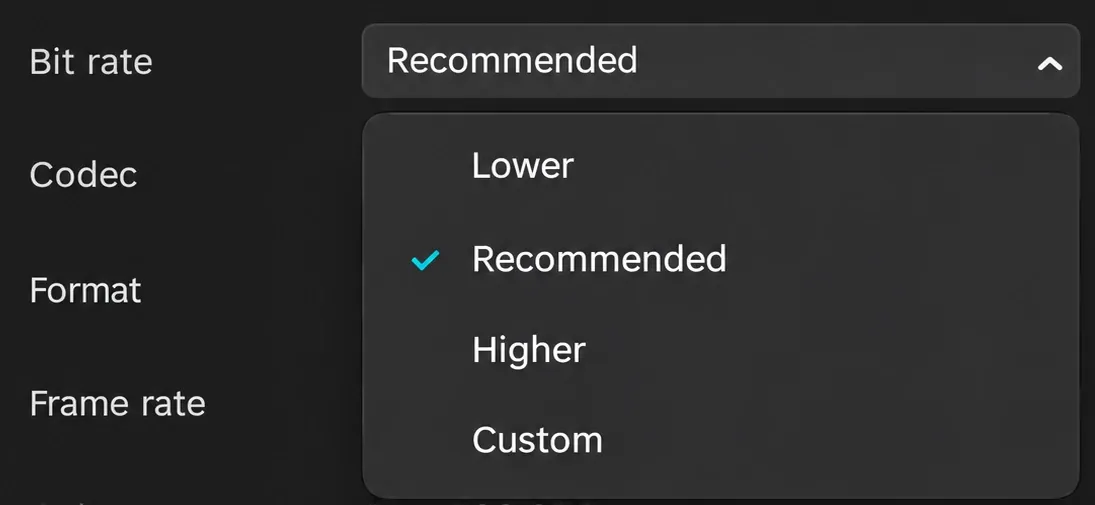
Export controls follow the same pattern. PCMag found the desktop Export dialog sets bit rate, codec, frame rate and resolution, and can export a GIF. TechPP found the phone app offers 480p up to 4K, 24 to 60 fps, a bitrate setting and a file-size estimate. Our CapCut export settings guide gives the values I'd use for TikTok, Reels and Shorts.
Moving a project between phone, computer and browser
This is where most cross-device problems start, and CapCut's help center spells out the rules.
- Use one account and one login method everywhere. CapCut's multi-device login help warns that signing in with Google on one device and email on another "may create separate accounts, even if the email address is the same."
- Pair the computer with QR login. Sign in on the phone first, then choose Sign in → QR code login on Desktop or Web, scan the code and confirm on the phone.
- Upload the project to a Space. CapCut's project history help says projects "must be uploaded to Spaces to enable cross-platform cloud usage," and a desktop project created while signed out may stay in Local Projects only. On PC, CapCut's Spaces help puts Spaces on the left side of the home screen, tied to "your specific account." Our guide to where CapCut saves projects shows each location.
- Duplicate before switching. CapCut recommends duplicating before major changes. Keep the original until you've opened and checked the transferred copy.
- Check the timeline on arrival. Agency Handy found templates and effects on the phone that don't exist on desktop, "and the other way around," and PCMag's web project opened in the web editor even when launched from the desktop app.
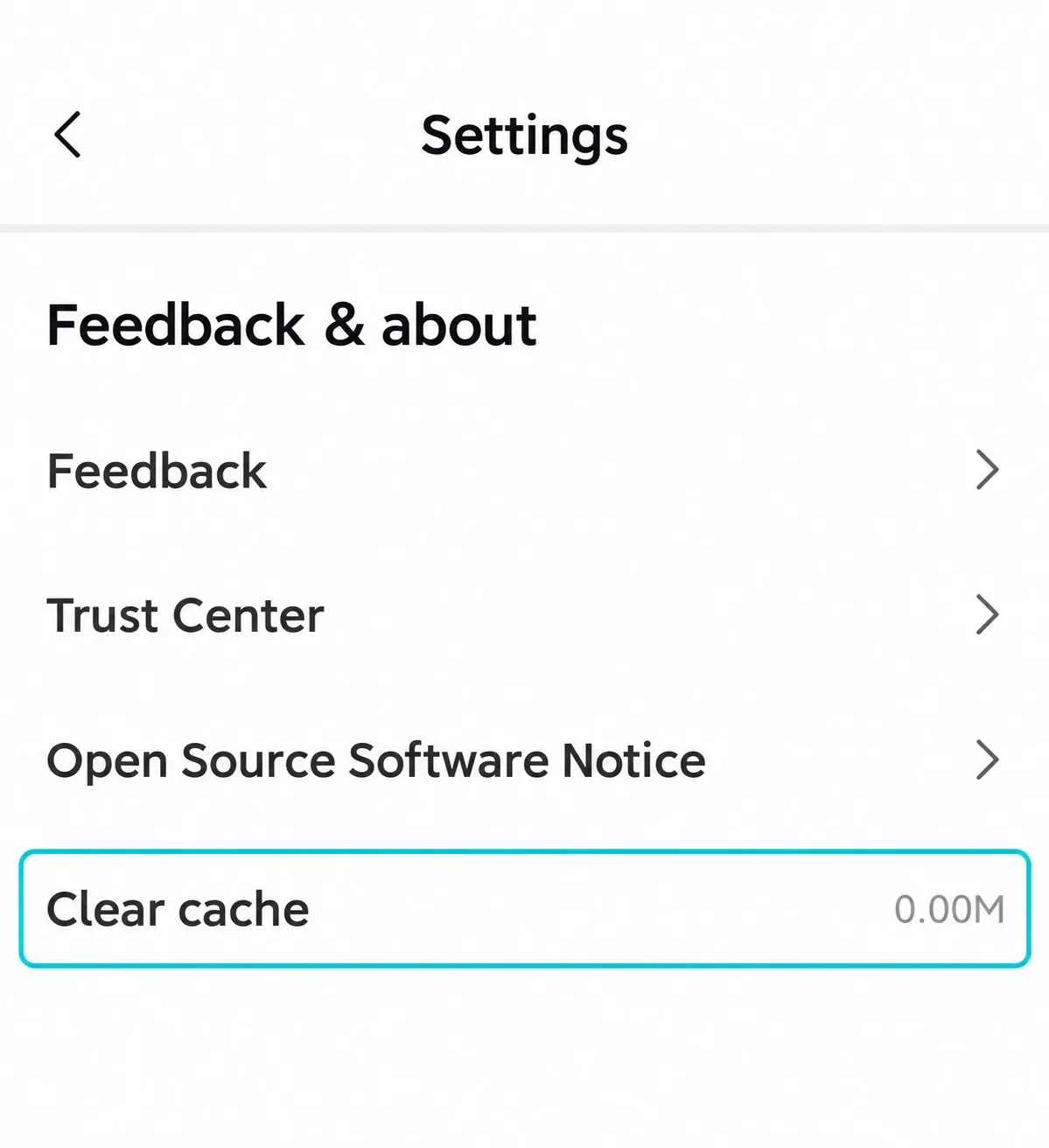
Two warnings protect local projects. On a phone, never clear CapCut's App Data in the system settings, which CapCut says "permanently deletes all local projects"; use Profile → Settings → Clear Cache inside the app. On a computer, don't uninstall Desktop during an update, which "may result in loss of unsynced local projects."
Offline and connection needs
The desktop app is my pick for a shaky connection. PCMag could start editing without signing in, and CapCut's project help says a project created signed out on PC may be saved in Local Projects only, on the computer itself. The phone app keeps local projects on the device as well, which is why CapCut warns against clearing its App Data, but PCMag required a phone/web login while Dailytech edited on Android signed out. CapCut Web needs that steady 5 Mbps, so don't plan a flight around it.
Online templates, cloud AI features and project sync are a different story on every version: CapCut's no-connection help lists them among the things that stop loading when the network drops.
CapCut's tip for patchy networks, in its no-connection help, is to turn on Auto-Save to Cloud, which only helps if your Space has room. For error messages on any version, see our CapCut no internet connection fixes.
A phone-to-computer workflow that works
You don't have to pick one version. CapCut's help center calls the web version "great for quick tweaks," and the test notes above point to the same three-stage split.
- Shoot, trim and caption on the phone. Agency Handy trimmed, captioned and exported phone footage without moving a file to the computer.
- Upload to a Space. Check the Space for enough upload capacity before you transfer. If you need paid tools on Desktop, check the Pro offer for your account.
- Finish on the computer. Use the larger timeline for precise cuts, layered text and audio, our CapCut keyboard shortcuts, and the 4K export.
- Use Web for review and small fixes on a computer that isn't yours, such as a caption typo before posting.
Which one I'd pick
- Short TikToks, Reels and Shorts shot on your phone: the phone app. You trim, caption and post without moving a file.
- YouTube videos, tutorials or anything longer than a few minutes: Desktop. In Agency Handy's side-by-side use, the phones lagged on long, effect-heavy projects and the Mac didn't.
- 4K at 60 fps: Desktop, which CapCut calls its most reliable 2K and 4K route. On a phone, check the Resolution control before trusting a 4K export.
- A school, work or library computer, or a Chromebook: Web, in current Chrome or Edge.
- A trip with unreliable internet: Desktop with local projects, and test any required templates or effects offline before you leave. Never Web.
- Paying for one version only: Standard if you edit only on your phone and it's offered where you live; Pro when you need its paid tools on Desktop or Web.
- Phone and computer together: Use the same login method and check that your Space has room for the project. Choose Pro if you need its paid tools on Desktop or Web.
If CapCut itself is the wrong fit, our CapCut alternatives guide compares other editors, and our watermark guide explains how to remove the CapCut watermark on each version.
How I compared
I compared the three versions on the questions people ask before choosing one: how fast each exports, how each handles long projects, which plan works on which version, what each needs to export 4K, how projects move between them and what works without internet. Export times come from Agency Handy and PCMag on desktop and from TechPP on phones, kept per device with the median, range and count shown and never divided across devices; the reviewed source set contains no comparable timed CapCut Web export. Plan, storage, login, sync and 4K rules come from CapCut's own help pages, prices from the US App Store, and ratings from the US App Store, US Google Play and PCMag. Where a review got a price or plan detail wrong, I left that detail out.
CapCut mobile, desktop and web questions
Is CapCut Desktop better than the mobile app?
For long, layered or 4K60 projects, I'd start on Desktop. Agency Handy reported lag on its phones with longer, effect-heavy edits and smooth editing on its Mac mini M4. CapCut calls Desktop its most reliable 4K route. For a short clip you shot on your phone, you can edit and caption it there without transferring the footage.
Is CapCut Online the same as CapCut Desktop?
No. CapCut Web runs in the browser, needs a login and a stable 5 Mbps connection, and doesn't mirror every desktop tool. Desktop installs at over 3 GB, can start signed out and works with local projects. Both export 4K under the right conditions.
Does CapCut Standard work on PC or the web?
No. CapCut says Standard benefits are available only in the mobile app, and that membership features on PC require Pro. You can still sign in on a computer with a Standard account, but the paid tools stay on the phone. Standard is also offered only in selected regions.
Do CapCut projects sync between phone and computer?
Use the same account and login method on both devices. Check that the Space has enough upload capacity, upload your project, then open it on the other device. CapCut assigns 0 GB of free upload quota to newly created Spaces.
Can I use CapCut Desktop without internet?
Partly. You can start editing without signing in, and a project created signed out may stay in Local Projects on the computer. Online templates, cloud AI features and project sync need a connection, according to CapCut's no-connection help, and CapCut Web needs a stable connection the whole time.
Can CapCut Web or the mobile app export 4K?
Yes, under conditions. Web needs the project set to 2K or 4K before editing, a supported browser and at least 8 GB of RAM. Phones export 4K only on supported devices, and many mid-range Android phones stop at 1080p.
Why does my phone project look different on desktop?
Templates and effects don't all exist on every version, so a project can arrive with missing items. Check the timeline after opening it, keep the original, and finish on the version that has the effects you used.