


CapCut is the better pick for captioned short-form video and for editing on a phone, a laptop and a browser under one plan, while Filmora is worth choosing when its desktop workflow, 8K output or a compatible XML handoff meets your delivery needs. Both editors offer tracking, masks and multicam. In Simular’s beginner editing test, one first-time editor finished the same 90-second project in 34 minutes in CapCut and 41 minutes in Filmora 14. Filmora’s US Windows offer for Advanced can cost less over the first year. Compare the first charge and renewal shown at checkout with the annual CapCut Pro price for your account. The catch sits in the free tier, because free Filmora watermarks every export, while free CapCut can export clean depending on what you put in the video.
The comparison pages discussed below contain several price and watermark errors. Wondershare's own comparison calls CapCut "a watermark-free video editor," although CapCut's help pages list several ways a free export picks up a mark. The same page prices Filmora at "$59.99/year, includes 100GB cloud storage + 2000 points," a bundle the Filmora store sells as Premium at $99.99, while $59.99 buys Advanced with 10 GB and 1,000 credits a month. Simular's roundup of beginner editors, the source of the test below, says the yearly plan and the $79.99 perpetual license both "include regular updates," yet the store limits perpetual to Filmora 16, and the same page lists CapCut Pro at $7.99 a month. The ngram comparison, one of the more careful ones, says plainly that it is "not a timed or scored competitor-output test." This page lines up a beginner workflow test, playback and export figures, store ratings, review scores, requirements and three years of costs, then tells you which one I'd use for each job.
Filmora vs CapCut at a glance
| Feature | Filmora | CapCut |
|---|---|---|
| Made by | Wondershare | ByteDance |
| Best for | Longer YouTube, tutorial and course videos on a Windows PC or Mac; tracking, masks and XML handoff | TikTok, Reels and Shorts with captions; one plan across phone, desktop and web; a first edit |
| Runs on | Windows and Mac desktop; separate iPhone (iOS 13 or later) and Android apps | iPhone and iPad (iOS 15 or later), Android, Windows, Mac and web |
| Price | Free with a watermark; Basic $49.99 a year; Advanced $59.99 a year; Premium $99.99 a year; Perpetual $79.99 once | Free; Standard $9.99 a month (phone only); Pro $19.99 a month or $179.99 a year |
| Watermark | On every free export | Depends on template endings, some stock, the default outro and Pro elements |
| Auto captions | Speech-to-text on Advanced, Premium and Perpetual, using AI credits | On phone, desktop and web; may need Pro or use an allowance |
| Tracking | Planar and motion tracking on every plan, Free included; Camera Tracking in Filmora 16 | Motion Tracking and Camera Tracking |
| Multicam | Every plan, Free included | Desktop app |
| Project handoff | XML import and export | No third-party project files |
| Top export | 8K (H.264, HEVC or ProRes) | 4K |
| Beginner's first 90-second video | 41 minutes (Filmora 14) | 34 minutes |
| Minimum PC memory | 8 GB; 16 GB recommended for HD and 4K | Check the requirements for the Windows build you will install; minimum RAM is not a playback benchmark |
| App Store rating (US) | 4.7 from 90K ratings | 4.6 from 1.1 million ratings |
| Google Play rating (US) | 4.0 from 1.18 million reviews | 3.5 from 13.2 million reviews |
| Listed iPhone download size | 678.6 MB | 847.7 MB |
First edit by a beginner: the workflow test
For Simular's test of ten beginner video editors, a user with no editing experience turned raw interview footage into a polished 90-second video in each app. CapCut took 34 minutes. Filmora 14 took 41 minutes, which Simular described as "slower than CapCut or iMovie but with noticeably higher output quality."
| Measure | Filmora | CapCut |
|---|---|---|
| Time to a finished 90-second video | 41 minutes | 34 minutes in the Simular test |
| Time before the tester felt at home | About 20 minutes | Not reported |
| Verdict on the result | "Noticeably higher output quality" | Not scored separately |
| Auto captions | Not measured | 98.2% reported by Simular for English; script and scoring method not stated |
Filmora took about 21% longer, 7 extra minutes on a 90-second video. Those are single reported times from one source; it gives no per-app repeat count, range, test date or device, and tested Filmora 14 while Filmora 16 is current. Simular also sells Sai, an AI video agent it recommends in its short answer, and the price errors quoted above come from the same page. For scale, iMovie took 22 minutes and DaVinci Resolve 78 in that test, so Filmora sits much nearer the easy end than the professional one. That run records one beginner's experience. CapCut's auto captions can reduce manual subtitle work, but the timing does not isolate that contribution. Filmora's screen is busier, and the TechRadar Filmora review, which tested on a Windows 11 PC, said its interface "is not among the simplest we have seen." Choose the workflow by the revisions and delivery it supports; the seven-minute difference does not measure editing depth.
Playback and export speed on the tested hardware
The reports below use different hardware and projects, so they cannot establish an export-speed winner between these editors.
| Test | App and device | Video and setting | Result | Seconds of render per second of video |
|---|---|---|---|---|
| Marco Tran, Filmora 15 | Filmora 15 (build 15.0.15.960) on an older Intel Core i7 laptop with 32 GB and an NVIDIA GPU | 4K H.265 10-bit timeline at half-quality preview | 25 fps on simple shots; 20 to 23 fps with three video layers, captions and a masked blur, no proxies | Playback only |
| Marco Tran, Filmora 15 | The same laptop | A standard 4K 25 fps deliverable | "Within a few per cent of 14" | No absolute time given |
| Dailytech, October 8, 2026 | Free CapCut 19.6.0 on a Galaxy A31, installed outside the US without an account or trial | About 30 seconds from a synthetic 1080p clip, exported at 4K and 25 fps | Export completed; no watermark, with a deletable ending | Not timed |
| Dailytech, October 8, 2026 | The same phone and app | The same clip at 1080p and 25 fps | Export completed without watermark or ending | Not timed |
| HitPaw, page updated November 11, 2026 | CapCut; device, build, plan and repeat count not stated | 60 seconds with overlays and music in HitPaw's 1080p/60 fps scenario | 42 s | 0.70 |
The CapCut rows report exports on their stated devices; they do not form a controlled comparison with Filmora. Marco Tran describes a playable 4K 10-bit Filmora timeline and 720p proxy generation on his laptop, which are playback and proxy observations rather than a matched render test. Wondershare claims a five-to-seven-minute render for a ten-minute 4K file on a GPU-accelerated Windows PC but does not name the hardware. Keep that vendor claim separate too. None of these observations establishes which editor will render your project faster.
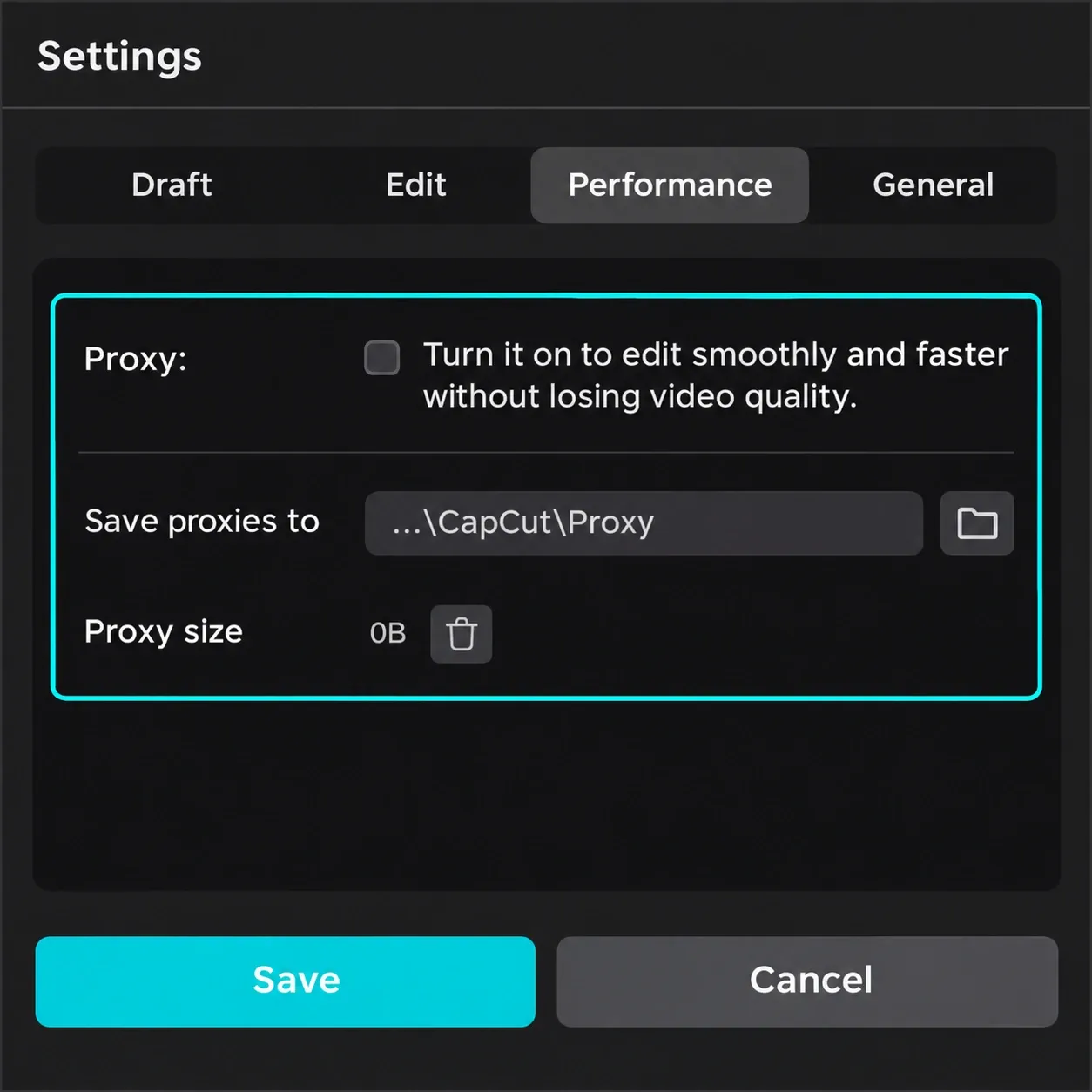
Dailytech exported an upscaled 4K test clip on a Galaxy A31; that does not establish smooth native-4K editing on a budget phone. Filmora lists stronger hardware recommendations for 4K editing. If either one drags, proxies come first, and our CapCut proxy editing guide shows the CapCut side. Our CapCut export settings guide covers which resolution, frame rate and bit rate to lower when an export is slow.
Captions and vertical video
Compare the caption allowance for your actual account. CapCut transcribes speech into timed captions on phone, desktop and web, but access can depend on Pro or a limited allowance. Simular reports 98.2% English accuracy without its script or scoring method, so check the words and timing yourself. Our CapCut auto captions guide covers access, and the CapCut AI credits guide explains metering.
Filmora meters speech-to-text through its plan and AI credits. Compare that allowance with the CapCut plan your project actually needs. On the Filmora US store, Speech-to-Text is missing from Free and Basic and is "Paid by AI Credits" on Advanced, Perpetual and Premium. Advanced includes 1,000 credits a month, Premium 2,000 and Perpetual a one-time 1,000; monthly credits are issued every 30 days and unused ones are reclaimed. Speech-to-text covers 27 languages, Filmora 16 adds Smart Text Correction for caption errors, and TechRadar counted more than 100 animated subtitle templates. Auto Reframe, which turns a landscape cut into a vertical one, also starts at Advanced. Filmora's phone app lists word-by-word AI captions on its Google Play listing, but that app is a separate purchase from the desktop editor.
For vertical edits in CapCut, our guide to auto reframe in CapCut reframes landscape footage, and our YouTube Shorts size and TikTok video size guides list the numbers to export at.
Store ratings, review scores and install size
| Measure | Filmora | CapCut |
|---|---|---|
| US App Store, iPhone | 4.7 from 90K ratings | 4.6 from 1.1 million ratings |
| Google Play (US) | 4.0 from 1.18 million reviews, 100M+ downloads | 3.5 from 13.2 million reviews, 1B+ downloads |
| Listed iPhone download size | 678.6 MB | 847.7 MB |
| Editorial review scores | TechRadar: accessible label 4/5; structured score 4.25/5 (July 2026, Windows desktop; 1 review) | TechRadar 4, MobileAppDaily 4, PCMag 3.5 for the desktop app; median 4 from 3 |
Filmora rates higher in both stores, on far fewer ratings: 4.7 against 4.6 on iPhone and 4.0 against 3.5 on Android. Store ratings judge the phone apps, though, and this comparison is mostly about Filmora's desktop editor, which only TechRadar scores here. CapCut's three review scores have a median of 4 and a range of 3.5 to 4. Filmora's single TechRadar review labels the score 4/5 for accessibility, while its structured data says 4.25/5; the conflicting representations do not support a precise tie. TechRadar praised the depth of tools and pointed out that Filmora's free plan "does not include any AI credits," so free users can't try the AI generators at all. CapCut's 3.5 on Google Play is the number to watch if you edit on Android, so read recent reviews for your phone model before paying. The listed iPhone download is about 169 MB smaller for Filmora; installed projects and cache take additional space.
Updates and the computer each one needs
Check this before you pay, because it can decide for you. Filmora's Windows tech specs ask for 64-bit Windows 7 to 11 (or Windows 10 and 11 on ARM), an Intel 6th-generation or Ryzen 3 1300X processor, 8 GB of memory and 10 GB of disk space. The graphics floor is a GTX 1050 Ti, MX550, Radeon RX 500 (not Vega) or Intel UHD 630 with 2 GB of video memory. For HD and 4K, Wondershare recommends 16 GB of memory, 4 GB of video memory and an SSD; 8K editing wants a Core i9 10th generation or Ryzen 9 3000, 32 GB and an RTX 3000 or RX 6000 card with 8 GB. Check the current requirements for the CapCut build and distribution you will install. A minimum specification does not establish smooth playback on your footage. Our CapCut for PC guide covers the Windows install, and our CapCut for Mac guide sorts out the Mac requirements. On phones, Filmora for iPhone runs from iOS 13 and CapCut from iOS 15.
Both editors update often. Filmora 16 shipped in September 2026 with Camera Tracking, Color Mask, Multi-Source Recording, XML import and export, batch export with presets and Live Photo export, according to Filmora's release notes. The yearly plans include future versions, but the $79.99 perpetual license covers updates within Filmora 16 only, and eLearning Supporter's Filmora 16 write-up put the upgrade from 15 to 16 for perpetual owners at about $25. Phone and desktop apps update on separate schedules, so check the official store listing for the device you will use. Our CapCut AI tools guide covers what CapCut's recent updates added.
What each app costs
Filmora's free edition is a full editor with a watermark: the store FAQ says "watermarks will be added to the exported files." The paid desktop plans on the US store are Basic at $49.99 a year, Advanced at $59.99 a year, Premium at $99.99 a year and Perpetual at $79.99 once. Advanced and Premium carry discount badges with higher figures next to them, so check the renewal price at checkout. Those are Windows prices; TechRadar found the Mac plans dearer, with Basic at $5.83 a month and the perpetual license at $99.99. Watch the extras too. The ngram review saw promotional prices such as Advanced at $29.99 a year, and a Creative Assets trial already selected in the cart that renews at $9.99 a month after seven days.
CapCut's free phone app exported with no watermark in the Dailytech test, adding only an end card you can delete. PCMag found watermarks on free desktop exports, and CapCut's watermark help page traces marks to template endings, premium stock elements, the default outro and Pro elements; our CapCut watermark guide handles each case. The CapCut App Store listing shows Standard at $9.99 a month and Pro at $19.99, and CapCut's pricing page shows a $179.99 annual Pro reference price; sign in for the final price, taxes and account offers. Standard works only in the mobile apps, while Pro covers phone, desktop and web, per CapCut's help page on cross-platform subscriptions.
| Plan | 1 year | 2 years | 3 years |
|---|---|---|---|
| Filmora Free (watermarked) | $0 | $0 | $0 |
| Filmora Perpetual (Filmora 16 only) | $79.99 | $79.99 | $79.99 |
| Filmora Basic | $49.99 | $99.98 | $149.97 |
| Filmora Advanced | $59.99 | $119.98 | $179.97 |
| Filmora Premium | $99.99 | $199.98 | $299.97 |
| CapCut Free | $0 | $0 | $0 |
| CapCut Standard monthly | $119.88 | $239.76 | $359.64 |
| CapCut Pro yearly | $179.99 | $359.98 | $539.97 |
| CapCut Pro monthly | $239.88 | $479.76 | $719.64 |
The table repeats the displayed Filmora Windows prices, the named CapCut US App Store monthly items and CapCut's annual reference price at the same rate each year, without tax or add-ons; if Filmora renews Advanced or Premium at the higher figure shown next to it, those totals rise. If Filmora Advanced renews at the displayed rate, its three-year total is $179.97. CapCut Pro's reference is $179.99 for one year. The comparison isn't quite like for like, because CapCut Pro also unlocks the phone and web apps, while Filmora's pages disagree about Windows-and-Mac coverage and these desktop offers do not include the phone apps' Pro benefits. Our CapCut pricing guide compares the plans, is CapCut Pro worth it answers whether they earn their price, and the CapCut Pro free trial guide shows how to try Pro first.
Export rules side by side
| Rule | Filmora | CapCut |
|---|---|---|
| Top resolution | 8K | 4K, where the device, system, app version and platform support it |
| 8K formats | .mp4 (H.264 or HEVC) or .mov (Apple ProRes) | None |
| Project file out | XML handoff where the receiving editor and version support the export format | No third-party project export |
| Other export targets | Batch export with presets (Filmora 16, where available on the hardware); device presets; YouTube, Vimeo and TikTok; DVD; Live Photos up to 5 seconds | Resolution, frame rate and bit rate on phones; codec, format and color space on desktop |
| Watermark | Every free export | Template endings, premium stock, the default outro and Pro elements |
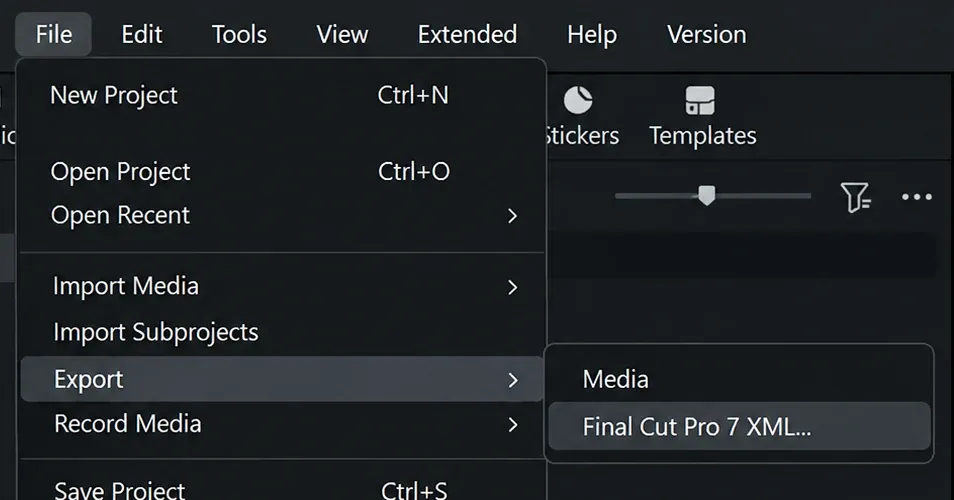
The 8K and XML rules come from Filmora's tech specs, which also note that GoPro CineForm export isn't available on Macs with M1, M2 or M3 chips, per Filmora's Mac tech specs. CapCut's help page on 2K and 4K export says the higher options depend on the device, system, app version and platform. Before choosing Filmora for a handoff, agree on the receiving editor, version and layers that must stay editable. Filmora's export guide specifies File > Export > Final Cut Pro 7 XML. Confirm that the receiving editor accepts that XML dialect; a shared XML label does not guarantee the same supported timeline data. Keep the native Filmora project, source media and a reference video, then compare the imported timeline with that reference before delivery. Check titles, effects, retiming and adjustments rather than assuming they transferred unchanged. Our CapCut supported formats guide lists what CapCut imports and exports.
Editing tools: where each one is stronger
Filmora's free tier is unusually deep for a consumer editor. The store's plan table puts multicam editing, planar tracking, motion tracking, keyframes, HSL, 3D LUTs, RGB curves and HDR on every plan, Free included. Filmora 16 adds Camera Tracking that keeps a subject in frame without manual keyframes, Color Mask with shape, Pen or AI masks, Track Matte and Multi-Source Recording of screen, camera and audio in one take. The asset library grows sharply when you pay: Free gets 1,500+ effects, 6,000+ titles and 600+ stock items, and the paid plans 18,000+, 52,000+ and 1.1 million+. Our Filmora review tours the interface, AI tools and timeline in full, so I won't repeat it here.
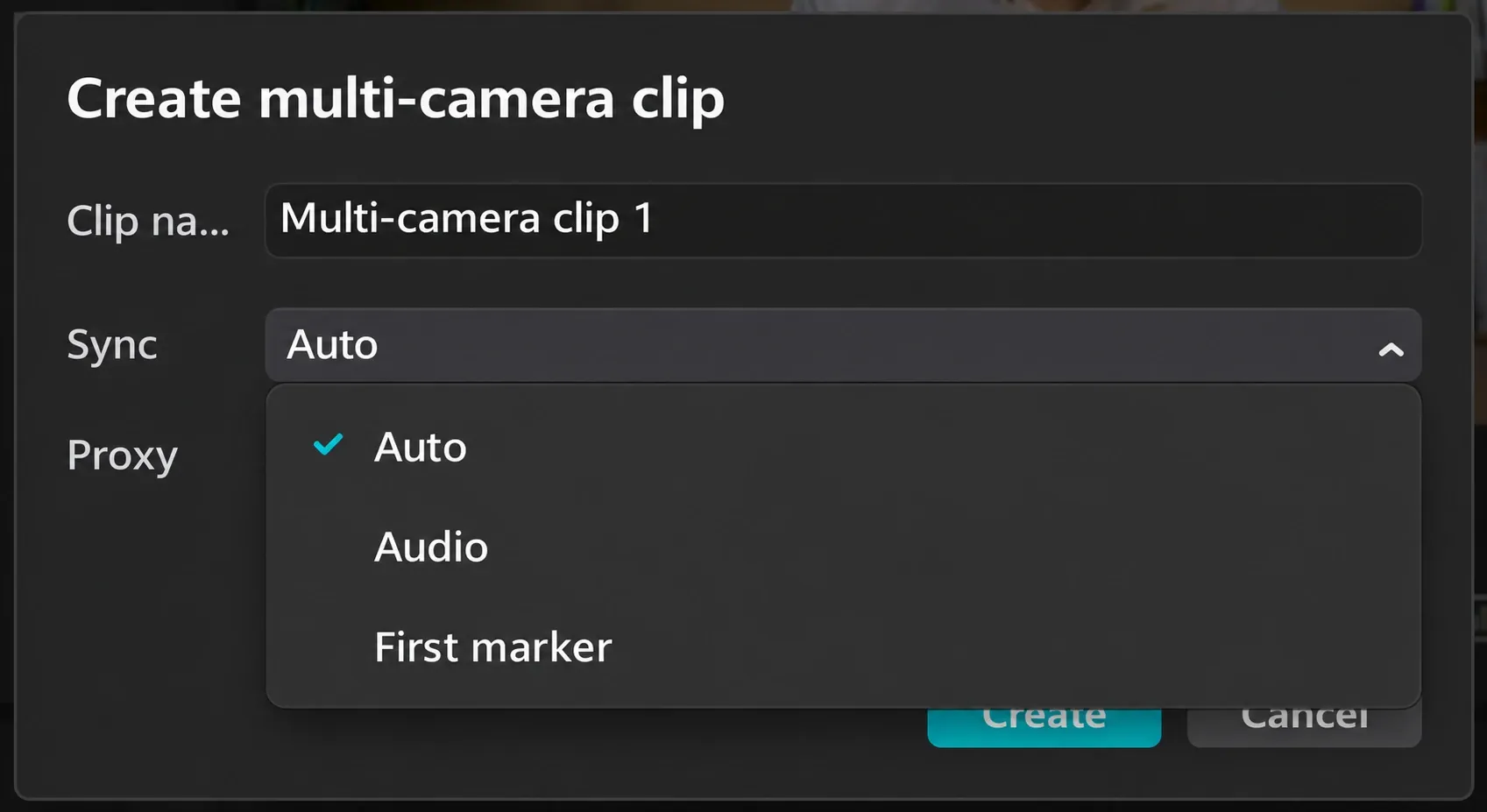
CapCut covers most of the same ground with less ceremony. It has its own camera tracking in CapCut alongside motion tracking, the desktop app syncs angles automatically, by audio or by first marker in our CapCut multicam guide, and a large library of CapCut templates follows social trends. Where Filmora pulls ahead is color work, 8K and handing a project to another editor; where CapCut is convenient is trend templates and captions, subject to the allowance your account offers.
Licenses and devices: PC, Mac and phone
CapCut is the simpler purchase. One Pro subscription covers iPhone, iPad, Android, Mac, Windows and the web, and our CapCut web editor guide covers the browser version.
Filmora's licensing is murkier, and Wondershare's own pages disagree. The Filmora Windows store answers "Yes, one license is good for both Mac and PC (Windows)" for Basic and Advanced, with Perpetual tied to the purchased desktop platform, while the US store answers "No, our product licenses are platform-specific." Both pages say these desktop licenses do not cover Android, iOS or iPadOS, and both say AI credits are shared across Windows and Mac under the same Wondershare account. If you edit on a PC and a Mac, ask Wondershare support which answer applies before you buy. The phone apps sell their own Pro, which on Android removes the "Watermark and Logo Roll."
Business and client work
Filmora draws a hard line here. Its Team & Business plan page says any company use, including internal training, marketing and "editing videos for paying clients," needs the Team & Business plan, and a company or brand YouTube channel needs the Business plan. An individual who makes a commercial video, such as one with paid product placement, has to state in the description that it was made with Filmora. The built-in music and sound effects "can't be used by a company (externally and internally)."
CapCut works item by item: commercial permission follows each template, sound, font and stock clip, ordinary Sounds are for non-commercial use, and paying doesn't widen those asset licenses. Our CapCut commercial use rights guide explains the checks, and CapCut for business covers team accounts. If you edit for clients, read both sets of terms before the first invoice.
Using Filmora and CapCut together
Cut the long version in Filmora. Before exporting the master for CapCut, check the rights for any stock and music it contains. Try a short sample in your CapCut account to check access to the captions and export settings you need.
- Build the full video in Filmora on your PC or Mac, where tracking, color masks and multicam are on hand.
- Export a clean master at full resolution from a paid plan, because a free Filmora watermark would carry into every version.
- Import the master into CapCut, switch the canvas to 9:16 and reframe it for TikTok, Reels or Shorts.
- Generate captions, proofread names and numbers, then export one version per platform.
Keep that master untouched, so you can make new platform versions from it; reopen the native Filmora project when the story needs a different cut. Our Instagram Reel size guide lists the Reels export numbers.
Which one I'd pick
- TikTok, Reels and Shorts with captions: CapCut. Auto captions on every platform and quick 9:16 reframing are the job, but check the caption allowance and export restrictions on your account.
- Your first video: CapCut, which got a beginner to a finished 90-second video 7 minutes sooner in Simular's same-project test.
- Long YouTube or course videos on a PC: Filmora Advanced. The US Windows offer lists Advanced at $59.99. Check the renewal price and the AI credits you'll need for speech-to-text.
- For an editable handoff, choose Filmora if a short Final Cut Pro 7 XML import into the receiving editor keeps the timeline elements you need.
- Phone, laptop and browser on one plan: CapCut Pro.
- An older or low-memory laptop: check the current requirements, then try your real footage and heaviest section before paying. Minimum RAM does not establish a playback winner.
- One payment and done: Filmora Perpetual at $79.99, as long as you accept that future major upgrades are not included.
- Company or client videos: read the license first. Filmora wants its business plan and bars company use of its built-in music.
If neither fits, our CapCut alternatives guide compares more editors, and our InShot vs CapCut, Canva vs CapCut, Edits vs CapCut and iMovie vs CapCut comparisons cover four more matchups. If Filmora is the step up you're weighing, our CapCut vs Final Cut Pro comparison shows the next one.
How I compared
I compared both editors on the questions a beginner or creator asks before paying: how long the first edit takes, how the desktop app copes with 4K, how captions and vertical video work, what the free export looks like, what each plan costs over three years and which devices a license covers. The workflow timing comes from Simular's same-project beginner test, with its vendor interest and missing dates stated. Playback and relative export figures come from Marco Tran's Filmora 15 report; Dailytech supplies CapCut export-setting and watermark observations, and HitPaw supplies a separate 42-second export report. These remain separate observations with their disclosed conditions. Wondershare's own speed claim remains attributed to the vendor and is not pooled into a comparison. I read Filmora's US and Windows stores, tech specs, release notes and business terms, both apps' US App Store listings, both Google Play listings, CapCut's pricing and help pages, and the TechRadar, MobileAppDaily and PCMag reviews. For current prices and entitlements, I used the applicable store and help pages; conflicting Filmora platform-license answers remain identified.
Filmora vs CapCut questions
Is Filmora better than CapCut?
I'd pick Filmora for a desktop edit that needs planar tracking, color masks or supported 8K export. For an editable handoff, first test whether the receiving editor can import Filmora's Final Cut Pro 7 XML. For short captioned social video and editing across phone, desktop and web, CapCut is the better tool.
Is Filmora easier to learn than CapCut?
No. In Simular's beginner test, a first-time editor finished a 90-second video in 34 minutes in CapCut and 41 in Filmora, and needed about 20 minutes before feeling at home in Filmora. TechRadar also noted Filmora's learning curve.
Is Filmora cheaper than CapCut?
The listed US Windows offers for Filmora are lower than CapCut Pro's annual reference. Advanced is shown at $59.99 and Perpetual at $79.99 once. Compare the Advanced first charge and renewal at checkout with the CapCut Pro reference of $179.99 a year. CapCut Free can export without a watermark, though, while free Filmora can't.
Does Filmora add a watermark like CapCut?
Free Filmora adds a watermark to every export, which the store names as the free edition's main limit, so a paid plan is the way around it. CapCut's free phone app added only a deletable end card in a 2026 test, while templates, some stock and Pro elements can mark a CapCut export.
Does Filmora have auto captions?
Yes. Filmora lists desktop speech-to-text on Advanced, Premium and Perpetual. It covers 27 languages and uses AI credits. CapCut's auto captions run on phone, desktop and web, sometimes behind Pro or a limited allowance.
Can one Filmora license cover Windows and Mac?
Wondershare's own pages disagree: the Windows store says Basic and Advanced cover both, while the US store says licenses are platform-specific. Perpetual is tied to the purchased desktop platform, and these desktop offers do not include mobile Pro, so ask support before buying for two computers.
Can I move a CapCut project into Filmora?
A finished CapCut video can be imported into Filmora, but that does not restore its editable layers. Filmora offers XML interchange; agree on the destination editor, version and required elements first, then check the imported timeline against a reference export. Keep the native project and source media.