


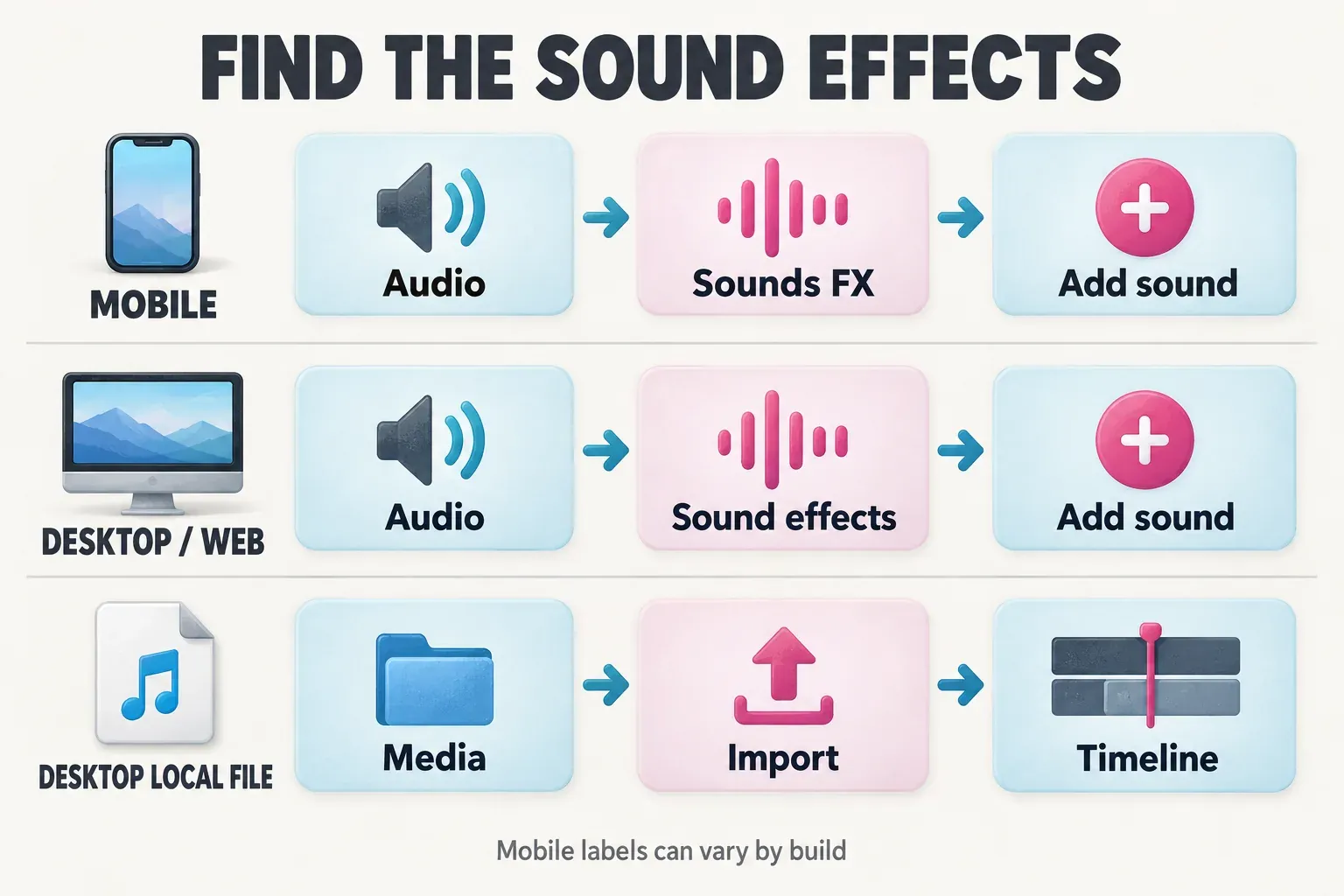
To add sound effects in CapCut, open Audio, choose the sound-effects library, preview a sound and add it to the timeline. Move the new audio clip to the action you want to emphasize, then select it to adjust the volume. On a phone the library may be labeled Sounds FX; Desktop and Web instructions call it Sound effects.
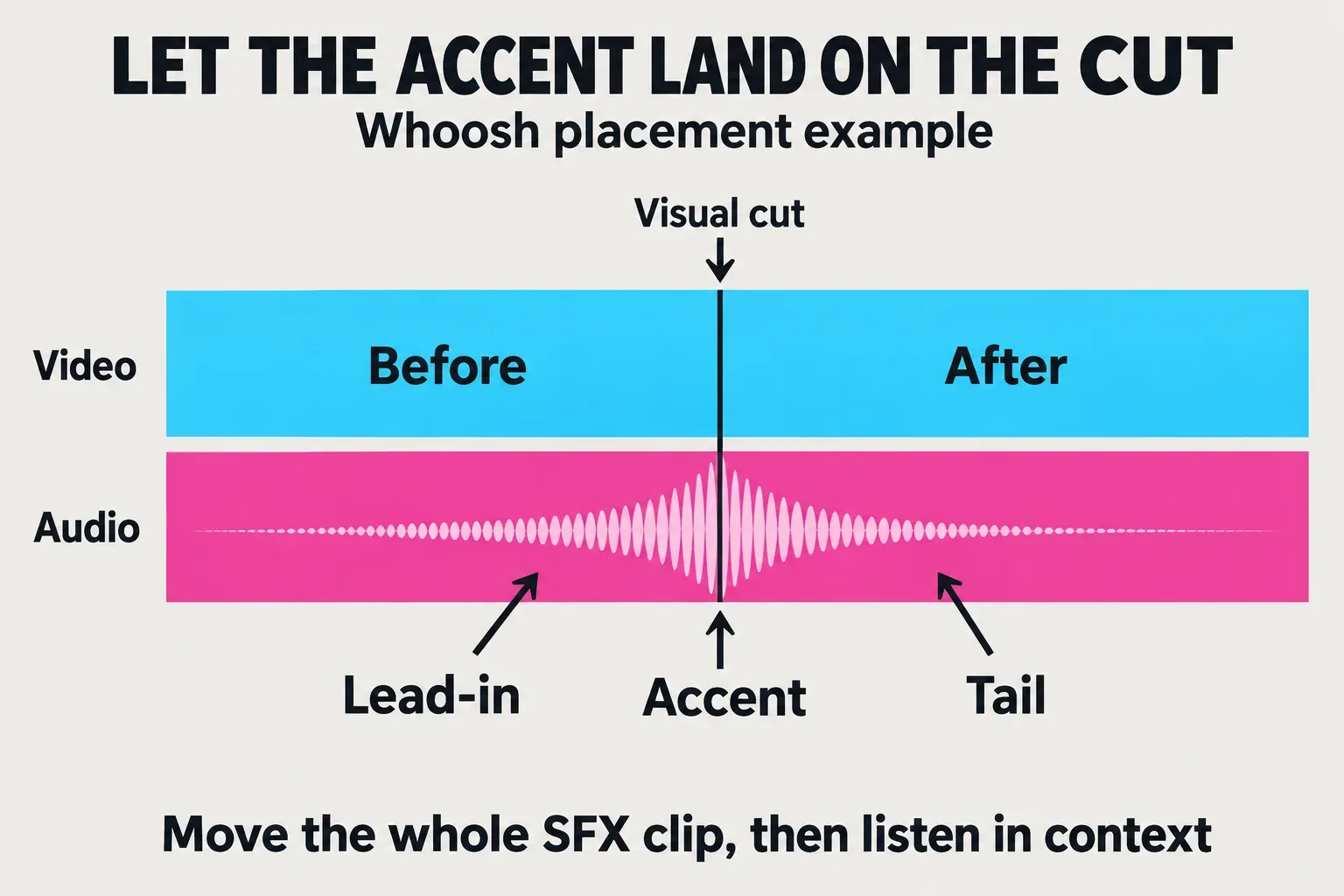
Finding a whoosh is the easy part. Getting it to land on the cut takes more care, because the strongest part of the sound can come after the file starts. I'd pick the visual moment first and place the sound around it. That way the effect has a job, instead of just making every transition louder.
This guide covers separate SFX clips, including your own licensed audio. Changing a recorded voice is a different job: a voice effect alters the voice that's already in the project.
Add a sound effect on your device
Open a project with your video on the timeline. Decide whether you want a library effect or a file you already own, and read the sound's usage terms before you commit to it. A free download doesn't mean you have permission to use it in an advertisement; those are separate questions.
Mobile: start from Audio
CapCut's phone sound-effects instructions go through Audio → Sounds FX, then adding the sound and adjusting its clip on the timeline. The label and toolbar layout can differ between builds.
- Open Audio in the project toolbar and look for Sounds FX or Sound effects. If you are still inside a selected video’s editing tools, return to the main project toolbar first.
- Open the library. Browse the available categories, or use its search field if your build provides one. Try an action word such as whoosh, click, pop or footsteps.
- Listen to the candidate before adding it. Check any paid-access badge and the asset’s usage information. Use the add control beside the chosen sound.
- Find the added audio clip under the video. Drag the whole clip to change its timing; trim an edge to shorten it. Tap that audio clip to adjust Volume.
If the sound is saved on your phone, use whatever device-audio option your build offers. The local-file branches in our add-music guide explain file access and what to do when that entry is missing. You don't need to extract a song from someone else's video to get a usable sound effect.
Desktop: Audio for the library, Media for your files
The official Desktop notification-sound workflow uses Audio → Sound effects, a search field and the + control to add the sound you pick. Search for the action, preview what comes up and add one. Then drag its audio clip under the video moment it belongs to.
To use your own file, go to Media → Import, select the audio and place it on the timeline. CapCut documents this local-audio import route and MP3/WAV support. Keep the original file and its license outside the project so you can find both later.
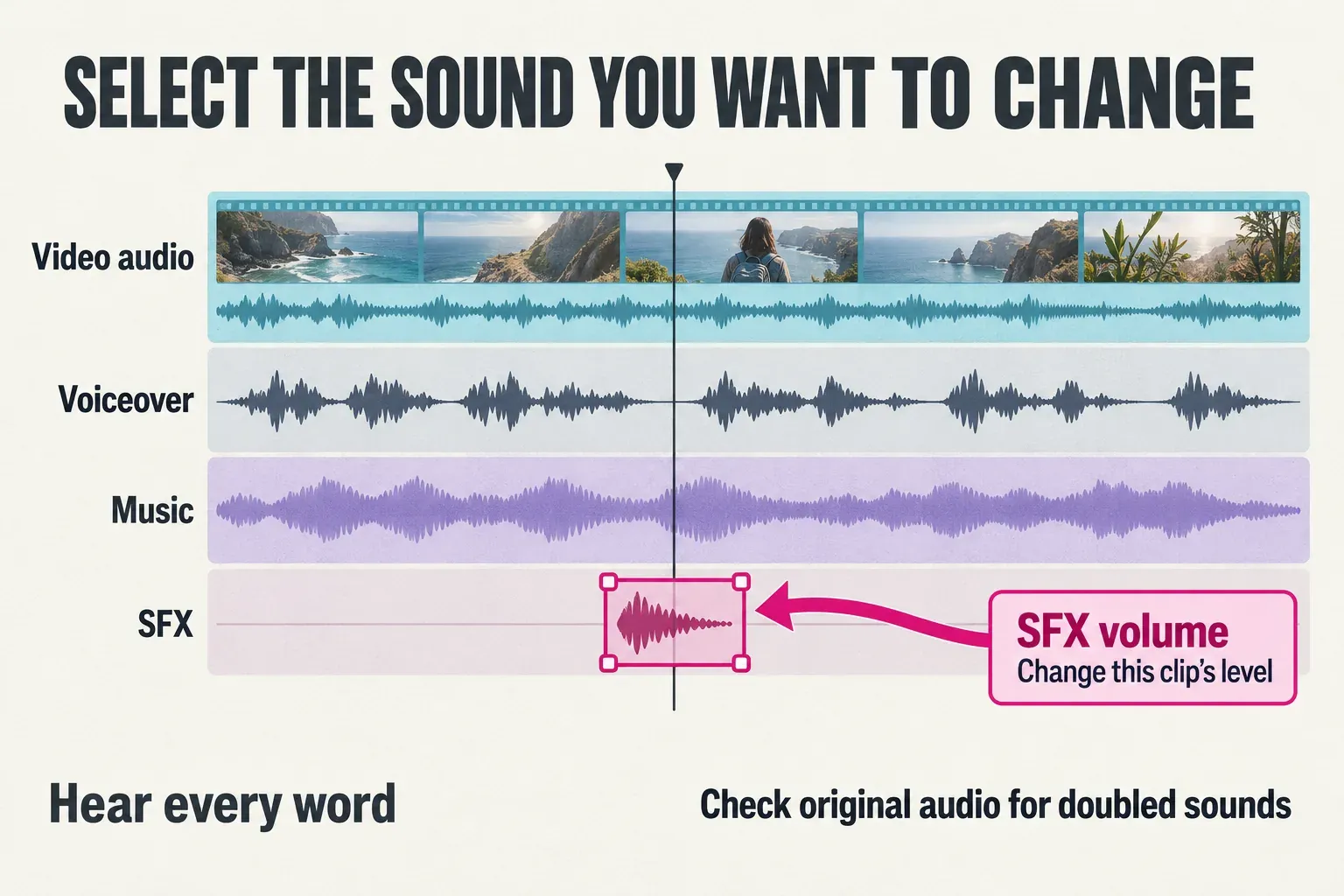
Select the SFX clip before you touch its audio settings. The volume control belongs to whichever clip is selected, so if the video is selected you'll change that video's original audio instead.
Web: open Sound effects in Audio
In CapCut Web, the documented sound-effects route is Audio → Sound effects in the left sidebar. Browse or search, then use + or drag the effect onto the timeline. After that, move and trim the clip to where you need it.
These are platform routes, not a promise that every sound shows up in every account. If an item needs paid access, pick a permitted alternative or a separately licensed local file. For broader access questions, see the Free versus Pro feature guide.
Choose a sound that fits the action
Search by what happens on screen. A whoosh can back up a fast camera move or a title sweeping into place. A short click or pop suits a button, label or small reveal. An impact adds weight to a landing or a dramatic cut, while room tone, rain or another ambience can run underneath a scene.
Listen past the opening. One search result may have a soft lead-in and a long tail; another hits right away. Pick the shape that fits the edit before you try to force anything into place. In a quiet tutorial, start with the shortest, least distracting cue that still makes the action clearer.
The search words above are starting points; they aren't guaranteed asset names. If the exact effect isn't there, search for the underlying action or use a file licensed for your destination. Don't download a random "no copyright" reupload with no identifiable license.
Make a whoosh land on the cut
Don't automatically line up the start of the sound file with the cut. A whoosh often builds toward an accent, and if that build starts at the visual change, the accent can land too late.
- Find the exact cut, movement or title arrival you want to emphasize. Place the playhead there and zoom into that section of the timeline.
- Listen to the sound on its own. Find the accent you want to use; a visible waveform peak can help locate it, but your ears decide which part feels like the arrival.
- Move the whole SFX clip so that accent lands on the chosen picture moment. Keep any useful lead-in before it.
- Play from a little earlier than the cut. Check the approach, the accent and the tail together. Adjust the position if it feels early or late.
- Trim unwanted silence or an overlong tail. If you change the trim or speed afterward, check the alignment again.
For example, a title can start moving while the whoosh builds and settle as the sound reaches its accent. A button click works differently: the moment it becomes audible should support the press or the appearance. Lining up every sound's first frame with every cut ignores that difference.
All of this is about placing one cue on purpose. If recorded speech drifts out of sync with the picture over time, nudging a whoosh won't fix the underlying problem.
Keep speech clear and edit the right layer
Play the effect with the full mix before you settle on a level. A sound that seems modest on its own can bury a consonant once dialogue, music and camera audio are all playing. Select the SFX audio clip, lower its Volume, and listen to the words around the cue again.
There's no universal volume percentage that works for every whoosh. It depends on the file's starting level and the rest of the mix. I'd protect the sentence first: if the effect hides a word, turn it down, move it into a gap or pick a lighter sound. If that means leaving out a cue, leave it out.
Keep these layers distinct when checking the result:
- Video’s original audio: may already contain a click, footstep or camera noise. An added effect can double that sound.
- Voiceover or dialogue: carries the words the viewer needs to hear.
- Music: can compete with both speech and the SFX accent.
- Added SFX: the separate clip whose position and level you are editing.
If a sustained ambience comes in or ends in a distracting way, use the available fades. A sharp click can stay sharp when the action calls for it. The audio-mixing guide covers balancing the wider soundtrack; this step is just about fitting one cue into it.
Check rights and availability before publishing
CapCut sound effects are not automatically cleared for every platform or business use. The materials agreement, dated January 22, 2026, lists sound effects under Platform Materials. It separates non-commercial materials from those marked for limited commercial use, and territory and license-term conditions are set per asset. Check the agreement served in your region and the terms for the exact item.
Don't lump SFX and library songs into one permission category. The same agreement has separate rules for Sounds and Commercial Sounds in its music section, and those music permissions don't settle the rights for every effect sitting next to them in the editor. A paid-access badge doesn't tell you whether your planned distribution is covered, either.
On a client video, save the asset name, license information and permitted use alongside the project. Check the destination, commercial or advertising use, territory, term and any attribution requirement. If you can't confirm permission, swap the cue for your own recording or a sound whose license covers the job. Our commercial-use rights checklist covers the rest of the asset stack.
For a YouTube video, YouTube’s own Audio Library offers downloadable sound effects and explains that they're copyright-safe to use on YouTube, including in monetized videos. That assurance covers its own library. It doesn't extend to every channel or website advertising "royalty-free" audio, so check the file's terms before you use it anywhere else.
If a sound disappears from a saved project, check whether it's still available before you rebuild around it. CapCut's materials agreement doesn't guarantee that assets stay available. Replace a missing asset with one you can use, and keep your own source files on hand for local imports.
If the sound is silent, check the clip before resetting anything
Put the playhead inside the SFX clip and select it. Make sure its volume is above zero and its track isn't muted. Next, check your device's output volume and whether the rest of the project's audio plays. CapCut's audio-not-playing checklist lists muted or low-volume tracks, unsupported or corrupted files, and device conditions as possible causes.
If a local file won't play in a normal audio player either, get a working copy before you change the whole project. When only CapCut playback is silent, follow the no-sound troubleshooting guide for your platform. Silence in the editor isn't the same symptom as a sound removed after you publish to a social platform.
Once the cue works, export the video and play the saved file. Listen for the accent, whether the speech is still clear and any unwanted tail around the cut. Keep the editable project and the cleared audio files, since the export is your delivery copy and not your working timeline. When you're ready to build the next part of the sequence, the tutorial hub has the neighboring editing lessons.