


Paid for CapCut Pro but still seeing Free or Join Pro? Don't buy it again as a test. Check the subscription receipt and the access end date, then compare the CapCut account ID on the working device and the failing one. If the account shows Pro and just one item is locked, look at that item's plan or credit requirement instead.
Keep any working CapCut session open. Before you sign out, clear browser data or reinstall, make sure you can sign back in and that your editable project and source media have a backup you can recover. An exported MP4 is fine for delivery, but it isn't an editable project backup.
This guide is for paid access that hasn't shown up. To pick a membership, start with the CapCut Pro plan and billing guides. If free tools fail too, the general app troubleshooting guide is the better fit.
Menu labels, plans and regional availability can differ, so follow the receipt, account ID and access dates shown in your own account.
1. Check the receipt and paid access end date
Find the seller before trying to repair the app:
- Apple App Store: open Settings → your name → Subscriptions on iPhone or iPad and select CapCut. If it is missing, check the Apple Account on the receipt.
- Google Play: open Play Store → profile → Payments & subscriptions → Subscriptions in the purchasing Google Account. Google’s missing-subscription checks explain how to locate a purchase under another account.
- Direct CapCut checkout: sign into the purchasing CapCut account and open the subscription or billing section shown there. Use the receipt to identify a different seller if one handled the purchase.
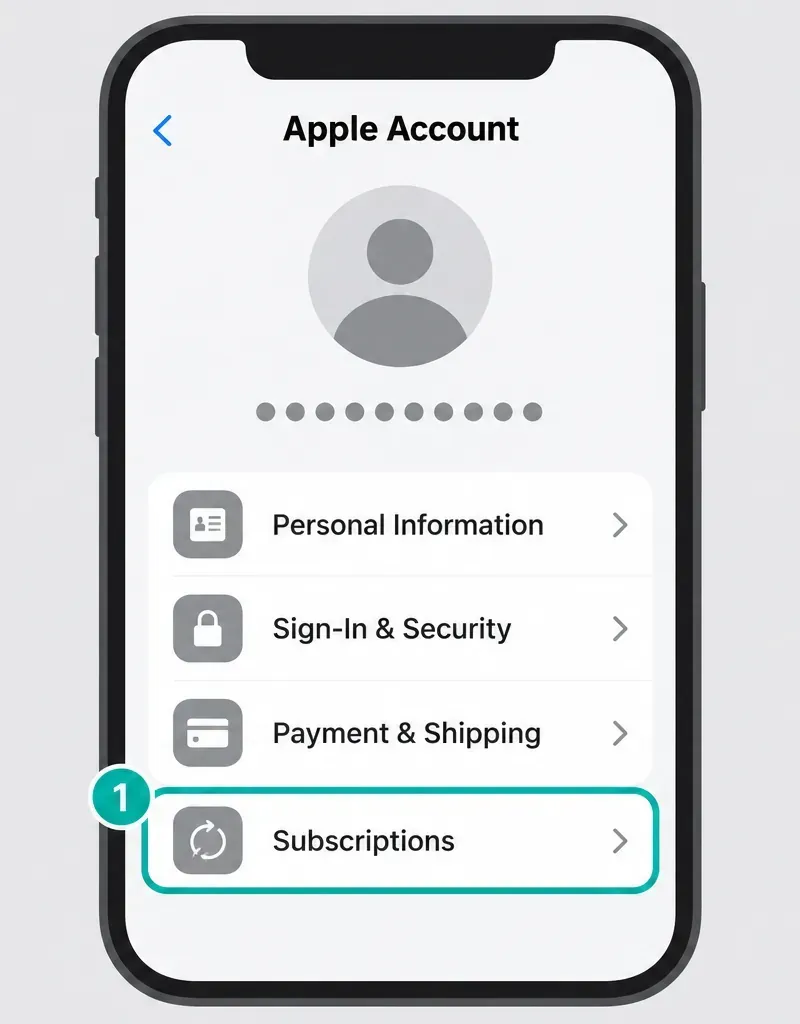
Note the plan name, purchase date, order ID and whether the record says active, pending, failed, refunded or expired. A bank notification on its own doesn't tell you whether CapCut attached a subscription to the profile you have open right now. If the App Store or Google Play lists CapCut as active but the app doesn't reflect it, CapCut’s feature-access checklist says to force-close the app and reopen it before you change anything else.
Canceled does not normally mean access ended today. Turning off renewal usually keeps the period you've already paid for. Google Play explicitly separates cancellation from the paid access end date, and CapCut’s subscription terms normally keep access running through the current paid period. Refunds, trials and applicable local rules can work differently. Check the real expiry date and the final confirmation before you blame cancellation for missing Pro.
2. Match the CapCut profile, not just the email
You're checking two separate accounts here: the store account that paid, and the CapCut account that gets the membership. Google specifically notes that the app’s email can differ from the purchasing Google Account. Paying through the App Store or Google Play doesn't, on its own, prove which CapCut sign-in button you used in the first place.
CapCut says different login methods can open different accounts with the same email. Still, an email or another method that's already linked to the paid profile may work as well, and its linked-email guidance confirms that one account can have more than one login method. Go by the CapCut ID or UID, not a display name or a familiar address.
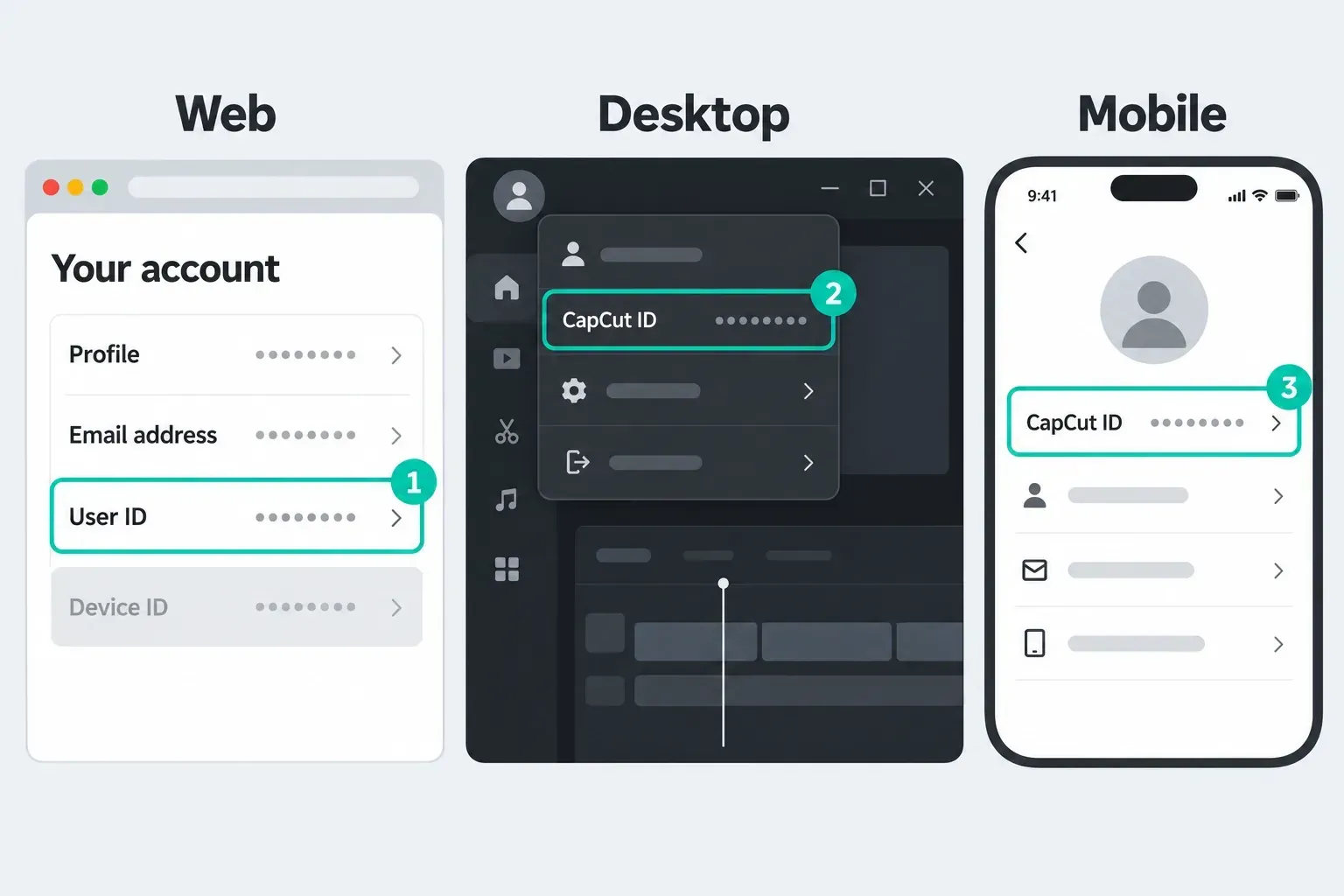
- In a working session, record the CapCut ID and plan status. CapCut’s UID/DID instructions cover Web, Desktop and Mobile. UID identifies the user; DID identifies the device, so different devices need not have matching DIDs.
- Open the membership panel on the failing device. On Web, CapCut documents the profile menu followed by Membership, Account or Pro Status; use whichever label your interface shows. On mobile, CapCut’s post-purchase checklist starts at the Me tab, where an active plan reads CapCut Pro: Active.
- Compare the user ID and plan with the working session. Different IDs point to an account mismatch. The same ID with different plan displays is a reason to investigate synchronization or support, not to create a new account.
- If you need to change the failing session, first verify access to the original sign-in provider or an already linked method, including its verification codes. Save unfinished work and preserve the other working session. If you cannot confirm a way back in, stop and use the account recovery and login guide before logging out.
Don't try to move the purchase to a profile you just created. CapCut states that Standard and Pro subscriptions cannot be transferred to another account. If the receipt and profiles still don't match, ask support to find the original paid account.
What about Restore Purchases?
On iPhone or iPad, Apple recommends looking for an in-app restore option for eligible subscriptions and non-consumable purchases, using the Apple Account that made the purchase. Apple doesn't specify a universal CapCut menu, though. Identify the paid CapCut profile and store account first, then use a restore control only if your current CapCut build has one. Restore isn't a promise that a subscription will transfer or that spent consumable credits come back.
On Android, check the Google Play subscription and contact CapCut if the app access never arrived. Skip any tutorial that insists every Android version has the same Restore Purchases button. If a restore fails, keep a record of the error instead of buying or reinstalling again and again.
3. If Pro works on your phone but not PC or Mac
Start with the exact plan name. CapCut's cross-platform membership documentation limits Standard benefits to Mobile in regions where Standard is offered. Pro covers Mobile, Desktop and Web under the same CapCut account. That still doesn't mean every editing feature exists on every platform.
With a Standard receipt, a premium prompt on desktop may just be the plan's limit, not a failed payment. Compare the Standard and Pro plan differences before you think about switching. Treat an upgrade as a separate purchase decision. It's not a diagnostic test.
If the plan is Pro and the user IDs match, try this sequence:
- Save the project and confirm its backup before closing anything. On Web, do not reload a tab with unsaved work.
- Restart the affected app, or reload the saved Web workspace. Check for an update from the official app source. On Desktop, confirm that the computer’s date, time and actual region settings are correct.
- If needed, refresh only the failing login using the safe sign-out conditions above. Leave the working device signed in.
- Compare the membership display again, then try a short export in a separate test project using your own media and a clearly identified included feature. Do not use a credit-consuming AI action as a free subscription test.
CapCut's post-purchase checklist and feature-access checklist give different short estimates for syncing. Give a new purchase a few minutes. Just don't read either estimate as a guaranteed fix time, and don't wait all day before you report paid access that still isn't there.
Web showing Free is a clue, not a verdict. The browser might be on the wrong account or holding a stale session, and a service problem can hit several devices. If Web shows Pro while Desktop shows Free, that narrows things down. It doesn't prove the computer's cache is the only possible cause.
A safer private-window check
As long as you can sign in again, try a private window and leave the original saved session alone. Make sure it opens the same CapCut user ID. If Pro works there, a browser-profile issue is a fair guess. Keep in mind that private mode changes more than the cache, including how extensions and sessions behave.
Don't erase site data right away. Save any unfinished Web work first, check that you have an independent copy you can recover, and confirm how you'll log back in. When CapCut support recommends clearing data, limit it to CapCut, not all your browser passwords and cookies. If you're unsure about the backup or getting back in, skip the deletion and send your comparison to support. See how to verify an editable project backup; a second item in the same app doesn't count as independent protection against app-data loss.
4. If the account is Pro but one item stays locked
Read the message on the exact effect, template or AI action. CapCut's diamond-badge guide describes blue items for Standard and purple items for Pro. Only rely on that split where your interface shows those labels. It isn't a universal color rule for every build or catalog.
Check the credit cost and your usable balance as two separate things. CapCut’s credit rules split credits into subscription, purchased and activity credits, each with its own validity. A Pro badge doesn't prove unlimited AI usage, and you can't use credits to buy the Pro plan itself. Don't assume every Pro membership comes with one fixed global allowance.
A template asking for payment needs an extra check, not an automatic second payment. As of the September 20 check, CapCut’s paid-template guide describes individual mobile purchases, while its template export guide says individual pay-per-use is not supported and points to Pro. The two documents contradict each other. Capture the exact template name, badge and offer shown in your account, then ask support whether your current purchase covers it. Neither page is a reason to pay twice for the same benefit.
When the prompt shows up only at export, look at the elements it points to. CapCut's export-prompt guidance lists premium effects, filters, transitions, text styles, stickers and music. Check the export controls you've selected as well. A visible watermark by itself won't reliably tell you your subscription status. The watermark diagnosis guide helps you tell apart an ending clip, a template element and an export restriction.
5. If you see a country or region message
Write down the exact warning, your current location, the store country and the account region if it's shown. CapCut's post-purchase documentation lists regional restrictions among the possible causes and specifically warns that accounts created in China, India or Russia may have restricted Pro benefits. That's the vendor's current support wording. It isn't proof that every user in those countries has the same access.
With an explicit region warning, I'd look into that restriction first. It doesn't rule out a second account, browser or project problem, though. Some desktop failures may not show the same warning as Web, so put both screens in your support case.
Don't make up a billing address, switch store country or buy through a second profile just to test access. A VPN won't reliably repair a membership, and it doesn't change which account or subscription paid. If the region record is wrong, ask CapCut to look into it. And if the paid service isn't available to you, use the seller-specific refund route below, but don't assume it'll be approved.
6. Get account support or request a refund
Start with CapCut’s official support chat, which is linked from its Help pages. If it won't load, open the CapCut Help Center or use the in-app help option available in your build. CapCut's credit documentation also lists capcut.support@bytedance.com. Don't send the same case to every route again and again.
Prepare one case with:
- The CapCut user ID and the failing device’s DID if available, login method, platform and app version.
- The seller, plan, order ID, payment date and amount, access end date and current subscription status.
- The exact error time and message, plus screenshots of the active subscription and locked feature.
- The working-versus-failing device comparison and the specific checks you already tried.
Send receipts and identifiers privately through the official channel, and crop out unrelated transactions and personal details. Never hand over a password, verification code, full card number or private client project just to prove you paid.
If you see two charges, compare the merchant, amount, date, status and order IDs. CapCut's double-billing guide covers separate subscribed accounts and payment retries. A pending authorization isn't the same thing as two completed charges. When both have settled, ask the seller to trace them. Don't assume the second entry is harmless, and don't cancel a plan you haven't identified.
Canceling stops renewal. Asking for a refund is a separate step. Once you've found a subscription that's genuinely redundant, follow the CapCut cancellation instructions for that seller and check the final renewal status. Don't delete the CapCut account to fix a billing problem.
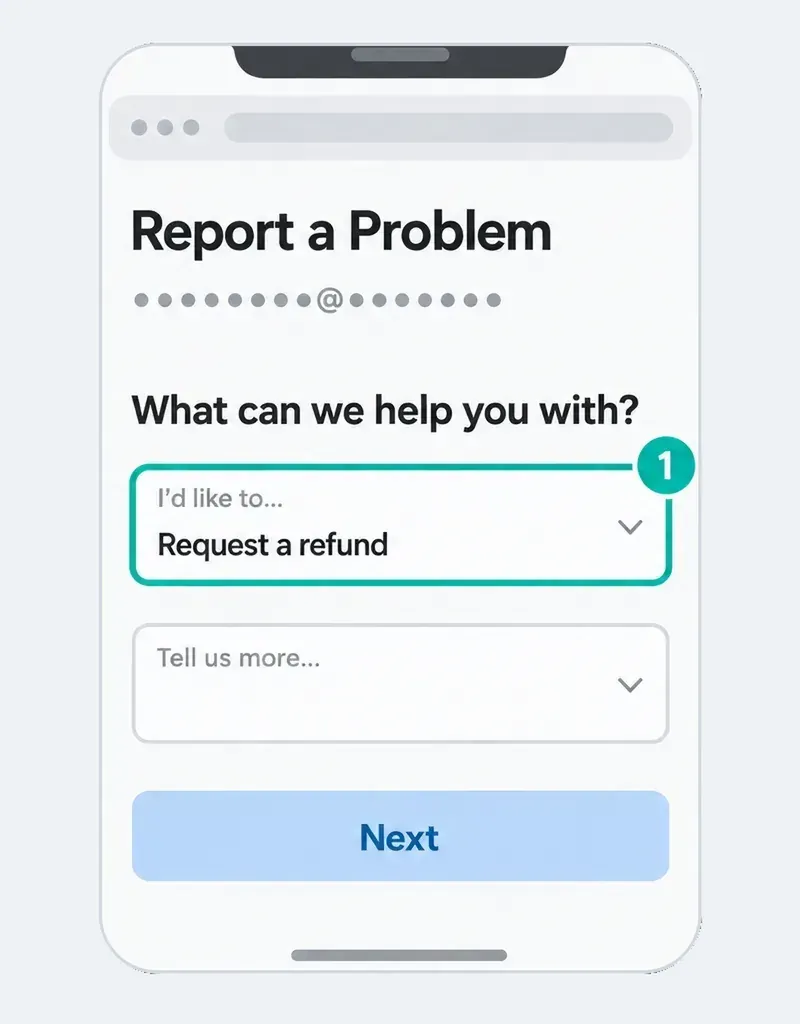
- App Store purchase: follow Apple’s refund instructions through Report a Problem. Apple says pending charges cannot yet be requested there; use the Apple Account on the receipt.
- Google Play purchase: use the Google Play refund request process and check its current eligibility policy.
- Direct CapCut or another seller: contact the seller named on the receipt with the order number and access evidence. A billing provider’s support route may also appear on that receipt.
Apple Pay is not the App Store, and Google Pay is not Google Play. For a direct merchant purchase, Apple Pay refunds go through the merchant, and Google Pay distinguishes Google purchases from store or bank disputes. Go by who sold the subscription, not the wallet logo. Eligibility and timing depend on the purchase, your usage, the seller and applicable law. Missing access doesn't guarantee an automatic refund.
Need to export today?
Leave the original editable project untouched. CapCut recommends duplicating a project before major changes. If your interface offers Duplicate or a project-copy option, make a separate working copy and check that it reopens with its source media. Keep an independent backup too. The copy lets you try changes without overwriting the original. It won't protect your work if you uninstall or clear storage.
- In the copy, note the exact paid elements or controls named by the export prompt.
- Replace those elements with your own media or alternatives clearly available to your account. Check effects, transitions, text, stickers, audio and the chosen export settings.
- Try a short test first. If it succeeds, export the full copy and play the final file outside CapCut to check picture, sound, captions, timing and any visible marks.
This may get you past an asset-specific restriction. It won't fix a service-wide export failure or guarantee a free export in every account. Don't strip license checks or use a cracked build. If the copy still can't export, keep the work safe, give support the exact error and tell whoever's waiting that delivery is blocked. Buying again and again isn't a safe way to meet a deadline.
Frequently asked questions
Why does CapCut still show Join Pro after I paid?
Compare the receipt, access end date and CapCut user ID first. The prompt can reflect the wrong profile, delayed or stale access, a plan limitation or a specific item’s requirements. It does not prove that buying another subscription will solve it.
Does canceling Pro remove access immediately?
For a normal paid subscription, turning off renewal usually leaves access until the paid period ends. Trials, refunds and local rules can differ. Check the actual expiry date and final confirmation rather than treating Canceled as proof that Pro must already be unavailable.
Can I restore Pro on a new CapCut account?
CapCut says subscriptions cannot be transferred between accounts. A restore control, where offered, is not a promise to attach the purchase to a new profile. Identify the original paid CapCut account and the purchasing store account, then ask support if access remains missing.
Why does Pro work on mobile but not PC or Mac?
Check whether the plan is Standard or Pro and compare the CapCut user IDs. CapCut documents Standard benefits as mobile-only, while Pro covers Mobile, Desktop and Web. If Pro and the IDs match, preserve your work and working session, then update or restart the affected app before a safe login refresh.
Should I clear site data if Pro works in incognito?
Not as the first step. Verify the same user ID, save unfinished Web work and confirm a recoverable backup and a working sign-in route. Private mode changes session and extension behavior as well as stored data, so success there does not prove that cache is the only cause.
Does Pro include every paid template and AI action?
Do not assume that. Check the exact plan, template offer and credit balance. CapCut’s paid-template help pages conflict about individual purchases, and credit-consuming actions have separate requirements. Ask support about an unclear charge instead of paying again for an unidentified benefit.
Will canceling and resubscribing fix missing access?
It is not a reliable repair and can add another charge without resolving the account problem. Identify the paid profile and seller first. Cancellation and refund requests are separate from troubleshooting, and neither guarantees restored access.