


A CapCut black screen isn't one failure. The editor preview can go black while the timeline is fine. An export can carry audio with no visible video. Or a valid export can fail in one player and play in another. Before you change the project, figure out which output is black.
If you want a black screen on purpose, use CapCut's black-screen templates or set an intentional background in the editor. The tests below are for video that goes black when it shouldn't. If your symptom is different, start from the CapCut fixes hub.
Quick test: duplicate the project and export 5–10 seconds that span the first black frame. CapCut's preview mismatch page also recommends a short test. If the export shows the picture, look at the preview and graphics path next. If the export is black too, inspect the timeline element, source media and encoder. And when it's black in only one player, test playback compatibility before you edit anything.
Protect the draft first: duplicate it before you disable any timeline elements. Before clearing data or reinstalling, make sure you have a restorable copy of the editable project and its source media. Use the project backup and transfer checks for that. Space is one option if it's available and you have permission to upload the footage. It isn't a compulsory subscription, and it isn't a safe default for confidential client media. Before you go further, confirm the copy opens with the timeline and media you expect. If you can't verify a restorable copy, stop before clearing app data, deleting browser site data or reinstalling. Keep in mind that a local duplicate is still local. CapCut warns on its template troubleshooting page that uninstalling can remove local drafts and unfinished projects.
| What you see | Likely area | First thing to try |
|---|---|---|
| Preview black, timeline thumbnails look normal | Playhead, layer visibility, source or preview rendering | Check the playhead, opacity and covering layers before cache or GPU settings |
| Whole app window or interface is black | Application or display layer, not the project | See CapCut not working for app-level failures |
| Preview black on mobile right after importing | Thumbnail generation, permissions or file size | Wait for thumbnails, import fewer files, then check photo permissions |
| Export plays audio over black | Timeline, source decoding, encoding or playback | Isolate with short section exports from a duplicated project |
| Black only at the end of the export | Trailing clip or a track running past the video | Inspect the trailing element; trim only unintended overhangs, not planned credits |
| Only one source file turns black | File encoding or an unsupported format | Convert a copy to a format CapCut lists for your platform, then import that copy |
| Project or template turns black after moving devices | Missing or unlinked media | Relink the media, and finish template edits on the platform they were built for |
| Black bars down the sides | Canvas framing, embedded borders or an effect | Check the original and target ratio; filling the frame crops content |
| Exported file black in one player only | Playback compatibility on that device | Test in VLC and a second player before blaming the export |
Hardware Acceleration: Test Preview and Export Separately
CapCut's help pages recommend different hardware settings for different failure stages, so there's no one universal on/off rule.
For a missing PC preview, CapCut's current video-not-showing page says to update graphics drivers and enable hardware acceleration. Its export-stuck-at-the-beginning page, by contrast, asks you to disable hardware encoding. The first is about preview playback; the second is about export.
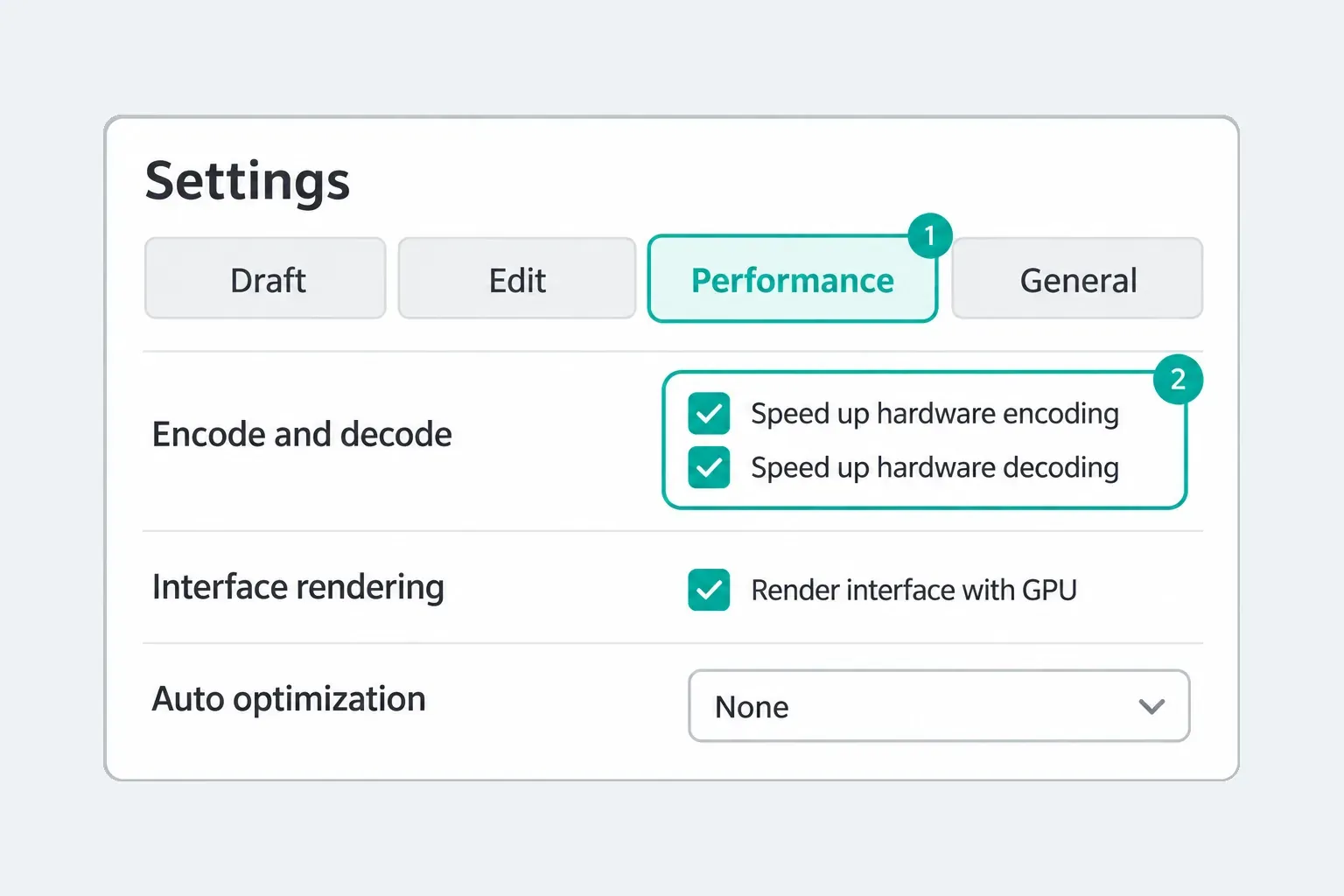
Some builds split hardware decoding, hardware encoding and interface rendering into separate controls. Note the original state, then change one control per test. If the result changes, you've narrowed things down, but that doesn't prove the GPU itself is damaged.
For a black preview, update the app and graphics path first, then test whichever decoding or interface-rendering control your build exposes. For a black or stalled export, compare one short range with hardware encoding disabled. Put the original state back between tests. Neither setting is right in every case.
If the Desktop Preview Goes Black
Save the project before you restart CapCut or update anything. Then work through the reversible checks below on Windows or macOS. Restart when a changed setting or the updater asks you to. Moving a playhead or checking a layer doesn't need a relaunch.
- Check the playhead and layers first. Move the playhead inside the affected clip. Check its opacity and visibility, then temporarily hide any upper layer that covers it in the duplicate. Audio can continue when the picture is hidden. A normal thumbnail alone does not prove a cache or GPU fault.
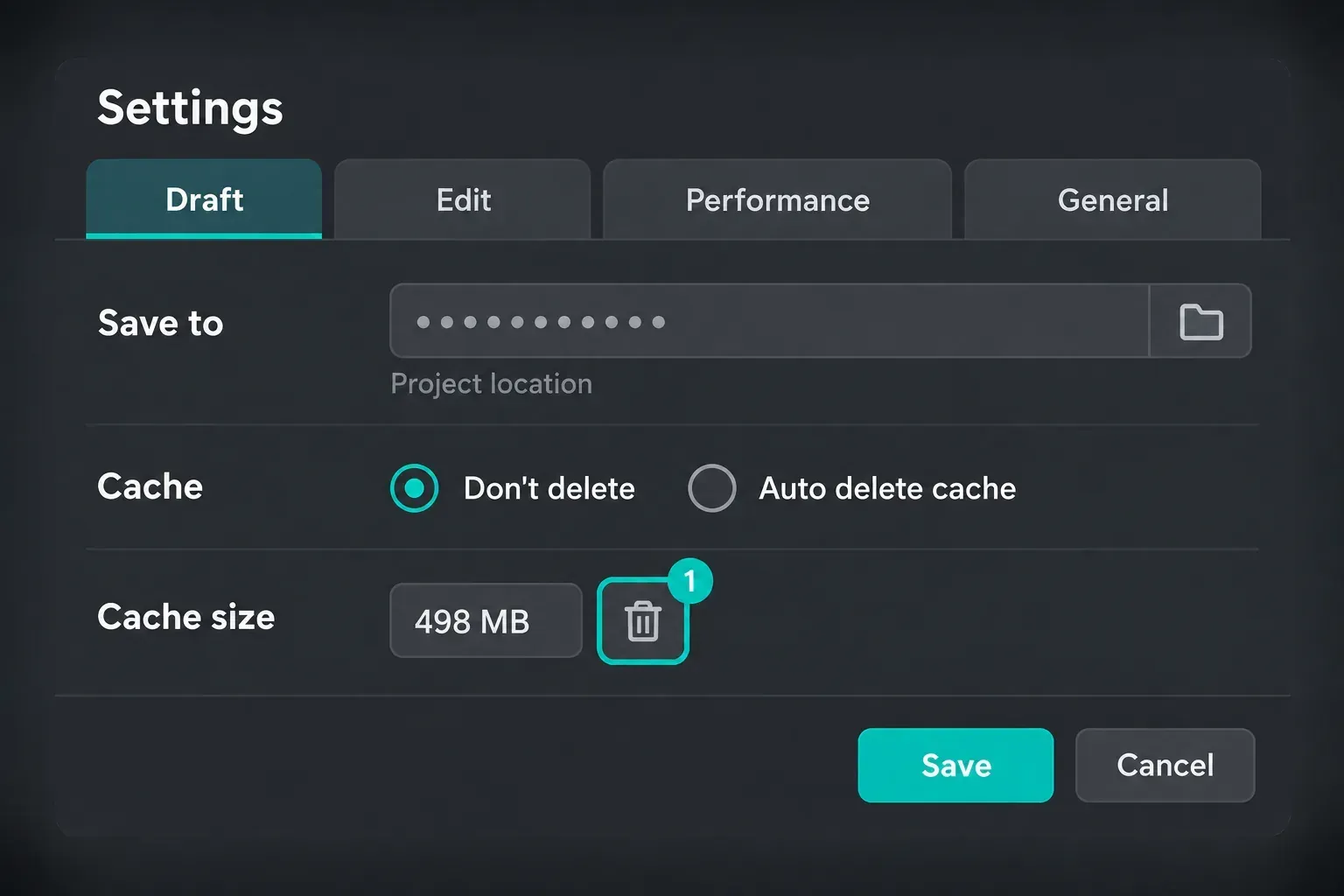
- Use only a clearly labelled in-app cache control. CapCut’s preview-mismatch help shows Settings → Draft → Clear Cache beside Cache Size. If your build has no equivalent, skip this step. Do not delete the entire CapCut data folder, User Data or project directories.
- Turn proxy editing off. Proxy mode swaps in low-resolution copies for smoother playback, and CapCut notes it can misrepresent scaling and blur. In CapCut's current desktop instructions, Proxy is under Menu → Settings → Performance. Its location can differ between builds. Record the original Proxy state, test the same range with it off, and restore it if the comparison does not help.
- Update the graphics path. On Windows, Microsoft recommends Windows Update for routine driver updates and the hardware maker's official site if Windows has no newer compatible driver. On macOS, back up your Mac before installing a compatible update through System Settings → General → Software Update. Avoid third-party driver sites.
- Test the acceleration options. Open the Performance settings available in your build. If decoding, encoding or interface-rendering controls are separate, change one, save, restart CapCut and repeat the same action. Restore it before testing the next control.
To tell a graphics problem from a project problem, create a blank project and add one small file that already previews and exports correctly in the same CapCut build. If that control file goes black too, look at the application, settings and graphics path. The control test isn't a hardware diagnosis. If it plays, compare the original project and its media. Our CapCut for PC walkthrough covers the install-side checks.
If Mobile Thumbnails or Preview Go Black
If every item in the album picker is black, look at the import path before the editor. CapCut's local-assets guidance says large files or a big album can delay thumbnail generation. Let the view finish loading, restart the app, then import a smaller batch.
Check permissions. Open your phone settings, find CapCut, and confirm it has photo and media access. If you've given selected-media access on iOS or supported Android versions, make sure that particular clip is included. You don't need to grant access to the whole library just to test one file. The official album-access instructions also recommend checking whether the picker is filtered to Videos or Photos. Android menu labels vary by manufacturer.
Test a separate project. Save the current draft first. Then use New video, if that's what your build calls the creation option, and import one original file. It's a control test; it doesn't repair references in the existing edit.
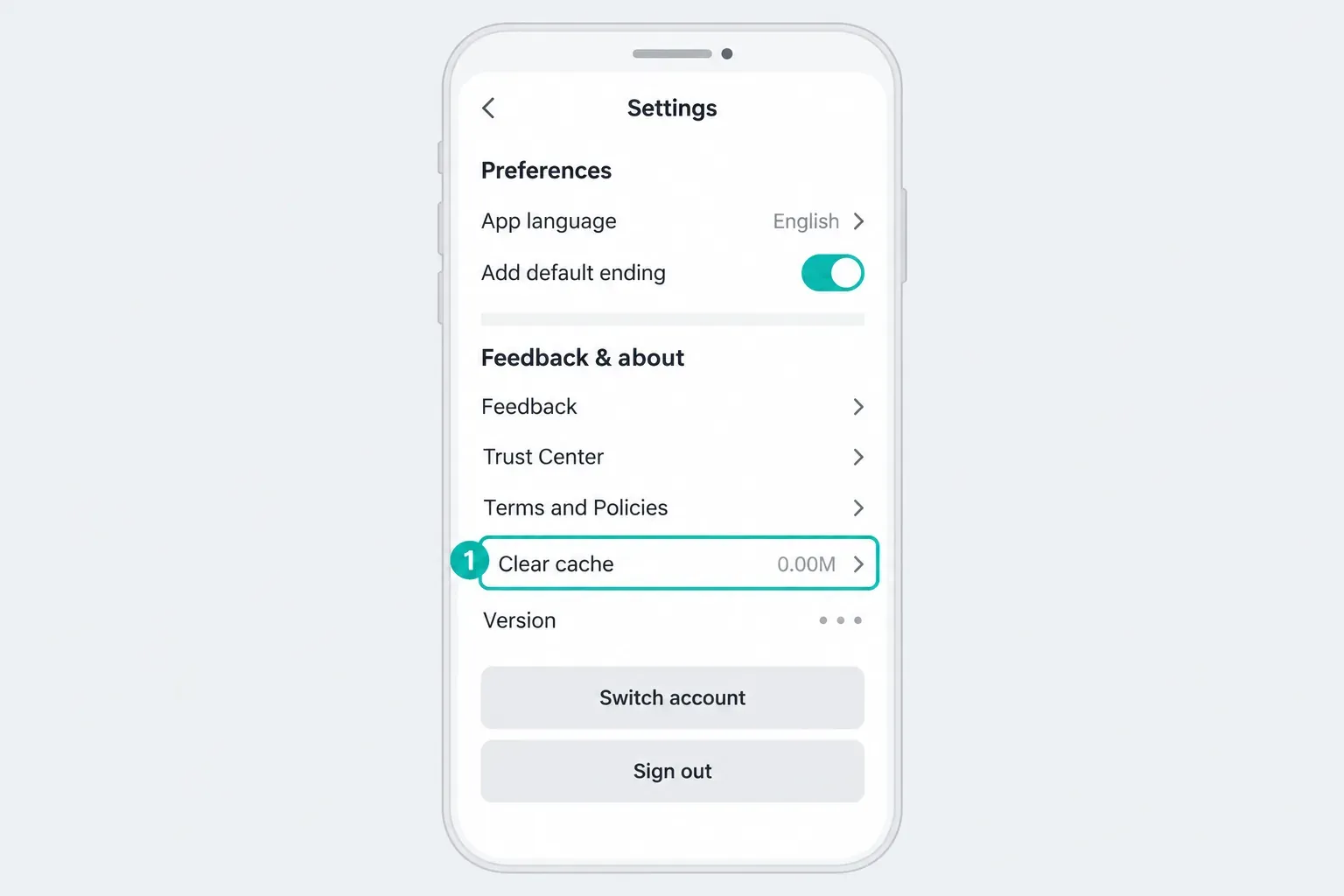
Clear cache, not project data. On Android, use CapCut's in-app cache control or Settings → Apps → CapCut → Storage → Clear cache where it's available; the exact storage submenu varies by phone. Google says Clear storage permanently deletes app data. On iOS, Offload App keeps documents and data, while Delete App removes the app and its related data. Neither one proves you have a usable project backup. Don't offload or delete the app as an early black-screen test. Verify a restorable project and media copy first.
Check the playhead. If it sits past the last visible clip, the preview can show the canvas background or another visible layer instead of your footage. Move it back inside the clip.
Expect proxy differences. CapCut says mobile previews use lower-resolution proxies, so image quality can differ from the export. Layout and timing should still match. If they don't, export a short test. A keyframe or timeline mistake may be the cause, but rendering glitches, template problems and cache errors produce the same symptom.
If the problem shows up only with high-resolution, high-frame-rate or effect-heavy footage, close background apps, make sure there's free storage and export a short lower-resolution test. A clean test points toward resource pressure, though it doesn't pin down one specific memory, storage or thermal cause.
If the phone is already hot, take it off the charger and let it cool before you try again. Google tells Pixel owners to unplug an overheating phone and stop using it until it cools. Apple documents charging that slows or stops, and frame rates that drop, once an iPhone passes its normal operating range. Charging a hot phone while it renders works against you.
If the Web Editor Preview Goes Black
CapCut recommends reproducing editor problems in the latest Chrome, Edge or Safari on macOS. Before you switch browsers, make sure the project has saved and the media uploads have finished. If you can't confirm that, keep the original tab open. A difference between browsers can come down to compatibility, extensions, settings or session state. It doesn't prove the project is damaged. CapCut's own pages aren't consistent about which browsers support every web feature, so a black preview in Firefox deserves a test before you draw conclusions.
Check the playhead and layer order first, without reloading. In a duplicate, hide a covering layer temporarily instead of permanently moving the video above titles you placed on purpose. Before you press Ctrl+R or Cmd+R, make sure the current edit is saved and any required uploads have finished. If you're not sure it saved, keep the original tab open and stop before you refresh, sign out or delete browser data. CapCut says a weak connection can leave streamed asset previews incomplete, so repeat the test on a stable connection before you treat the project as damaged.
CapCut calls web rendering cloud-assisted and a best-effort approximation, not pixel-perfect output. It warns that heavy filters, nested overlays and long text animations may render inconsistently in a browser. The browser editor troubleshooting covers what the web version does and doesn't handle.
If the Export Has Audio but No Picture
Audio over black confirms the audio stream survived. On its own it doesn't tell you whether the failure happened in the timeline, in source decoding, in video encoding or in playback. Work through those in order, in a duplicated project.
Isolate the material in a copy. Export short sections until you find the first range that fails. CapCut's current error-code page uses that same method for codes 4114 and 10004. For 10006 it tells you to relink media, and for 22113 to rebuild compound clips. Before you rebuild, keep the original project and write down the compound clip's timing, effects and component order. After rebuilding, compare those details in the duplicate, and don't remove the only editable copy. If there's no code, inspect the clip, transition, effect or compound clip around the first black frame.
Test the encoder. In a duplicated project, note the original Performance settings, then export the same short range with hardware encoding disabled. It may run slower if the build leans more on the CPU. If the picture comes back, the encoding path is worth a closer look, but that still doesn't prove the GPU itself is faulty. Restore the original setting before the next test.
If your export panel offers H.264/AVC in MP4, try the same short range with that option to compare playback compatibility. Keep the original export and check both files in two players. Even if the comparison works, it doesn't prove another codec is broken in general.
Check processed effects one at a time. If only clips using enhancement, background removal or another cloud/AI effect turn black, disable that effect on one duplicated test clip and export the same range. Don't delete internal CapCut files to force a rerender.
For one comparison, lower the resolution, frame rate or bitrate. CapCut's template-export guidance lists 2–3 GB free on the Desktop export drive as a troubleshooting minimum, and longer or higher-resolution projects can need more working space. Our full breakdown of CapCut export settings covers those choices. For renders that stall, see our fixes for a stuck CapCut export.
If Only the Start or End Is Black
For a dark tail, check the timeline before you touch performance settings.
CapCut says some template projects include a branded ending clip. Only delete it if you can see it on the timeline. The watermark guidance doesn't establish that every build adds one.
Check whether anything runs past your last video clip. Captions, text, stickers or overlays can keep going after the footage ends, and that stretch can show the canvas background or another visible layer. Zoom out until you see every track, then trim only the overhangs you didn't intend, in the duplicate. Keep credits, endcards and pauses you added on purpose. If deleting one element also changes linked items, undo it and check selection and linkage before you try again.
Look at the first frame and the joins between clips for gaps you didn't mean to leave. A gap shows the canvas or another visible track, so it isn't always black. Keep an opening pause if it's intentional, and close only gaps that should hold footage. Afterward, check the first and last frames of the short export.
Black bars down the sides or across the top are a different problem. Compare the original file with the timeline, because borders can be baked into the source, created by an effect or added by player framing. If the canvas and clip ratios differ, keep the delivery ratio you need and pick between fitting with borders or filling with a crop. Filling cuts off edge content. It won't recover missing picture.
If One Source File Is the Trigger
I'd start by playing the original clip in VLC and in a second, independent player. If it's black or corrupted in both, the file itself is the likely cause.
A filename extension doesn't tell you the encoding. MP4, MKV and MOV are containers; H.264/AVC, HEVC and AV1 are codecs that sit inside them. CapCut makes the same point on its own import troubleshooting page: a file labeled MP4 may not be in a format CapCut recognizes, and renaming the extension changes nothing.
The same page says supported formats vary by device, operating system and CapCut version. Check it against the version you're running instead of trusting a format list in someone's blog post.
Keep the original file. To convert locally, follow the HandBrake compatibility-test instructions and compare a converted copy in a separate test project before you replace anything. Pick a format CapCut lists for your platform, and don't upload private footage to an online converter without permission. If the copy works, the original file or its encoding becomes the lead suspect. That result doesn't pin down one codec defect, and conversion can change HDR, color and image quality.
If media was moved, renamed or deleted after import, the project's saved reference to it can break. CapCut may show a missing-media warning or a placeholder instead of black. Editing from an SD card, a USB drive or a synced cloud folder such as OneDrive or iCloud Drive can cause the same thing when the drive is disconnected or the cloud file is set to online-only. Reconnect the original drive or download an offline copy before you relink. Copy the originals to a stable local folder instead of moving them, then use the missing-media prompt to locate each matching file if your build exposes it. Check the filename, duration and preview before you accept a replacement, and look over timing and effects afterward. The transfer and relinking checks cover the wider project handoff.
If the exported file plays in VLC but not elsewhere, look at codec, HDR, color management or playback compatibility on the second device before you blame the export.
If It Broke After Moving a Project or Template
A project opened on another device may be missing media that the first device had.
If you transferred the project through Space, confirm the upload finished and sign in with the same original login method. Don't unlink or delete the working source project just to force a new transfer. CapCut warns that Google, email, TikTok and other methods can open different accounts even when the email looks the same. If clips are marked missing or unavailable, relink those files and export a short test.
Templates are their own case. CapCut says on its template preview page that a mobile-template project opened on Desktop may show one default frame, blank/grey placeholders or missing dynamic assets. It recommends filling and completing the template on mobile. Treat the claim that export stays unaffected as conditional: verify all media is linked and export a short test before you trust the full render.
CapCut Black Screen FAQ
Does a black screen mean I've lost my project?
A black preview alone does not establish that the project is lost. Confirm the timeline and original media still exist. If CapCut reports missing media, restore access to the matching originals and relink them in a duplicate. Do not overwrite or reset the only copy while diagnosing it.
Why does CapCut export black video with audio only?
Audio over black confirms the audio stream survived, but it doesn't identify whether the video failed in the timeline, source decoding, encoding or playback. Work in a duplicated project, disable or remove suspect clips, then export short sections until the problem material shows itself. CapCut's export error codes use the same section-by-section isolation method.
Why is only the start or end of my CapCut export black?
Inspect the timeline in a duplicate. Remove an unwanted ending only if it is present, and trim only unintended caption or overlay overhangs. Preserve deliberate credits and endcards. A gap can show the canvas background or another visible layer, not necessarily black.
Why is the CapCut preview black in Firefox but fine in Chrome?
CapCut recommends comparing the Web editor in current Chrome, Edge or Safari on macOS. Save the project and finish uploads before switching. A browser-only difference can involve compatibility, extensions, settings or session state; it does not prove project damage or a universal Firefox fault. If saving is uncertain, preserve the original tab.
Why did my CapCut project turn black after moving devices?
If you used Space, confirm the upload finished and use the same original login method. For any transfer route, confirm the second device can access the matching source media. Relink unavailable files in a duplicate where the app offers that control, then check a short export before touching the working original.
Should I reinstall CapCut?
Treat it as a last step. Verify a restorable editable project and its source media first. A local duplicate alone does not protect against uninstalling. Space is one option only when available and appropriate for the footage. If you cannot verify restoration, stop before reinstalling or clearing app data. CapCut warns that uninstalling can remove local drafts.
Does turning off hardware acceleration slow CapCut down?
It can. With hardware encoding disabled, a build may use more CPU work and export more slowly. Keep the controls separate: encoding primarily affects export, while decoding and interface rendering primarily affect preview. Record the original state, test the same short range, then restore it unless the change is clearly useful.
If the same controlled test still fails, send CapCut support the app version, operating system, GPU and driver version, source format, first black timestamp and any export error code. Include whether the short export works in a second player and whether one known-good control file works in a blank project. Read the version from About or settings if accessible; otherwise say it is unknown. Share a non-sensitive reproduction and redact account identifiers, client footage, file paths and unrelated notifications from screenshots. Do not send passwords or authentication codes.