


To use a CapCut beat-sync template, choose one that fits your media count, tap Use template, add the photos or clips it asks for and open Preview. Play it with sound and check the crops and cuts before you export. Start with the four template links below, or time the cuts yourself when a preset doesn't fit. If the edit needs more than beat timing, like a designed intro, lyric layout or recap structure, our guide to CapCut design tools maps those routes.
A beat-sync template works well when its rhythm fits both the song and the media you already have. It gets frustrating when it wants twenty-three strong shots and you have six, or when the fastest cut lands on the frame that matters least.
The quick version: the examples below take 3, 5, 10 or 23 inputs, but none has a preview longer than about 16.4 seconds, so more slots don't necessarily mean a longer video. Pick for the photos you have ready, then decide whether you want preset timing or control over each cut.
For more template styles and help saving links, use the main CapCut templates guide. Here, the choice is about fitting your photos and video clips to the music.
Choose the beat-sync route by how much control you need
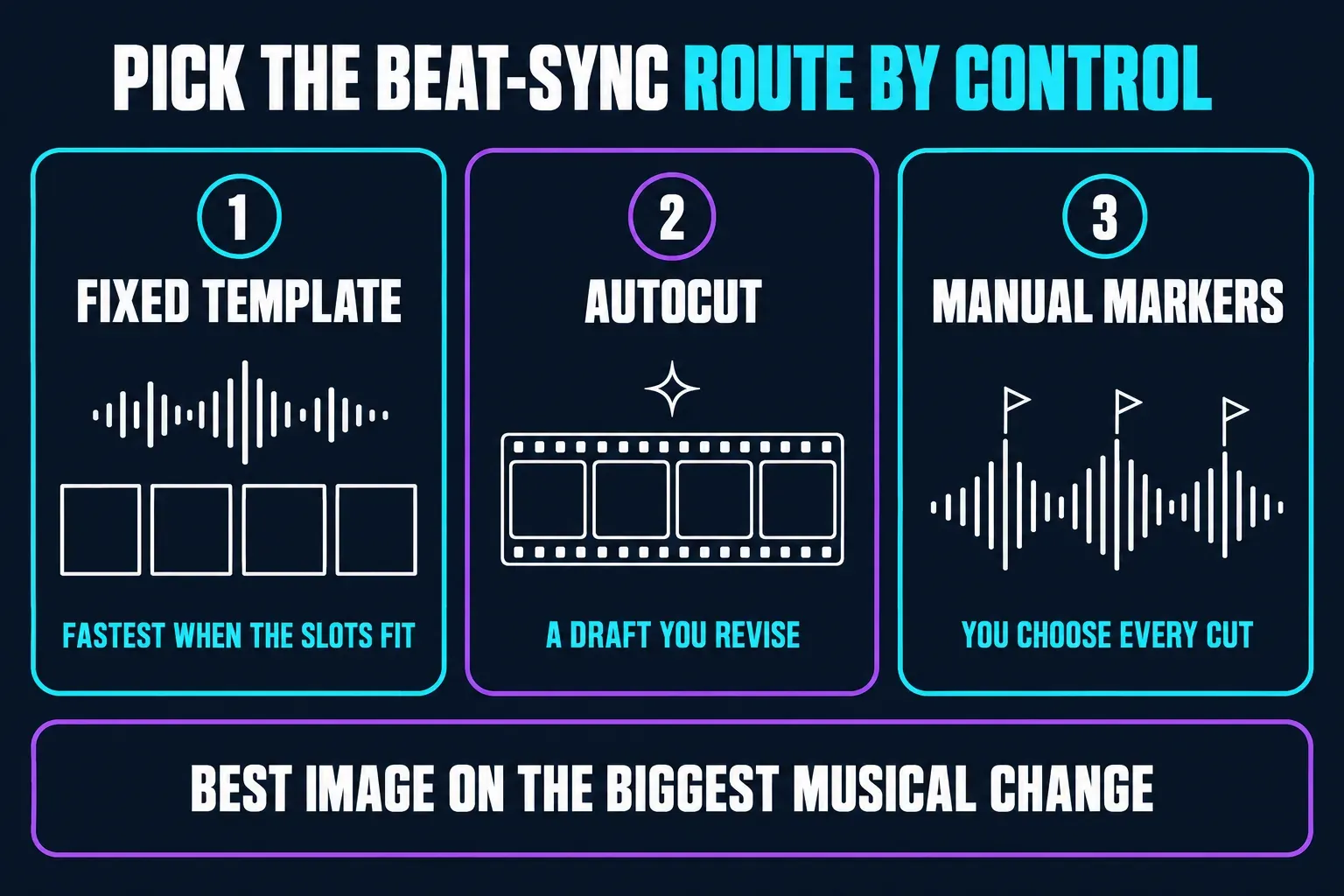
Fixed template
Choose this when the slot count, ratio and cut pattern already fit your photos or video clips.
AutoCut
Choose this when you have a folder of media and want CapCut to propose a rhythm-driven sequence you can revise.
Manual beat markers
Choose this when the story decides which beats deserve a cut and which moments need room to breathe.
Template plus cleanup
Use a template if its structure works. If an essential crop, order or music change is locked, rebuild that sequence in a normal project rather than expecting the template to unlock it.
Don't choose by speed alone. A rapid pattern can work for a sports burst and ruin a recap that needs time for people or places to register. The right route is the one that lets the most important image land on the most important musical change.
Four CapCut beat-sync templates: 3, 5, 10 and 23 clips
The cards below use an October 19, 2026 listing snapshot: input counts and ratios come from the linked detail pages, and approximate lengths come from their preview metadata. These creator templates are hosted by CapCut. Check the template in your app for access, sound and editable controls.
Beat sync photo
The CapCut listing for Beat sync photo template displayed three required clips and a vertical 9:16 frame when checked.
Choose it for: testing a vertical edit when you have three useful inputs. Watch the preview to see whether its holds suit your sequence.
Skip it if: you need to tell a longer sequence or preserve a wide group shot.
5 Photo Beat Sync
The CapCut listing for 5 Photo Beat Sync template displayed five required clips and a 3:4 frame.
Choose it for: testing five photos in a portrait frame. The input count does not tell you how many beats or visible cuts the design uses.
Skip it if: the destination is full-screen 9:16 and the border or crop feels accidental.
10 Photo Beat Sync
The CapCut listing for 10 Photo Beat Sync template displayed ten required clips in 9:16.
Choose it for: a vertical photo run with enough visual variety to support repeated cuts.
Skip it if: filling ten slots forces you to use near-duplicates or weak filler.
23-clip Beat sync
The CapCut listing for 23-clip Beat sync template displayed twenty-three required clips and a 3:4 frame.
Choose it for: testing a dense event or travel montage. Its 23 inputs fit a preview of about 16.4 seconds, so do not mistake it for a long video.
Skip it if: the media budget looks impressive only because the same shot is repeated.
For more options, browse CapCut's multi-photo beat-sync collection. When you want a particular edit, search by song name, style or number of photos. A search for "aesthetic" or a Hindi song title is more useful than typing "new trend" over and over. Read the input requirements on the page you picked before you select your photos.
Check the template before fine-tuning every photo or clip
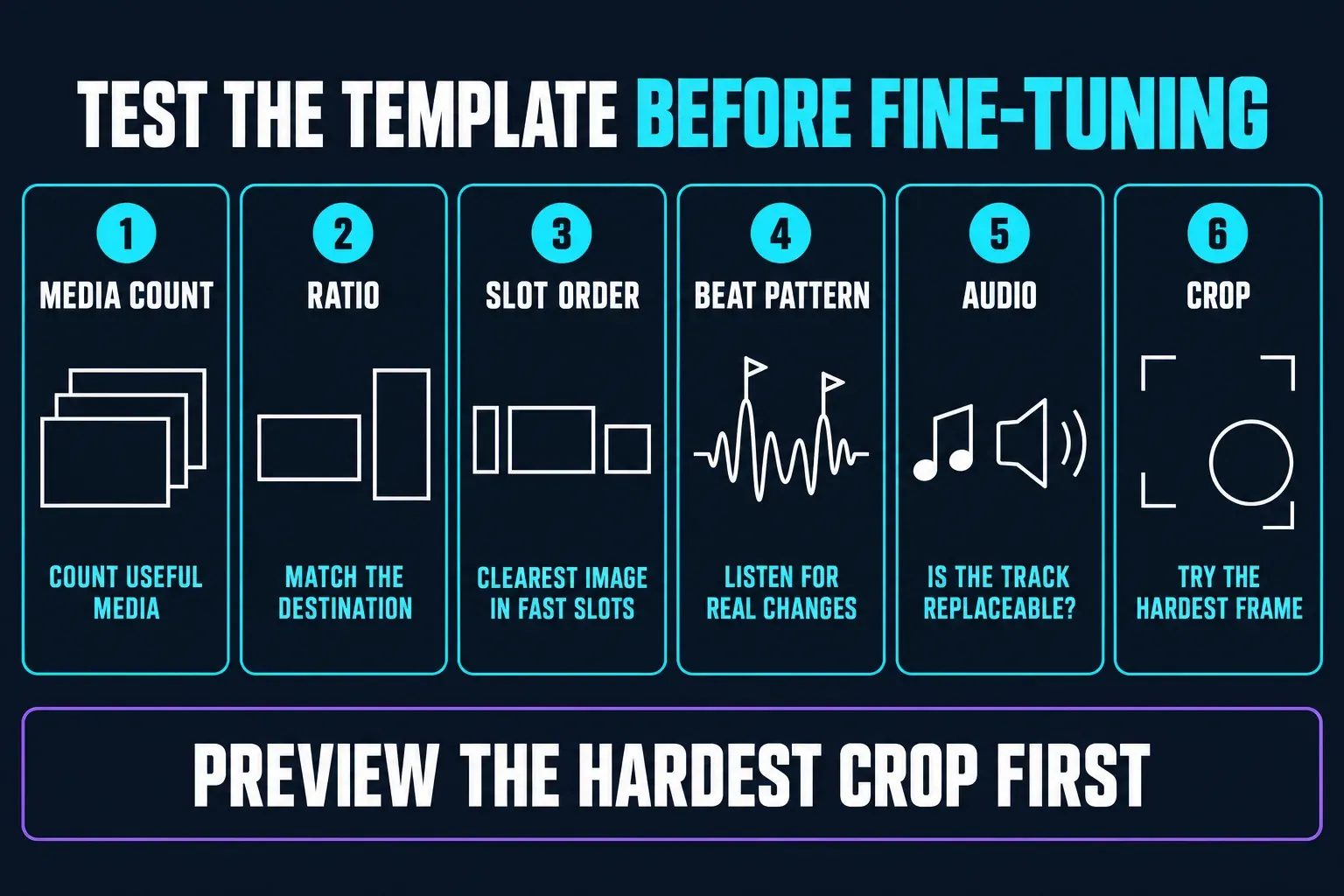
- Media count: count useful photos and clips before opening the replacement picker. Don't fill a long template with weak duplicates simply to satisfy it.
- Aspect ratio: match the frame to the destination. A 3:4 design is not the same shape as a full-screen 9:16 video. If that template cannot change shape, choose another one or use a normal project with an intentional background or crop.
- Slot order: note which positions hold longer and which flash quickly. Put the clearest image in the shortest slot and reserve detail-heavy frames for a longer hold.
- Beat pattern: listen for the actual musical changes. A template can use off-beats, fills or a rising sequence rather than cutting on every obvious kick.
- Editable audio: check whether the included track is present and replaceable. If you change it, the existing cut pattern may no longer make sense.
- Crop: test the widest group shot, closest face or subject near an edge. Replace the template when the essential part can't survive the slot.
Fill the required slots before expecting a preview. If Preview is unavailable while slots are empty, add the missing inputs and don't assume one test photo will do. Once the preview opens, I'd look at the hardest crop first, before you polish the other slots. If that frame can't work, pick a different template.
A collection called "free" isn't a promise about every item in it. CapCut documents paid template labels and purchase prompts, so check the item you picked and its export screen before you pay or build a batch of edits. Then open the saved file and look for an unexpected ending or watermark.
Use a CapCut beat-sync template
Open a community template link on Mobile first. CapCut's docs have you select media before Preview. Labels can move between releases, so go by the controls your app shows you.
- Watch the whole template preview with sound. Notice the first cut, the strongest musical change and the ending.
- Confirm the input count, ratio and any paid label. Choose photos or clips that fit those requirements.
- Tap Use template and supply the required media. Fill the slots in the order you want the story to play, then open Preview.
- Inspect the most difficult slot first. Select that segment and use Edit if available to crop or replace it. If the essential control is locked, switch templates or rebuild in a normal project.
- Preview from the beginning at normal speed. Scrubbing past the cuts hides timing problems.
- Export one complete version before repeating the workflow. Watch the file on the destination screen and check the first cut, audio and final frame.
CapCut’s older use-and-export walkthrough and template guide describe different limits outside Mobile. Its later Web template walkthrough explicitly shows browser search, media replacement and download, while warning that the Web catalogue and AI-motion behavior differ from Mobile. Use the controls and library your account actually provides. If an exact link or button is missing, follow the template troubleshooting steps or try Mobile; changing devices does not guarantee access.
Use AutoCut when you want CapCut to propose the first edit
A beat-sync template starts from a preset structure that you fill with your own media. CapCut’s AutoCut help, dated February 3, 2026, describes generating an editable sequence from footage using music, speech or a prompt. That early-2026 documentation lists Mobile and Desktop but not Web, and it doesn't prove every account has all those options today. If the control shows up in your editor, use AutoCut.
Choose AutoCut when your media doesn't fit one preset slot map, then treat its result as a draft. Remove repeated angles, restore any setup the automatic cut removed and shorten sections that miss the musical change. The CapCut AutoCut guide covers finding the tool, reviewing its first cut and recovering a failed attempt.
Pick one starting method. If you already like the template's timing, fix only the spots that need it. For a new sequence built from your own footage, try AutoCut or cut it by hand. There's no need to push an otherwise finished template through another automatic edit.
Build a manual beat map when the story matters more than the preset
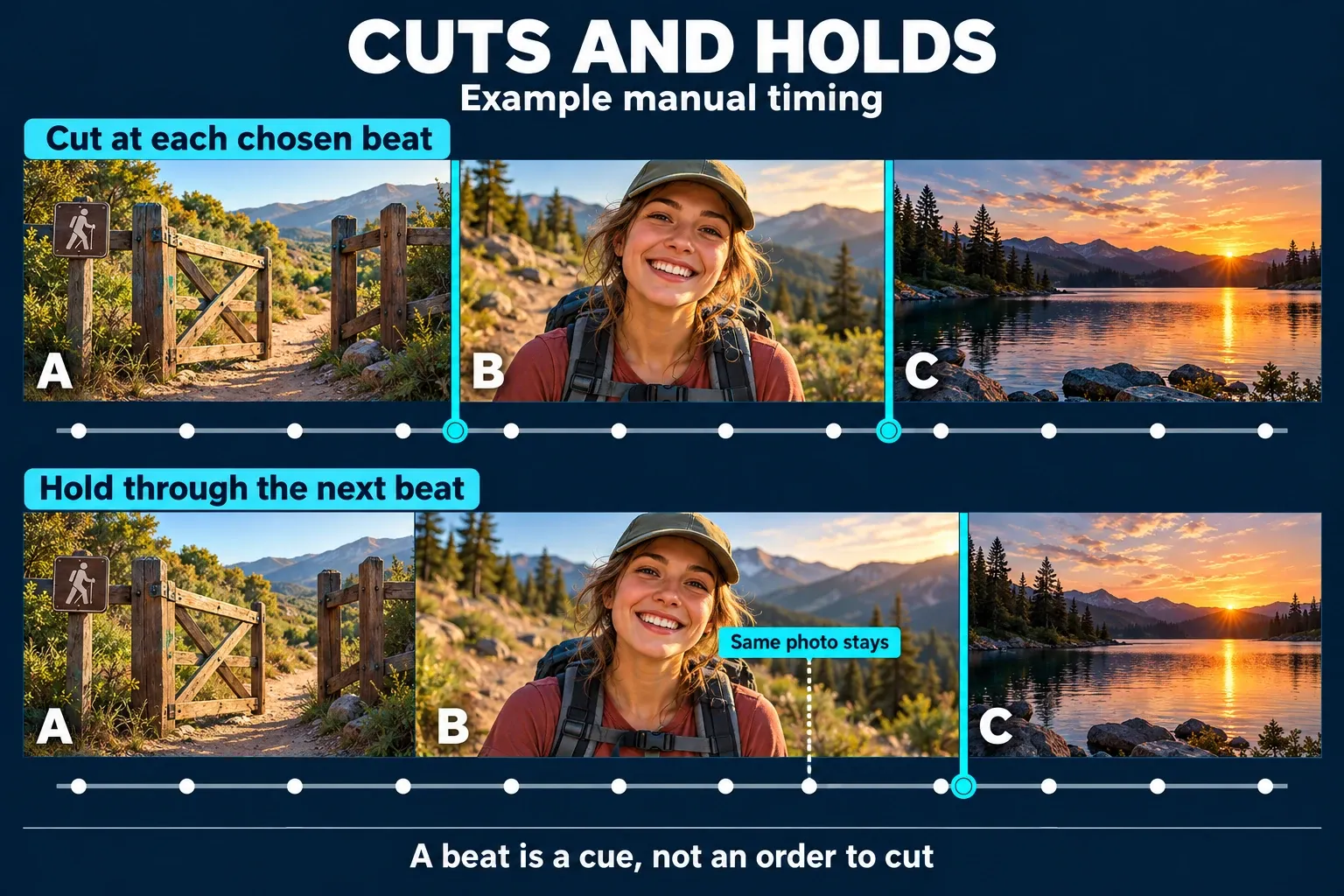
- Choose the song and the exact excerpt first. Set its starting point before timing the pictures. A different version, tempo or starting offset can move the musical changes.
- Listen once, then mark the changes you want to use. Select the audio track and place markers at the playhead if your editor offers that control. Mark a drop, fill or pause that should change the picture, not every peak you can see.
- Place the media in story order. A strong beat can't rescue the wrong sequence.
- Move each cut to the selected marker or visible action. When a jump, turn or camera movement occurs near the beat, prioritize the frame where the action reads cleanly.
- Preview from several beats before the cut. A cut can look aligned when scrubbed frame by frame and feel late in normal playback.
- Delete unnecessary markers. Repetition becomes tiring when every beat is treated as equally important.
Markers do not cut the video for you. CapCut's June 2025 Web music tutorial has you select the audio, place the playhead and use Add beat (a flag icon). It also covers Beats detection (a flag with an A), which adds markers automatically. Those are Web labels from that tutorial, not a promise about every current Mobile or Desktop build. If your editor has them, treat the markers as guides and split or trim the video yourself.
The CapCut music guide shows how to import your track, and the cut, trim and split tutorial walks through moving clip boundaries. Matching picture changes to music is a different job from syncing a separate voice recording to someone's lips.
Choose media that can survive fast cuts
- Lead with a readable frame: the first image must establish the person, place or subject before the rhythm accelerates.
- Alternate scale or angle: use wide, medium and detail views so adjacent cuts change something the viewer can perceive.
- Protect faces and text: avoid rapid slots for captions, screenshots or crowded group photos that need reading time.
- Use motion direction deliberately: two clips moving in opposite directions can feel like a collision unless the beat is meant to emphasize it.
- Reserve the strongest image: place it on the musical drop, pause or ending that carries the most weight.
- Repeat only with purpose: a deliberate return can create a refrain; filler repetition exposes that the template expects more media than you have.
If you want a slower photo story paced by time instead of the music, the slideshow templates guide is the better route. For a month, year or event arc, the recap templates guide puts narrative coverage ahead of beat density.
What changes on Mobile, Web and Desktop
- Mobile: is a practical first place to try a shared community link, because both template Help pages above document that route. It still depends on the template and access available to your account.
- Web: use the catalog and editing controls visible in your account. A Mobile template link may not offer the same workflow, and the early-2026 AutoCut documentation does not establish a Web AutoCut route.
- Desktop: use a normal timeline when you need precise clip timing. Check for templates in your build, but do not assume that a community link available on your phone is also usable there.
If a template doesn't open in your editor, keep your original media and start a normal project. You can still arrange the cuts around the song without that particular template.
Fix missing templates, weak crops and cuts that feel late
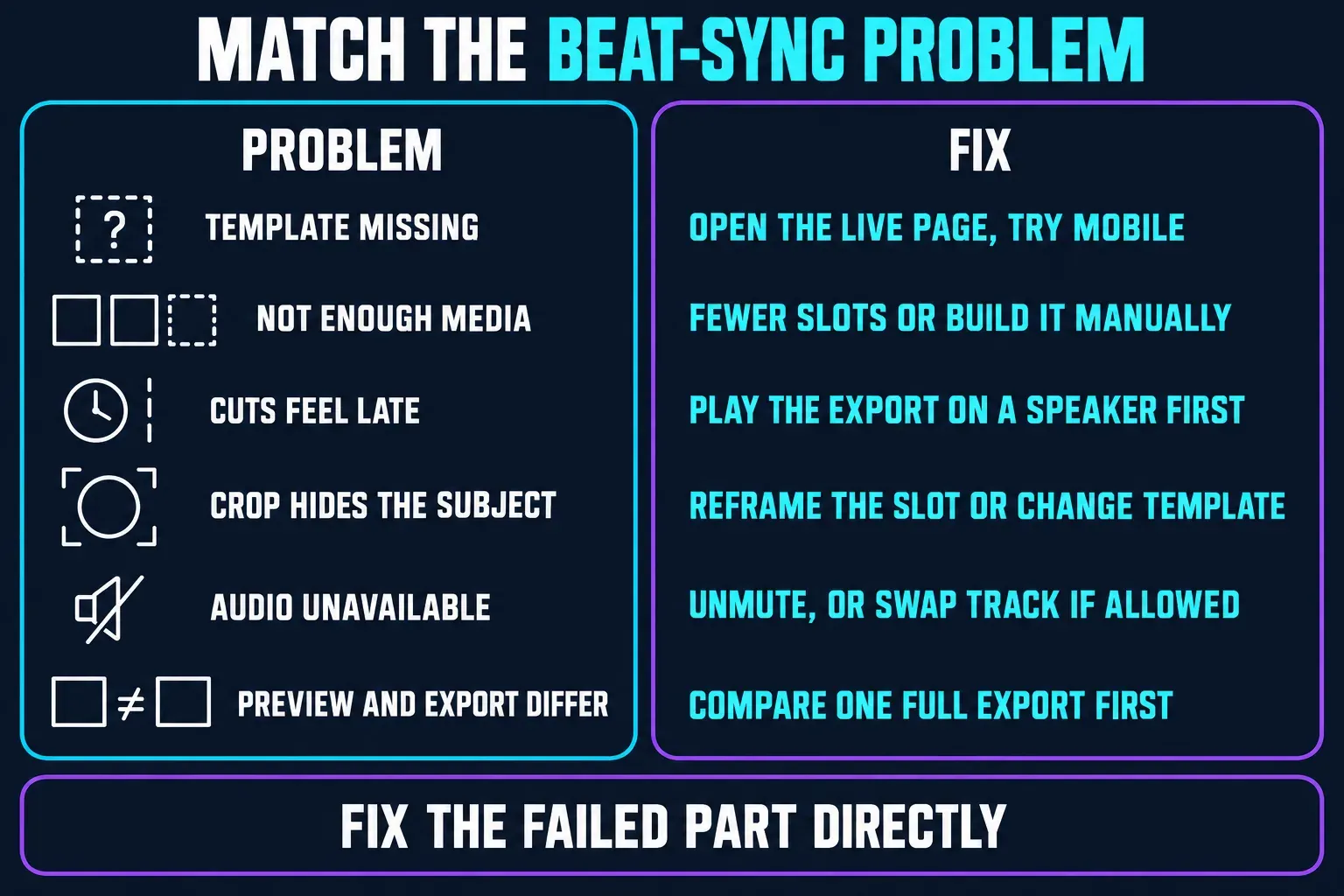
- Template missing: check the live detail page and try Mobile. CapCut’s missing-template guidance lists region, version, account and connection as possible factors, not a guarantee that one quick fix restores every design.
- Not enough media: choose a template with fewer slots or rebuild the strongest section manually. Repeat a shot only when the return has meaning.
- Cuts feel late: first play the same exported file outside CapCut, using the device speaker or wired audio as a comparison. If the timing still feels wrong, inspect the chosen beat and the frame where the action becomes clear before moving the cut.
- Crop hides the subject: reframe the slot if allowed; otherwise change the template or destination ratio.
- Audio unavailable: check volume and mute settings, then any message about the track. CapCut documents music-rights restrictions as a cause of muted templates. Replace the song only if an audio control is exposed; otherwise choose another template or use a normal project. Recheck the cuts against the new track.
- Preview and export disagree: compare one complete export with playback in the editor before revising the whole sequence. If only the preview stutters, reduce other heavy work and test again; changing every cut is not the first remedy.
If Preview is unavailable, fill any required inputs first. When an edit sounds late, rule out your listening setup too. Sony's headphone support guidance notes that Bluetooth playback can introduce audio delay, which makes a speaker or wired comparison worth doing, though the note doesn't prove your export has a Bluetooth-related fault.
Export the rhythm, then check the track and destination
Export one representative version in the real destination shape, at a frame rate that matches the main project. Then watch it on another device: the opening, the first fast sequence, the strongest musical change and the ending. For resolution, frame rate and codec choices, see our CapCut export settings breakdown.
Check permissions for the music as well as the pictures. CapCut's Materials License Agreement treats US and non-US users differently. Its non-US Commercial Sounds terms name CapCut, TikTok and TikTok for Business, and publishing those tracks anywhere else requires separate rights. US users need the separate terms that apply to them. An included song or a paid subscription isn't blanket clearance for a client video on every platform.
Transitions are there to support the rhythm. They shouldn't hide the media. When a specific shot-to-shot move needs work, use the CapCut transitions guide. If the cut already feels right, an extra effect may add nothing.
FAQs about CapCut beat-sync templates
Where can I find beat-sync templates in CapCut?
Use one of the linked template pages or search the Templates area for beat sync plus the song, style or photo count you need. Try Mobile for a community link, but check access in your account; a public preview does not guarantee that the template opens in your app.
How many photos do I need for a CapCut beat-sync template?
There's no single number. The live examples checked for this guide required three, five, ten and twenty-three media clips. Choose by the useful media you have, not the largest slot count.
Is AutoCut the same as a beat-sync template?
No. A template uses a fixed replacement structure. AutoCut analyzes your footage and a trigger such as music or speech to generate an editable first pass. Manual markers give you the most timing control.
Why is a CapCut beat-sync template missing on Desktop?
Mobile, Web and Desktop do not guarantee identical catalogues. CapCut documents Web template search and replacement, but that does not establish that a particular Mobile template is available in your Desktop build or account. Try its official link on Mobile, or build a normal timeline around the song.
Why do my cuts feel slightly late even when they touch the markers?
Compare the exported file outside the editor and try the device speaker or wired audio first. If the timing is still wrong, listen for the beat you intended and check the visible action. A marker or waveform peak is only a reference, not proof that the cut belongs on that exact frame.
Can I change the song in a beat-sync template?
Only if that template exposes the audio control. A different song, excerpt or starting point may change where the beats fall. Recheck the important cuts and retime them as needed; if the control is locked, choose another template or use a normal project.
What should I do if I don't have enough clips for the template?
Use a smaller template, shorten the sequence or build the best section manually. Repeating the same media can work as a deliberate refrain, but filler repetition usually weakens the edit.
Are CapCut beat-sync templates free?
Some are offered free and others require payment. Check the specific template’s label and any export prompt in your account. A free collection title does not guarantee the cost, watermark behavior or music rights for every item.
Why does Auto Beats add markers without cutting my clips?
Beat detection identifies timing points in the audio; it does not mean the video clips will be split automatically. Use the markers to place your own cuts, or try an available AutoCut workflow if you want CapCut to propose an edit.