


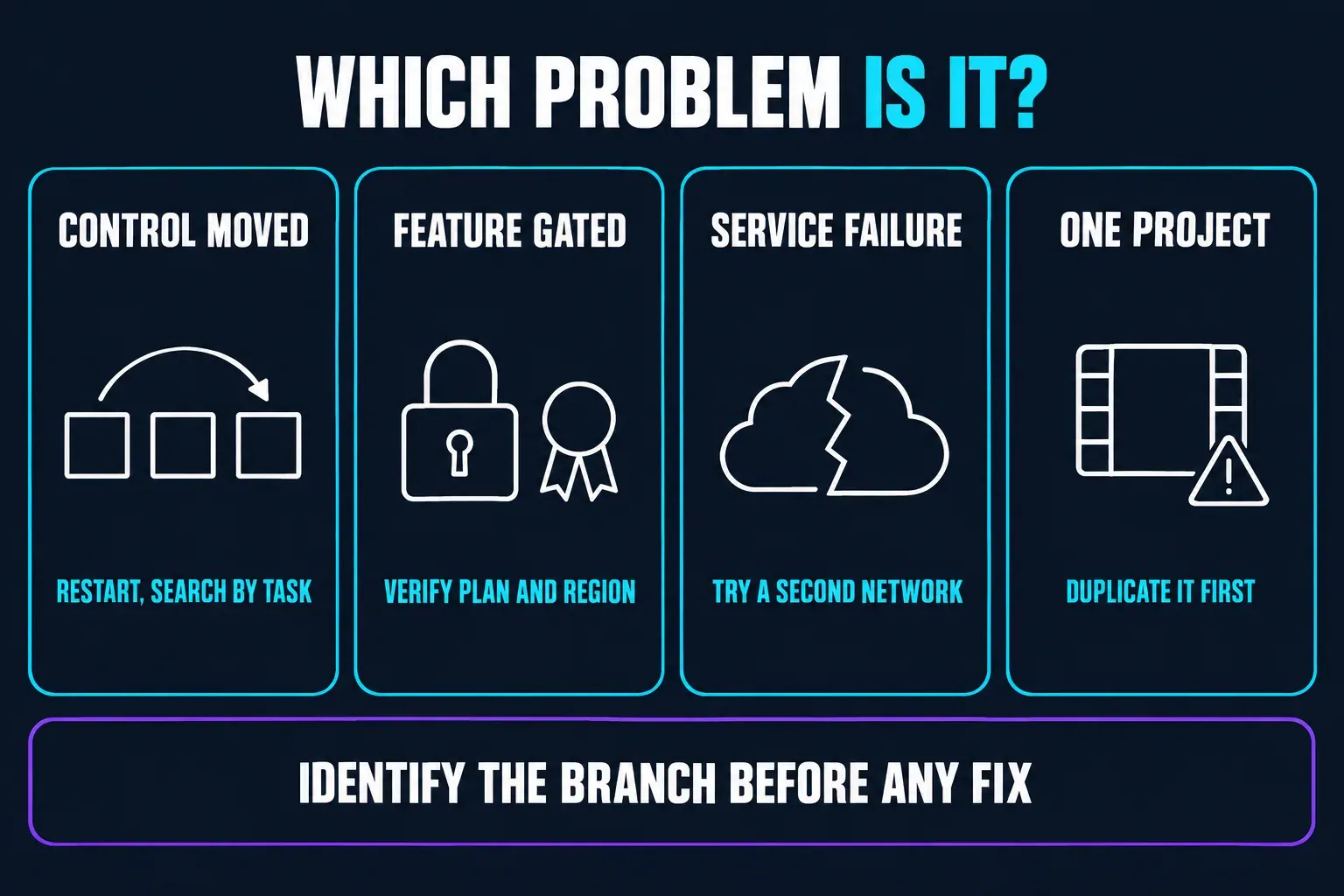
If CapCut looks broken after an update, do not uninstall it, clear app data or replace project folders first. Record the version and account, confirm whether other drafts still open, and protect the editable project and source media. Then decide which problem you are facing: a moved control, a missing or gated feature, an account or service failure, or damage limited to one project.
That distinction matters. Reinstalling cannot restore a button that merely moved, buying Pro again cannot fix the wrong account, and an older build may not understand a project saved by a newer one.
Fast diagnosis: what changed after the update?
| What you see | Branch to check | First safe check |
|---|---|---|
| The editor opens and the tool is gone from its old position | Control moved or UI reorganized | Look in the main toolbar, menus, inspector and settings; restart once |
| A tool has a Pro badge, credit prompt or unavailable message | Feature missing or gated | Check the exact CapCut account, plan, platform, region and feature requirement |
| Templates, cloud, login or AI tools fail across projects | Service, account or connection problem | Test another network or device without signing out of the last working session |
| One draft crashes, opens blank or loses media while others work | Project-specific problem | Duplicate and preserve the draft and source files before changing anything |
| The entire app crashes or will not open | App or system problem | Use the CapCut crash guide after preserving local work |
CapCut itself confirms that updates can move, redesign or reorganize tools, buttons and menus. So before you assume a feature was removed, follow its UI update guidance: restart the app, then check the main menu, toolbar and settings.
Before any fix: preserve the project
An update problem is inconvenient. Losing the only editable copy is worse. Use this order while CapCut still opens:
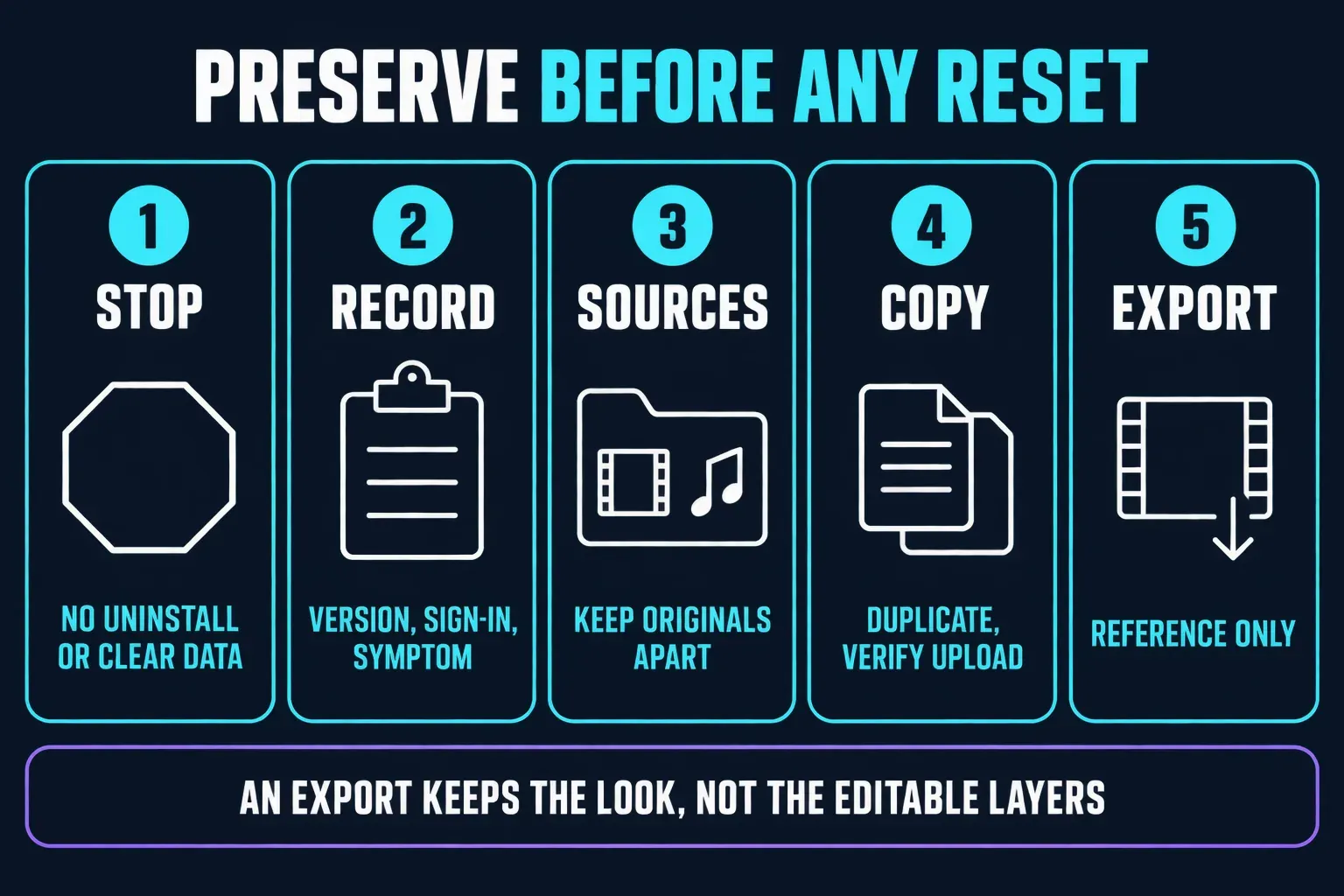
- Stop destructive troubleshooting. Do not uninstall, clear storage, delete cache folders you cannot identify, sign out everywhere or overwrite project directories.
- Record the environment. Note the device, operating system, CapCut platform, current version, CapCut account ID or sign-in method, project name and the exact action that fails.
- Check the scope. Open the project list. Determine whether all drafts are affected or only one. If another small project opens, record that result without treating it as proof of the cause.
- Protect the source media. Keep the original video, audio, images, fonts and graphics in separate storage. Do not move or rename the only copies while diagnosing offline media.
- Create a recoverable project copy where your platform supports it. A same-device duplicate is useful for experiments, but it does not survive every uninstall or storage failure. Follow the CapCut project backup and transfer guide for the difference between a duplicate, a cloud copy and an independent backup.
- Let any cloud upload finish and verify it. CapCut says upload time depends on project size, complexity, device performance, free storage, network and app version; its draft upload guidance gives no guaranteed completion time.
- Keep a reference export if possible. It can preserve timing and appearance for recovery, but it is not an editable project. CapCut's project import guidance explains that an exported video reimported into a project no longer has separate editable tracks and layers.
If a project has already disappeared, stop creating new files on the affected storage and go to the missing CapCut project recovery guide. To find desktop data, use the CapCut save-location guide and don't copy a path from another computer.
1. The control moved after the CapCut update
Treat this as a navigation problem when the editor works, the project opens and only the old button position changed.
Restart once, then search by function
Close CapCut normally, reopen it and go back to the same project. Look for the task itself, not the spot where the button used to be. Depending on the platform and what you've selected, the control may now be in:
- the main media, audio, text, stickers, effects, transitions, filters or adjustment area;
- the right-side inspector on Desktop;
- the bottom tool strip on Mobile after selecting a clip, text layer or audio track;
- a context menu that appears only when the correct timeline item is selected;
- account, export or general settings;
- a search or help field where that build provides one.
Selection is part of the interface. A text-format panel won't show up while the video clip is selected, and an effect inspector may disappear when nothing on the timeline is active. Before you decide a panel is gone, select the relevant layer and look at the workspace again.
Confirm the installed version
CapCut's current-version instructions put the version under Settings → Version on Desktop and under Me → Settings → Version on Mobile. Write down the full version number instead of “latest.” A staged release can make two devices look different even when both app stores say they're current.
When a tutorial shows a different layout, check its date, platform and version. Mobile, Desktop and Web don't have identical controls, so a guide written for an older mobile build doesn't prove the same button exists on current Desktop.
2. A feature is missing, locked or different
A feature can show up in one account and be missing from another even when nothing is wrong with the installation. Check these conditions before you reinstall:
Account and sign-in method
Compare the CapCut account on the device that works and the one that doesn't. Signing in with Google, TikTok, Apple, Facebook or email/password can land you in different CapCut accounts, even when the email on screen looks familiar. Stay signed in on the working device until you know the affected drafts and purchases can be recovered.
For a paid feature, open the subscription record and confirm the exact plan, status and access end date. Don't buy it again just to test. The CapCut Pro access checklist helps you tell apart an active purchase, the wrong account, plan scope and a single locked asset.
Platform, region and rollout
Some features roll out gradually or stay limited by platform, device capability, region, account eligibility or server-side rollout. CapCut's mobile update instructions note that an update may reach different regions and devices at different times. So matching version numbers don't prove that every account gets the same server-delivered features.
Change one variable at a time. If you switch account, network, region, app build and device together, even a successful retry won't show which condition mattered.
Asset or tool requirement
Read the label on the missing item. A Pro badge, credit amount, download icon, network warning or unsupported-device message sends you down a different path. Templates and effects can also be removed or replaced on their own, regardless of the app version. If only templates fail, use our CapCut template troubleshooting steps instead of resetting the whole editor.
3. The update coincided with a service, account or connection failure
The timing can fool you. An update may finish right before a login outage, a blocked network request or an incomplete account refresh.
Use a scope test that does not endanger the project:
- Keep the last working CapCut session signed in.
- Check whether local editing still works while cloud, templates or AI tools fail.
- Try a trusted second network if available.
- Check the same account on another supported device or Web without deleting the original app.
- Record the exact error, time and failing feature.
When websites load fine but CapCut reports no connection, the failure may involve authentication, cloud, templates, media delivery or AI endpoints instead of your whole internet connection. The CapCut connection guide walks through each of these and doesn't treat a same-device duplicate as a backup.
Older builds can also lose access to online components. In its explanation of forced desktop updates, CapCut says unsupported versions may stop working with cloud services, account login, newer operating systems and updated components. That's one reason an old build can look stable for local editing and still fail the moment it contacts current services.
4. Only one project broke after the update
If your other drafts still open, leave the global installation alone and focus on the affected project. Preserve it before each experiment.
Identify the failure boundary
Record whether the project fails at:
- opening the timeline;
- loading a specific clip or effect;
- playback at the same timestamp;
- relinking source media;
- generating captions or another online feature;
- export at a repeatable percentage.
A repeatable timestamp often gives support more useful information than “the update broke my project.” Note the asset or layer near that point, but do not delete it from the only copy.
Work from a duplicate
Make a duplicate with a different name if CapCut still lets you. Work on the duplicate and disable or replace one suspected element at a time, leaving the original untouched. If source clips show as offline, check the original file paths and storage before you relink.
A project saved by a newer build may contain data or features an older build doesn't understand. Open it in an older version and you can get missing effects, changed text, unavailable AI results or a project that won't open at all. Don't assume backward compatibility covers every element of the project.
Prepare a support packet
Keep a note of the project name, platform, CapCut version, operating-system version, account ID, error message and failure timestamp, plus a screen recording that leaves out personal information. Say whether other projects open and whether the failure repeats on a duplicate. That helps support tell corrupted project data apart from a general app problem.
Update CapCut through the official route
With the project protected, install updates only from your platform's official source.
Desktop
CapCut documents two desktop paths: Settings → Version → Check for updates and the update control in the top-right corner. Its desktop update instructions warn you not to uninstall CapCut during the update, since locally saved projects may be lost. Keep the app open and the connection stable until it finishes.
CapCut also lists installing the current official package over your existing desktop installation as a way to update. Treat that as a vendor-supported update method, not a guarantee that every damaged local project will survive. Save recoverable copies first.
iPhone and iPad
Update from CapCut's App Store page. Check the Apple ID and free storage, then let the update finish. Don't delete the app to force a fresh install while your local drafts are still unverified.
Android
Update the installed CapCut app through Google Play. Check that you're on the right Play account and have free storage. Stay away from random APK sites. An unofficial package can bring security, signing and compatibility problems, and it won't bring back a removed feature.
Web
The Web editor doesn't follow the same local app-update flow. Save your work before you refresh. If only Web fails, check the browser session, network and account before you touch the Desktop or Mobile installation.
Is it safe to roll back CapCut?
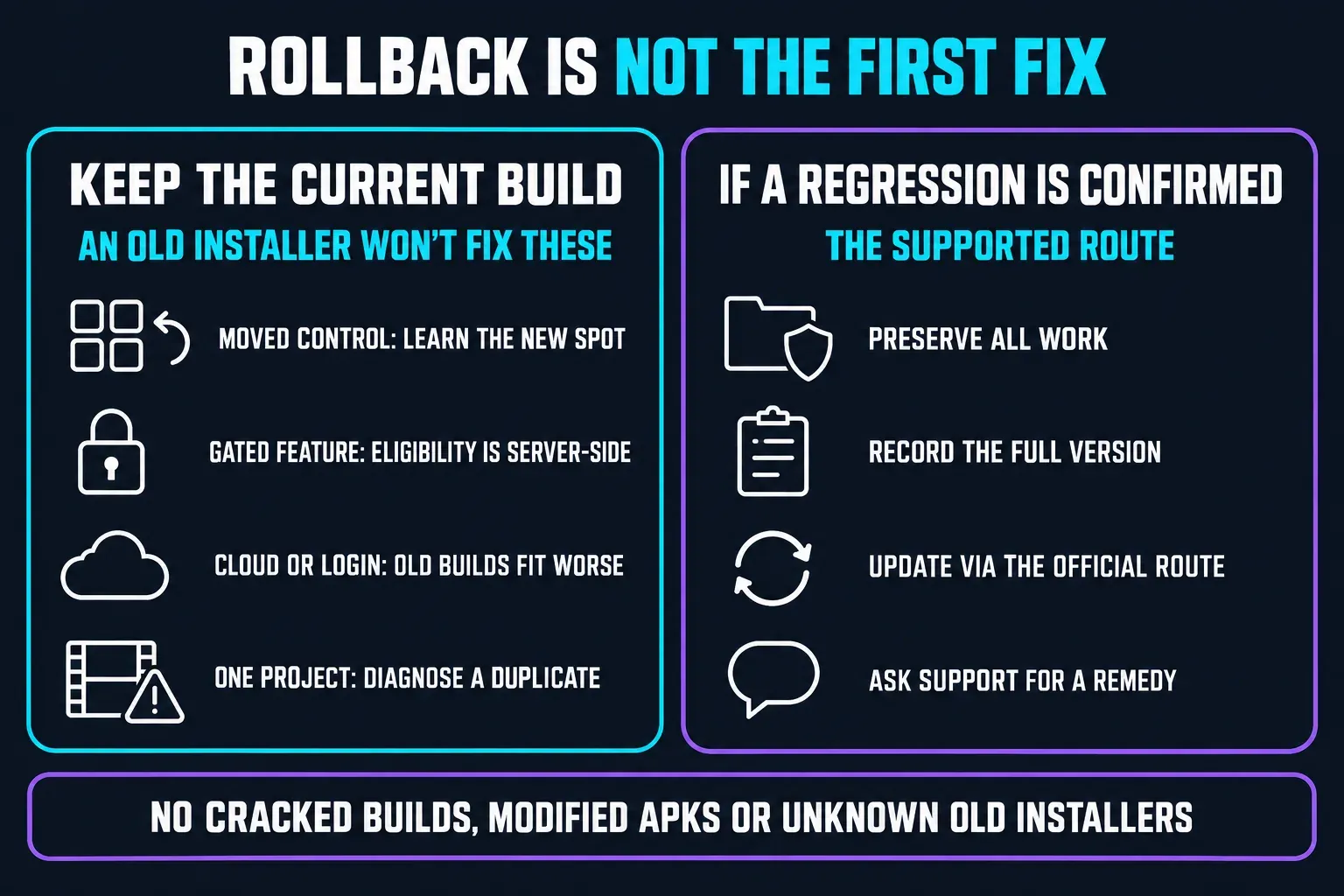
Rollback isn't the first fix. CapCut's official answer says it does not provide installation packages for older PC versions, and it warns that old versions may carry known defects, security vulnerabilities and incompatibilities with newer features.
Use this decision gate:
- The control moved: learn the new location. Rollback adds risk without restoring a supported workflow.
- The feature is gated by account, plan, platform, region or rollout: an old installer may not change server-side eligibility.
- Cloud, login or templates fail: an older build may be less compatible with current services.
- One project is damaged: protect and diagnose the project. Opening it in an older build may add another compatibility variable.
- The current build has a confirmed blocking regression: preserve all work, document the version and contact CapCut support. Ask for a supported remedy rather than downloading an unknown package.
Don't use cracked builds, modified APKs or anonymous “old version” installers. They can carry altered code, invalid signatures or bundled software, and having them on the device makes both security and support diagnosis harder.
If your organization keeps a managed software archive, bring in IT before you use it. They'll need to verify the package source, signature, operating-system compatibility, account requirements and a recovery plan. Test with a copy of non-sensitive media and never with your only production project.
When reinstalling is reasonable
Reinstall only after these conditions are true:
- the problem affects the application rather than one moved control or one project;
- the exact account and sign-in method are recorded;
- local drafts and source files have recoverable copies;
- cloud uploads have completed and been verified where used;
- the official installer or app-store listing is available;
- you understand which local settings, downloads and caches may be reset.
If those conditions aren't met, go to the CapCut fixes hub and pick the symptom you can see. Resetting the whole app is a poor substitute for figuring out whether you're dealing with a crash, a connection issue, a missing purchase, a template problem or a damaged project.
What to send CapCut support
Use a short, specific report:
After updating CapCut on [platform] from version [old version if known] to [current version], [exact control, feature or project] changed. The current CapCut account ID or sign-in method is [ID/method]. Other projects [do/do not] open. The issue repeats when I [exact action]. I preserved the original project and source media and have not cleared app data. The error appeared at [time or project timestamp].
Attach only what support needs to see the problem. Crop out email addresses, payment details, private filenames, client media and unrelated notifications. For a missing paid feature, send the subscription status and transaction identifier through the official support channel, but never expose a full card number.
CapCut after-update FAQ
Why did CapCut move buttons after an update?
CapCut says tools, buttons and menus can be moved, redesigned or reorganized in updates. Restart once, select the correct timeline object and check the main toolbar, inspector, context menus and settings before treating the feature as removed.
Why does another device have a feature I do not see?
Compare the platform, full version, CapCut account, plan, region, device capability and rollout state. The same visible version number does not prove identical server-side feature access.
Will uninstalling CapCut delete my projects?
It can put locally stored work at risk. CapCut explicitly warns that uninstalling during a desktop update may cause loss of local projects. Treat uninstalling or clearing app storage as destructive until editable projects and source media have recoverable copies.
Can I download an old CapCut installer from CapCut?
CapCut's help center says it does not provide older PC installation packages. Avoid unofficial old-version sites, cracked builds and modified APKs.
Can an old CapCut version open a project saved by a new version?
Do not assume it can. Newer projects may reference data, effects or features an older build does not support. Preserve the original and test only a duplicate under a verified, supported recovery plan.
What if the update made one project crash?
Keep the original unchanged, duplicate it if possible and record where the crash repeats. Preserve source media and version details, then isolate one suspected asset or layer at a time on the duplicate.
Safe order of operations
- Stop uninstall, clear-data and rollback attempts.
- Record the platform, version, account and exact symptom.
- Check whether the problem affects the interface, one feature, online services or one project.
- Protect the editable draft and source media.
- Restart once and look for moved controls.
- Verify account, plan, platform, region, rollout and network conditions.
- Update through CapCut, App Store or Google Play.
- Diagnose one affected project from a duplicate.
- Reinstall only after backups and sign-in access are verified.
- Avoid unofficial old-version packages and send CapCut a precise support record if the regression remains.
That order keeps the project safe and rules out the most common false diagnoses. If the current build does have a real regression, it also leaves support with a usable record.